Tag: automation

  • Migration as a catalyst for test architecture redesign

    When our team decided to move our Playwright tests from C# to TypeScript, I thought the job was clear. We would rewrite the tests in a new language, check that they still pass, and move on.

    It didn’t work out that way. Almost every test I opened had something behind it that didn’t survive the move: data that only existed on one environment, a login at the start of every test, a setup step somebody used to do by hand before a run. If we had translated those tests line by line, we would have ended up with the same problems, just in TypeScript.

    So we treated the migration as a chance to rebuild how the framework works.

    In this post I want to share what we changed and what I would do the same way again. Some of it is specific to Playwright, but most of it applies to any test framework migration.

    A bit of context first: the product is an enterprise web application with several user roles, and we had around 200 Playwright UI and API tests in C#, running in Azure Pipelines.

    Why TypeScript

    Playwright written with .NET does its job, but TypeScript is Playwright’s home language. The test runner, fixtures and tracing are designed for it first, new features usually arrive there before other languages, and there’s far more community material when you get stuck. We also expected to write less framework code of our own. And AI coding assistants handle Playwright in TypeScript much better than in C#, which mattered for how we planned to do the migration (more on that later).

    Deciding which tests to migrate

    We didn’t move every test across as it was. Going through the old suite one test at a time, we kept asking whether each check really needed a browser. Quite often it didn’t. Many checks, like whether a role is allowed to do something, can be tested faster and more reliably through the API, and some logic is better covered by unit tests closer to the code.

    We rebalanced coverage across unit, API and UI levels. In the end we cut the number of end-to-end tests by 40%, while keeping every critical user path covered in the UI.

    The framework underneath changed even more than the tests: how tests get their data, how they log in, where setup lives and how the project is organised. That’s where most of our old problems were, and the rest of this post is about those changes.

    Test data the tests can rely on

    The first thing that broke during the migration was test data.

    Our old tests used whatever happened to be on the environment. IDs and user names were hardcoded in the test code, so a suite that passed on one environment could fail on another simply because the records it expected weren’t there.

    We fixed this by giving every test suite its own precondition data. It describes everything the suite needs before the first test runs: the initial user data, folder structure and the test files themselves. On top of that, every environment has its own JSON with the data that already exists there, such as IDs and names, so the nightly run can use it straight away. Our rule was to create only what a suite needs, and only when it needs it.
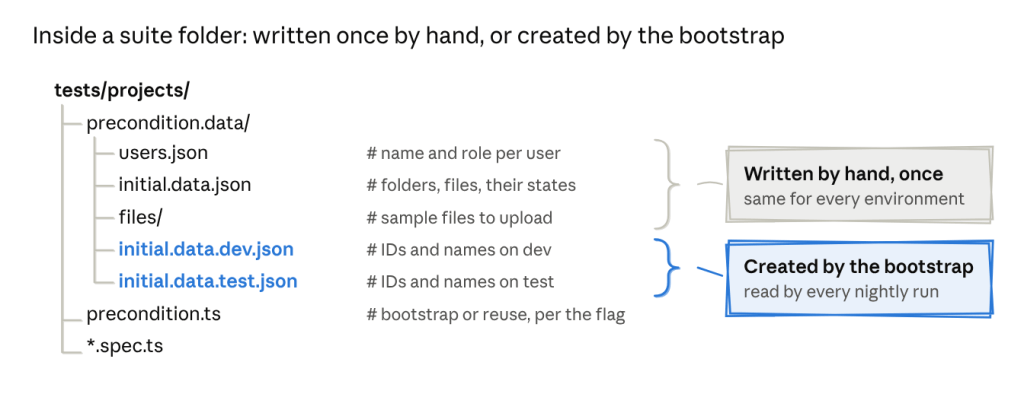
    Now, if I want to know what a suite depends on, I open its folder. Nothing is hidden in a shared environment or in someone’s head.

    We also separated two kinds of data.

    Values that never change, like roles, statuses and permission levels, live in enums and constants. Everything a test creates, such as project names and descriptions, is generated with Faker, so each run works with fresh records.

    export enum Role {
    Admin = 'admin',
    Manager = 'manager',
    Contributor = 'contributor',
    }
    import { faker } from '@faker-js/faker';
    export interface Project {
    name: string;
    description: string;
    }
    export const newProject = (): Project => ({
    name: `Project ${faker.string.alphanumeric(8)}`,
    description: faker.lorem.sentence(),
    });

    I didn’t expect this part to matter for speed, but it did. Once tests stopped sharing records, we could run them in parallel without them getting in each other’s way.

    Generating data or reusing it

    The precondition files describe what a suite needs, but someone still has to put that data on the environment. Before the migration, that someone was usually a person. We prepared data by hand on new environments, tests passed only where the data had been set up, and when a test failed it was hard to tell what state it had run against.

    We looked at two obvious options.

    1. Generating everything before each run keeps tests clean and isolated, but it’s slow and puts a lot of load on the database.
    2. Reusing existing data, which is what the old suite did, is fast, but over time the data drifts and tests quietly start depending on each other.

    We ended up with something in between. It took more work to build, but it gave us the speed of reusing data with most of the reliability of generating it.

    One environment variable, DATA_GENERATION, decides which path a suite takes:
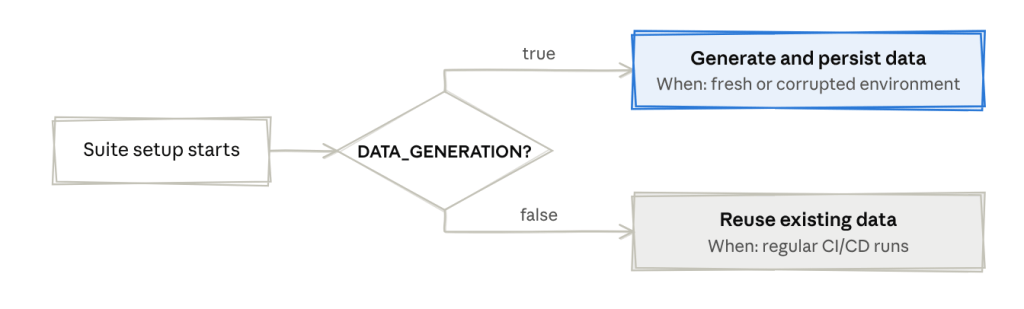
    When it’s true, the setup creates everything from the precondition files and saves what it created. We use this on a new environment, or when the data has got into a bad state. When it’s false, which is the default for CI runs, the setup skips all of that and loads the data from the last bootstrap.

    // tests/precondition.ts
    export async function prepareSuiteData(): Promise<SuiteData> {
    const shouldGenerateData = process.env.DATA_GENERATION === 'true';
    if (!shouldGenerateData) {
    return loadSuiteData();
    }
    const suiteData = await createFromPreconditions(precondition);
    await saveSuiteData(suiteData);
    return suiteData;
    }

    Nobody prepares data by hand anymore, and setting up a new environment is one pipeline run with the flag switched on.

    Logging in once per role

    In the old suite, almost every test started with a login through the UI. That made runs slow, and because login involves redirects and timeouts, it was also one of our most common sources of flaky failures. A test about permissions could fail because the login page was slow that morning. Environments with two-factor authentication couldn’t be tested at all.

    Now authentication happens once per role, in a setup step that runs before the tests.

    For each role, the setup reads the password and 2FA secret from our secret vault, logs in, and saves the browser storage state to a file in an .auth folder: admin.json, manager.json and contributor.json. It also stores the role’s API token, so tests that call the API directly can reuse it.

    // auth.setup.ts
    import { test as setup } from '@playwright/test';
    import { roles } from './config/roles';
    import { getSecrets } from './helpers/secrets';
    import { login, getApiToken, saveApiToken } from './helpers/auth';
    for (const role of roles) {
    setup(`authenticate as ${role}`, async ({ page, request }) => {
    const credentials = await getSecrets(role); // password and 2FA secret from the vault
    await login(page, credentials); // UI login, including the 2FA step
    await page.context().storageState({ path: `.auth/${role}.json` });
    await saveApiToken(role, await getApiToken(request, credentials));
    });
    }

    In a test, choosing a role is one line at the top of the describe block:

    test.describe('Manager permissions', () => {
    test.use({ storageState: '.auth/manager.json' });
    test('UI80105: Manager adds a project shared with all users - should be visible to everyone', async ({ page }) => {
    // the test starts already logged in as a manager
    });
    });

    Saved sessions come with their own risks. They expire, and a test can end up depending on something the login step left behind without anyone noticing. We handle expiry with a session refresh, so an old session gets renewed instead of failing the run.

    One thing we got almost for free: because the setup generates the 2FA code from the secret, we can finally run the suite against environments with MFA enabled.

    Running in CI from the start

    We put migrated tests into the pipeline from the first days of the migration instead of waiting until everything was moved.

    Looking back, this was one of our better decisions. Problems with data, sessions and parallel runs showed up while the design was still easy to change, not after we had built 200 tests on top of it.

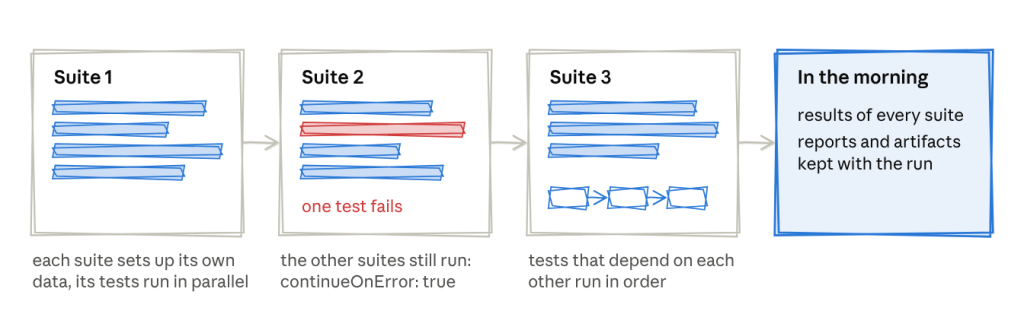
    The pipeline runs every weekday night on a fresh Ubuntu agent. Suites run one after another, because each suite sets up its own data, while the tests inside a suite run in parallel. The few tests in a file that really depend on each other run in order. We also set continueOnError: true in Azure Pipelines, so when one suite fails, the others still run and we see the full picture in the morning. Reports and artifacts are kept with each run, so most failures can be investigated without running anything locally.
    Where AI helped, and where it didn’t

    Converting around 200 tests is a lot of repetitive work, so we used GitHub Copilot for much of it.

    What I learned is that AI is good at following a structure, but it can’t decide what that structure should be. It only produced consistent tests after we had agreed on what a good test looks like.

    So before migrating anything with Copilot, we wrote an instructions file for the repository, which we called our constitution. It has rules split into MUST, SHOULD and WON’T, plus our file naming conventions, where things live, how tests are named and tagged, how the API services and clients are built, and how secrets and environments are configured in the pipeline.

    I can’t share our internal file, but I later wrote one in the same style for a workshop, and it’s public: AGENTS.md in my ai-assisted-testing-demo repo. It’s written for a small todo app rather than an enterprise product, but the structure is the same. A few lines from it:

    ## MUST
    - Locator priority. getByRole() → getByLabel() → getByPlaceholder() → getByText().
    - Web-first assertions only. Never page.waitForTimeout().
    - Seed data through the API, not the UI.
    ## WON'T
    - No getByTestId, no XPath, no CSS selectors.
    - No new tooling without being asked.

    The most useful rules turned out to be the ones that say what not to do. Without them, the assistant happily adds a hard wait or a new dependency to make a test pass.

    Then we wrote one migration prompt that walks through a C# test step by step and says where each old pattern should go:

    StepC# (before)TypeScript (after)
    1. Test dataHardcoded GUIDsData loaded from the environment: JSON.parse(process.env.PROJECT_DATA)
    2. Authenticationawait Login(AdminUser) inside each testtest.use({ storageState }) at describe level
    3. Test methods[Test] async Task ...test('TC{ID}: description', async ({ pages, adminAPIService }) => { ... })
    4. SetupData fetched or created inside the testtest.beforeEach() with module-level variables
    5. TeardownAddTearDownActions(...)test.afterEach()
    6. Real-time eventsRunAndWaitForResponseAsynca runAndWaitForSignalR(ws, callback, event) helper

    With both in place, the tests Copilot produced looked like the ones we wrote by hand, and code reviews could focus on whether the logic was right rather than on style. When the output was messy, it usually meant our own rules were unclear in that area, which was useful to find out.

    What the framework looks like now

    config/ environment and app configuration
    helpers/
    apifactory/ API service and client layer
    datafactory/ test data management
    fixtures/ Playwright fixture definitions
    pages/ Page Object Models
    tests/
    {suite_name}/ one folder per test suite
    *.spec.ts test specs
    precondition.data.ts the suite's initial data definition
    precondition.ts suite setup: auth and seed data, adjusted per suite
    playwright.config.ts

    Test names follow one pattern, so a failure in the report already tells you what broke:

    {UI|API}{TestID}: Specific scenario - expected outcome
    UI80105: Manager adds a project shared with all users - should be visible to everyone
    API80201: Contributor adds a project via API - should be forbidden

    Tags let us choose what to run: @ui for end-to-end UI scenarios, @api for API scenarios and @smoke for the smoke set.

    So far we’ve migrated around 200 tests. The suite runs about 30% faster than before, and we see around 40% fewer flaky failures.

    The tests themselves are also shorter and easier to read, they depend much less on existing data, and more checks now run at the API level instead of through the UI. Along the way we switched to accessibility-first locators like getByRole and getByLabel, and we ended up with a written guide that other teams can use for their own migrations.

    Takeaways for your own migration

    1. Don’t just translate, decide the target architecture first. The language change is the easy part.
    2. Question every test, not only the framework. Ask whether each check really needs a browser. Moving checks down to the API and unit level makes the suite faster and less flaky.
    3. Fix test data before anything else. Documented preconditions and isolated data make everything else possible, including parallel runs.
    4. Choose your data strategy deliberately. Always generating and always reusing both have costs. A flag that switches between them gives you speed and reliability.
    5. Log in once per role. Saved sessions make tests faster and more stable, and they can make MFA environments testable.
    6. Put CI in place on day one. Let the pipeline tell you what’s broken while the design is still easy to change.
    7. Give AI rules before you give it work. A clear constitution and an explicit migration prompt turn an assistant into a consistent pair of hands.

    What’s next

    We’re finishing the remaining suites, automating the creation of organisations, projects and users, expanding coverage, and tagging a proper smoke checklist.

    If you’ve been through a migration like this, I’d be curious to hear what surprised you. You can find me on LinkedIn.

  • PactumJS Hands-On: Leverage stores for Authentication 

    PactumJS Hands-On: Leverage stores for Authentication 

    Introduction

    When testing APIs that require authentication or involve dependent requests, hardcoding tokens and dynamic values can quickly lead to fragile and hard-to-maintain tests. PactumJS offers a solution for this – stores, which allow you to capture and reuse values like tokens, IDs, and other response data.

    In this article, you’ll learn how to:

    • Handle authentication using Pactum stores
    • Chain requests by capturing and reusing dynamic values
    • Clean up test data using afterEach hooks

    Recap: POST Add Room request resulting 401 status code

    In the previous article, we created a test case Create a New Room but encountered a 401 Unauthorized error due to missing authentication:

    // tests/rooms.spec.js
    
    import pactum from 'pactum';
    const { spec, stash } = pactum;
    
    it('POST: Create a New Room', async () => {
        await spec()
            .post('/room')
            .withJson({ '@DATA:TEMPLATE@': 'RandomRoom' })
            .expectStatus(200)
            .expectJson({
                "success": true
            })
    })

    Since the /room endpoint requires authentication, we need to log in and attach a valid session token to our request.

    Storing and Reusing Tokens

    Pactum allows you to store response values and reuse them across requests using the .stores() method.

    To simulate authentication:

    await spec()
      .post('/auth/login')
      .withJson({ '@DATA:TEMPLATE@': 'ExistingUser' })
      .stores('token', 'token');

    This captures the token field from the login response and stores it under the key ‘token’.

    To use the stored token in subsequent requests:

    .withHeaders('Cookie', 'token=$S{token}')

    Chaining Requests

    You can also extract and store specific values like IDs from response bodies using the built-in json-query support in PactumJS. This allows you to query deeply nested JSON data with simple expressions.

    For example, to capture a roomId based on a dynamic roomName from the response:

    .stores('roomId', `rooms[roomName=${roomName}].roomid`);

    Then use it dynamically in future endpoints:

    .get('/room/$S{roomId}')

    Clean-Up Phase

    Cleaning up test data in afterEach ensures that your tests remain isolated and repeatable — a critical practice in CI/CD pipelines.

    In this example you can delete all the rooms, which have been created for the test:

    afterEach(async () => {
        await spec()
          .delete('/room/$S{roomId}')
          .withHeaders('Cookie', 'token=$S{token}');
      });

    Full Example: Creating a Room with Authentication

    Here’s a full test case demonstrating the use of authentication, value storage, and chaining:

    // tests/rooms.spec.js
    
    describe('POST Create a New Room', () => {
    
        beforeEach(async () => {
            await spec()
                .post('/auth/login')
                .withJson({
                    '@DATA:TEMPLATE@': 'ExistingUser'
                }).stores('token', 'token')
        });
    
    
        it('POST: Create a New Room', async () => {
            await spec()
                .post('/room')
                .inspect()
                .withHeaders('Cookie', 'token=$S{token}')
                .withJson({ '@DATA:TEMPLATE@': 'RandomRoom' })
                .expectStatus(200)
                .expectJson({
                    "success": true
                })
    
            const roomName = stash.getDataTemplate().RandomRoom.roomName;
    
            await spec()
                .get('/room')
                .inspect()
                .expectStatus(200)
                .stores('roomId', `rooms[roomName=${roomName}].roomid`);
    
            await spec()
                .get(`/room/$S{roomId}`)
                .inspect()
                .expectStatus(200)
                .expectJson('roomName', roomName);
        })
    
        afterEach(async () => {
            await spec()
                .delete('/room/$S{roomId}')
                .inspect()
                .withHeaders('Cookie', 'token=$S{token}')
        });
    
    })

    Understanding the Stash

    In the full example above, you may have noticed the use of stash.getDataTemplate():

    const roomName = stash.getDataTemplate().RandomRoom.roomName;

    The stash object in Pactum provides access to test data and stored values during runtime. Specifically, stash.getDataTemplate() allows you to retrieve values generated from the data template used earlier in .withJson({ ‘@DATA:TEMPLATE@’: ‘RandomRoom’ }).

    This is useful here to extract values from dynamically generated templates (like roomName) to use them in later requests.

    Bonus: Fetching Rooms without authentication

    Here’s a simple test for fetching all rooms without authentication:

    // tests/rooms.spec.js
    
    describe('GET: All Rooms', () => {
      it('should return all rooms', async () => {
        await spec()
          .get('/room')
          .expectStatus(200);
      });
    });

    Conclusion.

    Pactum’s store feature enables you to:

    • Authenticate without hardcoding credentials
    • Chain requests by dynamically storing and reusing values

    By combining this with beforeEach and afterEach hooks, you can effectively manage test preconditions and postconditions, ensuring your test cases remain clean, maintainable.

  • PactumJS in Practice: Using Data Templates to Manage Test Data – Part 2

    PactumJS in Practice: Using Data Templates to Manage Test Data – Part 2

    Utilize faker Library to Compile Dynamic Test Data

    Introduction

    In Part 1, we explored how to make API tests more maintainable by introducing data templates for the /auth/login endpoint. We saw how to use @DATA:TEMPLATE, @OVERRIDES, and @REMOVES can simplify test logic and reduce duplication.

    Now, in Part 2, we’ll apply the same approach to another key endpoint: POST /room – Create a new room

    This endpoint typically requires structured input like room names, types, and status — perfect candidates for reusable templates. We’ll define a set of room templates using Faker for dynamic test data, register them alongside our auth templates, and write test cases that validate room creation.

    Let’s dive into how data templates can help us test POST /room more effectively, with minimal boilerplate and maximum clarity.

    Exploring the API Endpoint

    Step 1: Inspecting the API with DevTools

    Before automating, it’s helpful to understand the structure of the request and response. Visit https://automationintesting.online and follow the steps shown in the GIF below, or use the guide here:

    1. Open DevTools: Press F12 or right-click anywhere on the page and select Inspect to open DevTools.
    2. Navigate to the Network Tab. Go to the Network tab to monitor API requests.
    3. Trigger the API Call: On the website, fill in the room creation form and submit it. Watch for a request to the /room endpoint using the POST method.

    Inspect the API Details. 

    Once you click the POST rooms request, you will see the following details:

    1. URL and method details.
    1. Headers tab: Shows request URL and method
    2. Payload tab: Shows the room data you sent (like number, type, price, etc.)
    1. Response tab: Shows the response from the server (confirmation or error)

    Example payload from this API request:

    {
      "roomName":"111",
      "type":"Single",
      "accessible":false,
      "description":"Please enter a description for this room",
      "image":"https://www.mwtestconsultancy.co.uk/img/room1.jpg",
      "roomPrice":"200",
      "features":[
          "WiFi",
          "TV",
          "Radio"
      ]
    }

    Field Breakdown:

    • roomName: A string representing an identifier for the room (e.g., “111”).
    • type: Room type; must be one of the following values: “Single”, “Double”, “Twin”, “Family”, “Suite”.
    • accessible: A boolean (true or false) indicating whether the room is wheelchair accessible.
    • description: A text description of the room.
    • image: A URL to an image representing the room.
    • roomPrice: A string representing the price of the room.
    • features: An array of one or more of the following feature options: “WiFi“, “Refreshments“, “TV“, “Safe“, “Radio“, “Views“.

    ⚠️ Note: This breakdown is based on personal interpretation of the API structure and response; it is not taken from an official specification.

    In order to generate payload for the room, we will use faker library. This library allows you to generate realistic test data such as names, prices, booleans, or even images on the fly. This helps reduce reliance on hardcoded values and ensures that each test run simulates real-world API usage.

    Step 2: Installing the faker Library

    To add the faker library to your project, run:

    npm install @faker-js/faker

    Step 3: Registering a Dynamic Room Template

    Use faker to generate dynamic values for each room field:

    // helpers/datafactory/templates/randomRoom.js
    
    import { faker } from '@faker-js/faker/locale/en';
    import pkg from 'pactum';
    const { stash } = pkg;
    
    const roomType = ["Single", "Double", "Twin", "Family", "Suite"];
    const features = ['WiFi', 'Refreshment', 'TV', 'Safe', 'Radio', 'Views'];
    
    export function registerRoomTemplates() {
      stash.addDataTemplate({
        RandomRoom: {
          roomName: faker.word.adjective() + '-' + faker.number.int({ min: 100, max: 999 }),
          type: faker.helpers.arrayElement(roomType),
          description: faker.lorem.sentence(),
          accessible: faker.datatype.boolean(),
          image: faker.image.urlPicsumPhotos(),
          features: faker.helpers.arrayElements(features, { min: 1, max: 6 }),
          roomPrice: faker.commerce.price({ min: 100, max: 500, dec: 0 })
        }
      });
    }

    Step 4: Writing the Test Case

    Register the template:

    //helpers/datafactory/templates/registerDataTemplates.js
    
    import { registerAuthTemplates } from "./auth.js";
    
    export function registerAllDataTemplates() {
        registerAuthTemplates();
        registerRoomTemplates();
      }

    With the template registered, you can now use it in your test:

    import pactum from 'pactum';
    const { spec, stash } = pactum;
    
    it('POST: Create a New Room', async () => {
        await spec()
            .post('/room')
            .withJson({ '@DATA:TEMPLATE@': 'RandomRoom' })
            .expectStatus(200)
            .expectJson({
                "success": true
            })
    })

    This approach ensures that each test scenario works with fresh, random input — increasing coverage and reliability.

    Step 5: Running the Test

    Run your tests using:

    npm run test

    Most likely you got 401 Unauthorized response, which means authentication is required.

    Don’t worry — we’ll handle authentication, by passing the token from the login endpoint to other calls, in the next article.

  • PactumJS in Practice: Using Data Templates to Manage Test Data – Part 1

    PactumJS in Practice: Using Data Templates to Manage Test Data – Part 1

    Introduction

    In this hands-on guide, we’ll explore how to improve the maintainability and flexibility of your API tests using data templates in PactumJS. Our focus will be on the authentication endpoint: POST /auth/login

    Recap: A Basic Login Test

    In the previous article we wrote a basic test case for a successful login:

    it('should succeed with valid credentials', async () => {
      await spec()
        .post('/auth/login')
        .inspect()
        .withJson({
          username: process.env.USERNAME,
          password: process.env.PASSWORD,
        })
        .expectStatus(200);
    });

    While this works for one case, hardcoding test data like this can quickly become difficult to manage as your test suite grows.

    Improving Test Maintainability with Data Templates

    To make our tests more scalable and easier to manage, we’ll introduce data templates — a PactumJS feature that allows you to centralize and reuse test data for different scenarios, such as valid and invalid logins.

    Step 1: Define Auth Templates

    Create a file auth.js inside your templates directory /helpers/datafactory/templates/ and register your authentication templates:

    // helpers/datafactory/templates/auth.js
    
    import pkg from 'pactum';
    const { stash } = pkg;
    import { faker } from '@faker-js/faker/locale/en';
    import dotenv from 'dotenv';
    dotenv.config();
    
    export function registerAuthTemplates() {
      stash.addDataTemplate({
        ExistingUser: {
            username: process.env.USERNAME,
            password: process.env.PASSWORD,
        },
        NonExistingUser: {
            username: 'non-existing-user',
            password: 'password',
        }
    });
    }
    

    Step 2: Register All Templates in a Central File

    Next, create a registerDataTemplates.js file to consolidate all your template registrations:

    //helpers/datafactory/templates/registerDataTemplates.js
    import { registerAuthTemplates } from "./auth.js";
    
    export function registerAllDataTemplates() {
        registerAuthTemplates();
        registerRoomTemplates();
      }

    Step 3: Use Templates in Your Test Setup

    Finally, import and register all templates in your test suite’s base configuration:

    // tests/base.js
    
    import pactum from 'pactum';
    import dotenv from 'dotenv';
    dotenv.config();
    import { registerAllDataTemplates } from '../helpers/datafactory/templates/registerDataTemplates.js';
    
    const { request } = pactum;
    
    before(() => {
      request.setBaseUrl(process.env.BASE_URL);
      registerAllDataTemplates()
    });
    

    Writing Login Tests with Templates

    Now let’s implement test cases for three core scenarios:

    // tests/auth.test.js
    
    describe('/auth/login', () => {
    
      it('should succeed with valid credentials', async () => {
        await spec()
          .post('/auth/login')
          .withJson({ '@DATA:TEMPLATE@': 'ExistingUser' })
          .expectStatus(200)
          .expectJsonSchema(authenticationSchema);
      });
    
      it('should fail with non-existing user', async () => {
        await spec()
          .post('/auth/login')
          .withJson({ '@DATA:TEMPLATE@': 'NonExistingUser' })
          .expectStatus(401)
          .expectJsonMatch('error', 'Invalid credentials');
      });
    
      it('should fail with invalid password', async () => {
        await spec()
          .post('/auth/login')
          .withJson({
            '@DATA:TEMPLATE@': 'ExistingUser',
            '@OVERRIDES@': {
              password: faker.internet.password(),
            },
          })
          .expectStatus(401)
          .expectJsonMatch('error', 'Invalid credentials');
      });
    
    });

    đź’ˇ Did You Know?

    You can use:

    • @OVERRIDES@ to override fields in your template (e.g. testing invalid passwords)
    • @REMOVES@ to remove fields from the payload (e.g. simulating missing inputs)

    Example:

    it('should return 400 when username is missing', async () => {
      await spec()
        .post('/auth/login')
        .withJson({
          '@DATA:TEMPLATE@': 'ExistingUser',
          '@REMOVES@': ['username']
        })
        .expectStatus(400);
    });

    Conclusion

    Data templates in PactumJS are a simple yet powerful way to make your API tests more maintainable and scalable. By centralizing test data, you reduce duplication, improve readability, and make your test suite easier to evolve as your API grows.

    In this part, we focused on authentication. In the next article, we’ll explore how to apply the same pattern to other endpoints — like POST /room — and build more complex test scenarios using nested data and dynamic generation.

  • Getting started with PactumJS: Project Structure and Your First Test Case

    Getting started with PactumJS: Project Structure and Your First Test Case

    Introduction

    As discussed in the previous article, PactumJS is an excellent choice for API automation testing. 

    As your API testing suite grows, maintaining a clean and organized repository structure becomes essential. We’ll explore a folder structure for your PactumJS-based testing framework, provide tips and tricks for configuration and scripting, and walk through executing tests with reporting.

    For demonstration, we’ll use the Restful Booker API as our test target.

    Set Up Your Project and Install Dependencies

    Prerequisites

    To follow along, make sure you have the following:

    1. Node.js v10 or above
    2. Basic understanding of JavaScript or TypeScript
    3. Node.js modules
    4. Testing frameworks like Mocha

    If you’re new to any of the above, it’s worth reviewing basic tutorials, for example, on Automation University: on Node.js and test runners like Mocha.

    Install Dependencies

    Start by creating a fresh Node.js project:

    mkdir api_testing_with_pactumjs
    cd api_testing_with_pactumjs
    npm init -y

    Then install necessary packages via NPM:

    # install pactum
    npm install -D pactum
    
    # install a test runner
    npm install -D mocha

    Organise your files

    api_testing_with_pactumjs/
    ├── helpers/
    │   └── datafactory/
    ├── tests/
    │   └── auth.spec.ts
    ├── setup/
    │   └── base.js
    ├── .env.example
    ├── .gitignore
    ├── README.md
    ├── package-lock.json
    └── package.json
    1. tests/ folder contains your test specifications organized by feature or endpoint, such as auth.spec.ts. This keeps tests modular and easy to locate.
    2. helpers/ folder houses centralized reusable logic and utilities. This separation keeps test files focused on what they test rather than how, improving readability and maintainability.
    3. setup/ folder contains global setup files like base.js to configure common test environment settings, such as base URLs and global hooks.
    4. .env.example — A sample environment configuration file listing required environment variables, serving as a reference and template for developers.
    5. .env (not shown in repo) is used locally to store sensitive configuration and secrets, enabling easy environment switching without code changes.
    6. .gitignore file includes folders and files like .env to prevent committing sensitive data to version control.
    7. package.json is a central place for managing project dependencies (like pactum, dotenv, mocha) and defining test scripts (e.g., npm run test, npm run test:report). This facilitates CI/CD integration and consistent test execution.

    Write a Basic Test

    As an example for our demo we will take the Restful-Booker Platform built by Mark Winteringham. This application has been created for bed-and-breakfast (B&B) owners to manage their bookings.

    To explore and test the available API endpoints, you can use the official Postman Collection.

    Let’s write our first set of API tests for the /auth/login endpoint which generates a token for an admin user.

    Endpoint: POST /api/auth/login

    Base URL: https://automationintesting.online

    User Context

    User Role: Admin (default user)

    Credentials Used:

    • username: “admin”
    • password: “password”

    Request:

    Method: POST

    Headers: Content-Type: application/json

    Body:

    {
      "username": "admin",
      "password": "password"
    }

    Expected Response:

    HTTP Status: 200 OK

    / tests/authenticate.spec.js
    import pkg from 'pactum';
    const { spec, stash } = pkg;
    
    describe('/authenticate', () => {
    
        it('should succeed with valid credentials', async () => {
            await spec()
                .post('https://automationintesting.online/api/auth/login')
                .withJson({
                    username: 'admin',
                    password: 'password'
                })
                .expectStatus(200)
        });
    });

    While this test currently focuses on verifying the status code, future articles will enhance it by adding validations for the authentication token returned in the response.

    Manage Environment Variables

    Create .env file

    To keep sensitive data like URLs and credentials, create a .env.example file as a reference for required environment variables:

    BASE_URL=""
    USERNAME=""
    PASSWORD=""
    👉 Tip: Don’t commit your actual .env to version control
    • Use .env.example to document the required variables.
    • Add .env to your .gitignore file to keep credentials secure.
    • Share .env.example with your team so they can configure their environments consistently.

    Load Environment Variables in Tests

    Install dotenv and configure it in your test files or setup scripts:

    npm install --save-dev dotenv

    Example test with environment variables:

    // tests/authenticate.spec.js
    
    import pkg from 'pactum';
    const { spec } = pkg;
    import dotenv from 'dotenv';
    dotenv.config();
    
    describe('/authenticate', () => {
      it('should succeed with valid credentials', async () => {
        await spec()
          .post(`${process.env.BASE_URL}/auth/login`)
          .withJson({
            username: process.env.USERNAME,
            password: process.env.PASSWORD
          })
          .expectStatus(200);
      });
    });

    Execute Test Case

    Once your test files are set up and your .env file is configured with valid credentials and base URL, you’re ready to execute your test cases.

    PactumJS works seamlessly with test runners like Mocha, which means running your tests is as simple as triggering a test command defined in your package.json. Here’s how to proceed:

    Add a Test Script

    In your package.json, add a script under “scripts” to define how to run your tests. For example:

    // package.json
    
    "scripts": {
      "test": "mocha tests"
    }

    This tells Mocha to look for test files in the tests/ directory and run them.

    Run the Tests

    In your terminal, from the root of your project, run:

    npm test

    This will execute test specs and display results in the terminal. 

    You should see output indicating whether the test passed or failed, for example:

      /authenticate
        âś“ should succeed with valid credentials (150ms)
    
      1 passing (151ms)

    Add a Reporting Tool

    By default, PactumJS uses Mocha’s basic CLI output. For richer reporting—especially useful in CI/CD pipelines—you can use Mochawesome, a popular HTML and JSON reporter for Mocha.

    Install Mochawesome

    Install Mochawesome as a development dependency:

    npm install -D mochawesome

    Update Your Test Script

    Modify the scripts section in your package.json to include a command for generating reports:

    // package.json
    
    "scripts": {
      "test": "mocha tests"
      "test:report": "mocha tests --reporter mochawesome"
    }

    This script tells Mocha to run your tests using the Mochawesome reporter.

    Run the tests with reporting

    Execute your tests using the new script:

    npm run test:report

    This generates a mocha report in JSON and HTML format which you can review locally or attach in CI pipelines.

      /authenticate
        âś” should succeed with valid credentials (364ms)
    
    
      1 passing (366ms)
    
    [mochawesome] Report JSON saved to ./pactum_test/mochawesome-report/mochawesome.json  [mochawesome] Report HTML saved to ./pactum_test/mochawesome-report/mochawesome.html

    View the report

    Open the HTML report in your browser to visually inspect test results:

    Configure Base Test Setup (base.js)

    Create a Shared Configuration

    Create a base.js file in the setup/ directory. This file is a shared configuration used to define reusable logic like setting the base URL, request headers, or global hooks (beforeEach, afterEach). 

    // setup/base.js
    
    import pactum from 'pactum';
    import dotenv from 'dotenv';
    dotenv.config();
    
    const { request } = pactum;
    
    before(() => {
      request.setBaseUrl(process.env.BASE_URL);
    });

    Load the Setup Automatically Using –file

    To ensure this configuration runs before any tests, register the setup file using Mocha’s –file option. This guarantees Mocha will execute base.js within its context, making all Mocha globals (like before) available.

    Example package.json script:

    "scripts": {
      "test": "mocha tests --file setup/base.js"
    }

    With this in place, run:

    npm test
    👉 Tip: Simplify and DRY Up Your Test Scripts

    To avoid repeating the full Mocha command in multiple scripts, define a single base script (e.g., test) that includes your common options. Then, reuse it for other variants by passing additional flags:

    "scripts": {
      "test": "mocha tests --file setup/base.js",
      "test:report": "npm run test -- --reporter mochawesome"
    }

    This approach keeps your scripts concise and easier to maintain by centralizing the core test command. It also allows you to easily extend or customize test runs with additional options without duplicating configuration. Overall, it reduces the chance of errors and inconsistencies when updating your test scripts.

    Conclusion

    By structuring your PactumJS repository with clear separation of tests, helpers, and setup files—and by leveraging environment variables, global setup, and reporting—you build a scalable and maintainable API testing framework. This approach supports growth, team collaboration, and integration with CI/CD pipelines.

  • What makes PactumJS awesome? A quick look at its best features.

    What makes PactumJS awesome? A quick look at its best features.

    1. Introduction
      1. Fluent and expressive syntax
      2. Data Management
        1. Data Templates
        2. Data Store for Dynamic Values
      3. Built-In Schema Validation
      4. Flexible Assertions
      5. Default Configuration 
    2. Conclusion
    3. Resources

    Introduction

    I’ve spent a fair bit of time writing API test automation. After exploring a few JavaScript-based tools and libraries, I’ve found Pactum to be particularly powerful. I wanted to take a moment to share a brief overview of my experience and why I think it stands out.

    If you’re setting up a PactumJS project from scratch, I recommend starting with the official Quick Start guide, which covers installation and basic setup clearly. Additionally, this article by Marie Cruz offers a great walkthrough of writing API tests with PactumJS and Jest, especially useful for beginners.

    Fluent and expressive syntax

    One of the aspects I appreciate the most is how naturally you can chain descriptive methods from the spec object to build complex requests with support for headers, body payloads, query parameters, and more.

    Example: 

    it('POST with existing username and valid password', async () => {
            await spec()
                .post('/auth/login')             .inspect()
                .withHeaders('Content-Type', 'application/json')
                .withJson({
                    '@DATA:TEMPLATE@': 'ExistingUser'
                })
                .expectStatus(200) # assertion
                .expectJsonSchema(authenticationSchema) # assertion
        })
    

    More on request making: https://github.com/pactumjs/pactum/wiki/API-Testing#request-making 

    Data Management

    Data Management is a critical aspect of test automation and often one of the more challenging pain points in any automation project. Test suites frequently reuse similar request payloads, making it difficult to maintain and organize these payloads when they are scattered across different test files or folders. Without a structured approach, this can lead to duplication, inconsistency, and increased maintenance overhead. So, it is important to have an intuitive way to handle data in the test framework. 

    In PactumJS, data management is typically handled using data templates and data stores. These help you define reusable request bodies, dynamic data, or test user information in a clean and maintainable way.

    Data Templates

    Data Templates help you define reusable request bodies and user credentials. Templates can also be locally customized within individual tests without affecting the original definition.

    For example, in testing different authentication scenarios:

    1. Valid credentials
    2. Invalid password
    3. Non-existing user

    Rather than hard-coding values in each test, as it is done below: 

    describe('/authenticate', () => {
        it('POST with existing username and valid password', async () => {
            await spec()
                .post('/auth/login')
                .inspect()
                .withHeaders('Content-Type', 'application/json')
                .withJson({
                    username: process.env.USERNAME,
                    password: process.env.PASSWORD,
                })
                .expectStatus(200)
                .expectJsonSchema(authenticationSchema)
        })
    
        it('POST with existing username and invalid password', async () => {
            await spec()
                .post('/auth/login')
                .inspect()
                .withHeaders('Content-Type', 'application/json')
                .withJson({
                    username: process.env.USERNAME,
                    password: faker.internet.password(),
                })
                .expectStatus(401)
                .expectJsonMatch('error', 'Invalid credentials')
        })
    
        it('POST with non-existing username and password', async () => {
            await spec()
                .post('/auth/login')
                .inspect()
                .withHeaders('Content-Type', 'application/json')
                .withJson({
                    username: faker.internet.username(),
                    password: faker.internet.password(),
                })
                .expectStatus(401)
                .expectJsonMatch('error', 'Invalid credentials')
        })
    })

    define reusable templates:

    // auth.js
    
    export function registerAuthTemplates() {
      stash.addDataTemplate({
        ExistingUser: {
            username: process.env.USERNAME,
            password: process.env.PASSWORD,
        },
        NonExistingUser: {
            username: faker.internet.username(),
            password: faker.internet.password(),
        }
    });
    }

    Then load them in global setup:

    // registerDataTemplates.js
    
    import { registerAuthTemplates } from "./auth.js";
    
    export function registerAllDataTemplates() {
        registerAuthTemplates();
      }

    Now, tests become cleaner and easier to maintain:

     it('POST with non-existing username and password', async () => {
            await spec()
                .post('/auth/login')
                .inspect()
                .withHeaders('Content-Type', 'application/json')
                .withJson({
                    '@DATA:TEMPLATE@': 'NonExistingUser'
                })
                .expectStatus(401)
                .expectJsonMatch('error', 'Invalid credentials')
        })

    Want to override part of a template? 

    Use @OVERRIDES@:

     it('POST with existing username and invalid password', async () => {
            await spec()
                .post('/auth/login')
                .inspect()
                .withHeaders('Content-Type', 'application/json')
                .withJson({
                    '@DATA:TEMPLATE@': 'ExistingUser',
                    '@OVERRIDES@': {
                        'password': faker.internet.password()
                      }
                })
                .expectStatus(401)
                .expectJsonMatch('error', 'Invalid credentials')
        })

    This approach improves consistency and reduces duplication. When credential details change, updates can be made centrally in the datafactory without touching individual tests. As a result, test logic remains clean, focused on validating behaviour rather than being cluttered with data setup.

    More information on data templates: https://pactumjs.github.io/guides/data-management.html#data-template 

    Data Store for Dynamic Values

    In integration and e2e API testing, one common challenge is managing dynamic data between requests. For example, you might need to extract an authentication token from an authentication response and use it in the header of subsequent requests. Without a clean way to store and reuse this data, tests can become messy, brittle, and hard to maintain.

    PactumJS provides a data store feature that allows you to save custom response data during test execution in a clean way.

    Example:

    Suppose you want to send a POST request to create a room, but the endpoint requires authentication. First, you make an authentication request and receive a token in the response. Using data store functionality, you can capture and store this token, then inject it into the headers of the room creation request. 

    describe('POST Create a New Room', () => {
    
        beforeEach(async () => {
            await spec()
                .post('/auth/login')
                .withHeaders('Content-Type', 'application/json')
                .withJson({
                    '@DATA:TEMPLATE@': 'ExistingUser'
                }).stores('token', 'token')
        });
    
    
        it('POST: Create a New Room', async () => {
            await spec()
                .post('/room')
                .inspect()
                .withHeaders('Content-Type', 'application/json')
                .withHeaders('Cookie', 'token=$S{token}')
                .withJson({ '@DATA:TEMPLATE@': 'RandomRoom' })
                .expectStatus(200)
                .expectBody({
                    "success": true
                })
    
    })

    Data store functionality also supports json-query libraries. It enables you to extract and store specific values from complex JSON responses. This is particularly helpful when dealing with nested structures, where you only need to capture a portion of the response—such as an ID, token, or status—from a larger payload.

    Example:

    await spec()
                .get('/room')
                .inspect()
                .withHeaders('Content-Type', 'application/json')
                .expectStatus(200)
                .stores('roomId', `rooms[roomName=${roomName}].roomid`);
    
            await spec()
                .get(`/room/$S{roomId}`)
                .inspect()
                .withHeaders('Content-Type', 'application/json')
                .expectStatus(200)
                .expectJson('roomName', roomName);
        })

    More on data store: https://pactumjs.github.io/guides/data-management.html#data-store 

    Built-In Schema Validation

    Unlike other setups that require integrating libraries like zod, ajv, or custom helper functions, PactumJS allows you to validate JSON responses using the expectJsonSchema method. All you need to do is define the expected schema and apply it directly in your test, no extra configuration needed.

    For example, in an authentication test case, the response schema is defined in a separate data factory:

    export const authenticationSchema = {
        "type": "object",
        "properties": {
            "token": {
                "type": "string"
            }
        },
        "additionalProperties": false,
        "required": ["token"]
    }

    You can then validate the structure of the response like this:

    it('POST with existing username and valid password', async () => {
            await spec()
                .post('/auth/login')
                .inspect()
                .withHeaders('Content-Type', 'application/json')
                .withJson({
                    '@DATA:TEMPLATE@': 'ExistingUser'
                })
                .expectStatus(200)
                .expectJsonSchema(authenticationSchema)
        })

    Flexible Assertions

    Most REST API responses return data in JSON format that must be validated. Fortunately, PactumJS provides a powerful and expressive assertion system that goes far beyond basic status code checks. Its assertion system allows for 

    1. Deep JSON matching:
    await spec()
        .get(`/room/$S{roomId}`)
        .inspect()
        .expectStatus(200)
        .expectJson('roomName', roomName);
    })
    it('POST with non-existing username and password', async () => {
         await spec()
            .post('/auth/login')
            .inspect()
            .withJson({
                '@DATA:TEMPLATE@': 'NonExistingUser'
            })
            .expectStatus(401)
            .expectJsonMatch('error', 'Invalid credentials')
        })
    1. Partial comparisons:
    it('posts should have a item with title -"some title"', async () => {
      const response = await pactum.spec()
        .get('https://jsonplaceholder.typicode.com/posts')
        .expectStatus(200)
        .expectJsonLike([
          {
            "userId": /\d+/,
            "title": "some title"
          }
        ]);
    });
    1. Path-Based Validation:
    it('get people', async () => {
      const response = await pactum.spec()
        .get('https://some-api/people')
        .expectStatus(200)
        .expectJson({
          people: [
            { name: 'Matt', country: 'NZ' },
            { name: 'Pete', country: 'AU' },
            { name: 'Mike', country: 'NZ' }
          ]
        })
        .expectJsonAt('people[country=NZ].name', 'Matt')
        .expectJsonAt('people[*].name', ['Matt', 'Pete', 'Mike']);
    });
    1. Dynamic Runtime Expressions:
    it('get users', async () => {
      await pactum.spec()
        .get('/api/users')
        .expectJsonLike('$V.length === 10'); // api should return an array with length 10
        .expectJsonLike([
          {
            id: 'typeof $V === "string"',
            name: 'jon',
            age: '$V > 30' // age should be greater than 30
          }
        ]);
    });

    And all of them are in a clean and readable format. 

    For example, you can validate only parts of a response, use regex or custom matchers, and even plug in JavaScript expressions or reusable assertion handlers. In my opinion, this level of granularity is a game-changer compared to assertion styles in other frameworks.

    Check more in the official documentation: https://github.com/pactumjs/pactum/wiki/API-Testing#response-validation 

    Default Configuration 

    To reduce repetition and keep tests clean, PactumJS allows you to define default values that apply globally across your test suite — such as headers, base URL, and request timeouts. This helps maintain consistency and simplifies test configuration.

    Here’s how it can be implemented:

    before(() => {
      request.setBaseUrl(process.env.BASE_URL);
      request.setDefaultHeaders('Content-Type', 'application/json');
    });

    More information you can find here: https://github.com/pactumjs/pactum/wiki/API-Testing#request-settings 

    Conclusion

    In my experience, PactumJS has proven to be a well-designed and developer-friendly tool for API test automation. Its fluent syntax, robust data handling, and built-in features like schema validation and dynamic stores eliminate the need for developing third-party solutions for the test framework.

    If you’re working with API testing in JavaScript / Typescript, PactumJS is definitely worth a look.

    Resources

    1. You can find the complete set of test cases, data templates, and helper functions shown in this post in the GitHub Repo. 
    2. Official PactumJS Documentation: https://pactumjs.github.io/ 
    3. PactumJS WiKi Page: https://github.com/pactumjs/pactum/wiki/API-Testing 
    4. Code Examples in PactumJS GitHub: https://github.com/pactumjs/pactum-examples 
  • Automating Contract Testing in a CI/CD Pipeline with GitHub Actions

    Automating Contract Testing in a CI/CD Pipeline with GitHub Actions

    Using a Pact Broker to Manage Contracts Across Microservices

    In the previous article, I raised an important question: What if the provider and consumer microservices do not share the same repository but still need access to the contract from a third-party source? The solution to this challenge is the Pact Broker.

    In this article, we will explore how the Pact Broker works and how to implement pipeline using GitHub Actions.

    When Do You Need a Pact Broker?

    A Pact Broker is essential in scenarios where:

    • The provider and consumer microservices are in separate repositories but must share the same contract.
    • You need to manage contracts across different branches and environments.
    • Coordinating releases between multiple teams is required.

    Options for Setting Up a Pact Broker

    There are multiple ways to set up a Pact Broker:

    1. Own Contract Storage Solution – Implement your own contract-sharing mechanism.
    2. Hosted Pact Broker (PactFlow) – A cloud-based solution provided by SmartBear.
    3. Self-Hosted Open-Source Pact Broker – Deploy and manage the Pact Broker on your infrastructure.

    As a starting point, PactFlow is a great solution due to its ease of use.

    Publishing Contracts to the Pact Broker

    For demonstration purposes, we will use the free version of PactFlow. Follow these steps to publish contracts:

    1. Sign Up for PactFlow

    Visit PactFlow and create a free account.

    2. Retrieve Required Credentials

    • Broker URL: Copy the URL from the address bar (e.g., https://custom.pactflow.io/).
    • Broker API Token: Navigate to Settings → API Tokens and copy the read/write token for CI/CD pipeline authentication.

    3. Setting Up a CI/CD Pipeline with GitHub Actions

    Setting up CI/CD pipeline using GitHub Actions.

    We will configure GitHub Actions to trigger on a push or merge to the main branch. The workflow consists of the steps displayed on the diagram.

    To set up GitHub Actions, create a .yml file in the .github/workflows directory. In this example, we’ll use contract-test-sample.yml:

    name: Run contract tests
    
    on: push
    
    env:
      PACT_BROKER_BASE_URL: ${{ secrets.PACT_BROKER_BASE_URL }}
      PACT_BROKER_TOKEN: ${{ secrets.PACT_BROKER_TOKEN }}
    
    jobs:
      contract-test:
        runs-on: ubuntu-latest
        steps:
          - uses: actions/checkout@v4
          - uses: actions/setup-node@v4
            with:
              node-version: 18
          - name: Install dependencies
            run: npm install
          - name: Run web consumer contract tests
            run: npm run test:consumer
          - name: Publish contract to PactFlow
            run: npm run publish:pact
          - name: Run provider contract tests
            run: npm run test:provider

    Before running the workflow, store the required secrets in your GitHub repository:

    1. Navigate to Repository → Settings → Secrets and Variables.
    2. Create two secrets:
      • PACT_BROKER_BASE_URL
      • PACT_BROKER_TOKEN

    Save, commit, and push your changes to the remote repository.

    Navigate to the Actions tab in GitHub to verify if the pipeline runs successfully.

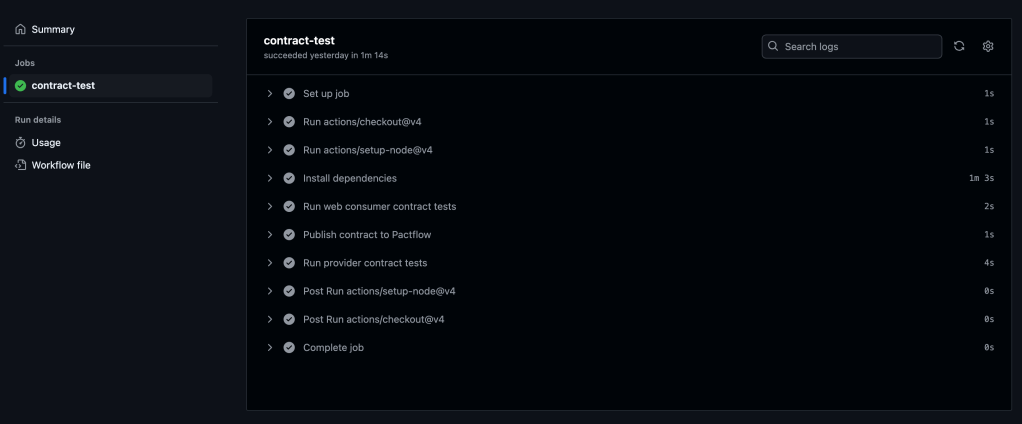
    You should see all the steps running successfully like on the screenshot below:

    7. Verifying the Contract in PactFlow

    Once the pipeline runs successfully:

    • Navigate to PactFlow.
    • Verify if the contract has been published.
    • You should see two microservices and the contract established between them.
    Two microservices – Library Consumer and Library Provider
    Pact between two microservices, which is published and stored in PactFlow

    Configuring Contract Versioning

    If there are changes in the contract (e.g., if a new version of a consumer or provider is released), versioning should evolve too. Automating this process is crucial.

    A recommended approach is using GitHub Commit ID (SHA), ensuring that contract versions are traceable to relevant code changes.

    1. Define the Versioning Variable

    In the contract-test-sample.yml file, introduce a new environment variable GITHUB_SHA:

    GITHUB_SHA: ${{ github.sha }}

    2. Update the Pact Publish Script

    Modify the pact:publish script to use the automatically generated version:

    "publish:pact": "pact-broker publish ./pacts --consumer-app-version=$GITHUB_SHA --tag=main --broker-base-url=$PACT_BROKER_BASE_URL --broker-token=$PACT_BROKER_TOKEN"

    3. Update provider options with providerVersion value:

    const opts = {
                provider: "LibraryProvider",
                providerBaseUrl: "http://localhost:3000",
                pactBrokerToken: process.env.PACT_BROKER_TOKEN,
                providerVersion: process.env.GITHUB_SHA,
                publishVerificationResult: true,
                stateHandlers: {
                    "A book with ID 1 exists": () => {
                        return Promise.resolve("Book with ID 1 exists")
                    },
                },
            }

    Configuring Branches for Contract Management

    If multiple people are working on the product in different branches, it is crucial to assign contracts to specific branches to ensure accurate verification.

    1. Define the Branching Variable

    Add GITHUB_BRANCH to the .yml file:

    GITHUB_BRANCH: ${{ github.ref_name }}

    2. Update the Pact Publish Script for Branching

    Modify pact:publish to associate contracts with specific branches:

    "publish:pact": "pact-broker publish ./pacts --consumer-app-version=$GITHUB_SHA --branch=$GITHUB_BRANCH --broker-base-url=$PACT_BROKER_BASE_URL --broker-token=$PACT_BROKER_TOKEN"

    3. Update provider options with providerVersionBranch value:

    const opts = {
                provider: "LibraryProvider",
                providerBaseUrl: "http://localhost:3000",
                pactBrokerToken: process.env.PACT_BROKER_TOKEN,
                providerVersion: process.env.GITHUB_SHA,
                providerVersionBranch: process.env.GITHUB_BRANCH,
                publishVerificationResult: true,
                stateHandlers: {
                    "A book with ID 1 exists": () => {
                        return Promise.resolve("Book with ID 1 exists")
                    },
                },
            }

    Using the can-i-deploy tool

    The can-i-deploy tool is a Pact feature that queries the matrix table to verify if a contract version is safe to deploy. This ensures that new changes are successfully verified against the currently deployed versions in the environment.

    Running can-i-deploy for consumer:

    pact-broker can-i-deploy --pacticipant LibraryConsumer --version=$GITHUB_SHA

    Running can-i-deploy for provider:

    pact-broker can-i-deploy --pacticipant LibraryProvider --version=$GITHUB_SHA

    If successful, it confirms that the contract is verified and ready for deployment.

    To reuse these commands, we will create scripts for verification in package.json file:

    "can:i:deploy:consumer": "pact-broker can-i-deploy --pacticipant LibraryConsumer --version=$GITHUB_SHA"
    
    "can:i:deploy:provider": "pact-broker can-i-deploy --pacticipant LibraryProvider --version=$GITHUB_SHA"

    And then update GitHub Actions pipeline:

    name: Run contract tests
    
    on: push
    
    env:
      PACT_BROKER_BASE_URL: ${{ secrets.PACT_BROKER_BASE_URL }}
      PACT_BROKER_TOKEN: ${{ secrets.PACT_BROKER_TOKEN }}
      GITHUB_SHA: ${{ github.sha }}
      GITHUB_BRANCH: ${{ github.ref_name }}
    
    jobs:
      contract-test:
        runs-on: ubuntu-latest
        steps:
          - uses: actions/checkout@v4
          - uses: actions/setup-node@v4
            with:
              node-version: 18
          - name: Install dependencies
            run: npm i
          - name: Run web consumer contract tests
            run: npm run test:consumer
          - name: Publish contract to Pactflow
            run: npm run publish:pact
          - name: Run provider contract tests
            run: npm run test:provider
          - name: Can I deploy consumer?
            run: npm run can:i:deploy:consumer
          - name: Can I deploy provider?
            run: npm run can:i:deploy:provider

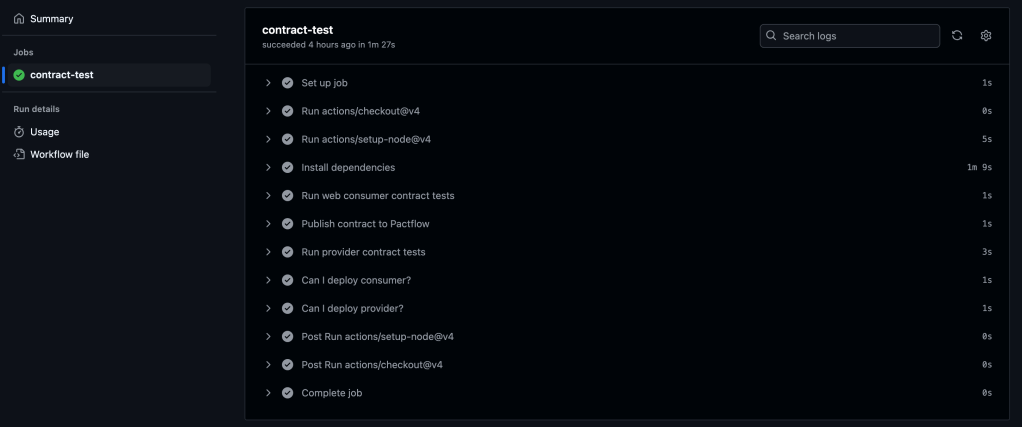
    Add changes, commit and push. Navigate to the Actions tab in GitHub to verify if the pipeline runs successfully.

    You should see all the steps running successfully like on the screenshot below:

    GitHub Actions pipeline contains extra steps, which verify if a contract version is safe to deploy

    Conclusion

    The Pact Broker is important for managing contracts across microservices, ensuring smooth collaboration between independent services. By automating contract versioning, branch-based contract management, and deployment workflows using GitHub Actions, teams can can reduce deployment risks, improve service reliability, and speed-up release cycles.

    For a complete implementation, refer to the final version of the code in the repository.

  • Consumer-Driven Contract Testing in Practice

    Consumer-Driven Contract Testing in Practice

    Introduction

    In the previous article consumer-driven contract testing has been introduced. And at this point, I am sure you can’t wait to start actual implementation. So let’s not delay any further!

    Let’s start with the implementation using Pact. 

    Based on official documentation, Pact is a code-first tool for testing HTTP and message integrations using contract tests.

    As a system under test we are going to use consumer-provider applications written in JavaScript. You can find the source code in the GitHub Repository.

    Consumer Tests

    The focus of the consumer test is the way to check if the consumer’s expectations match what the provider does. These tests are not supposed to verify any functionality of the provider, instead focus solely on what the consumer requires and validate whether those expectations are met.

    Loose Matchers

    To avoid brittle and flaky tests, it is important to use loose matchers as a best practice. This makes contract tests more resilient to minor changes in the provider’s response. Generally, the exact value returned by the provider during verification is not critical, as long as the data types match (Pact documentation). However, an exception can be made when verifying a specific value in the response.

    Pact provides several matchers that allow flexible contract testing by validating data types and structures instead of exact values. Key loose matchers can be found in the Pact documentation.

    Example without loose matchers (strict matching):

    describe("getBook", () => {
        test("returns a book when a valid book id is provided", async () => {
    
            await provider.addInteraction({
                states: [{ description: "A book with ID 1 exists" }],
                uponReceiving: "a request for book 1",
                withRequest: {
                    method: "GET",
                    path: "/books/1",
                },
                willRespondWith: {
                    status: 200,
                    headers: { "Content-Type": "application/json" },
                    body: {
                        id: 1,
                        title: "To Kill a Mockingbird",
                        author: "Harper Lee",
                        isbn: "9780446310789"
                    },
                },
            })
    
            await provider.executeTest(async (mockService) => {
                const client = new LibraryClient(mockService.url)
                const book = await client.getBook(1)
                expect(book).toEqual(expectedBook)
            })
        })
    })

    Problem: This test will fail if id, title, or author, isbn  changes even slightly.

    Example with loose matchers (flexible and maintainable):

    Using Pact matchers, we allow the provider to return any valid values of the expected types:

    describe("getBook", () => {
        test("returns a book when a valid book id is provided", async () => {
          const expectedBook = { id: 1, title: "To Kill a Mockingbird", author: "Harper Lee", isbn: "9780446310789" }
    
          await provider.addInteraction({
            states: [{ description: "A book with ID 1 exists" }],
            uponReceiving: "a request for book 1",
            withRequest: {
              method: "GET",
              path: "/books/1",
            },
            willRespondWith: {
              status: 200,
              headers: { "Content-Type": "application/json" },
              body: like(expectedBook),
            },
          })
    
          await provider.executeTest(async (mockService) => {
            const client = new LibraryClient(mockService.url)
            const book = await client.getBook(1)
            expect(book).toEqual(expectedBook)
          })
        })
      })
    

    In this case the contract remains valid even if actual values change, validation focused only on ensuring that data types and formats are correct.

    Steps to write consumer contract tests

    Scenarios:

    1. Validate that LibraryClient.getAllBooks() retrieves a list of books.
    2. Validate that LibraryClient.getBook(id) correctly fetches a single book when given a valid ID.

    To start with hands-on, you have to clone the repository with the consumer and provider.

    To start with consumer, open consumer.js file. Inside you can find the LibraryClient class represents the consumer in a consumer-driven contract testing setup. It acts as a client that interacts with an external Library API (provider) to fetch and manage book data.

    There are a few functions present:

    1. getBook(id) – Fetches a single book by its id. Returns the data in JSON format.
    2. getAllBooks() – Fetches all books from the API. Returns a list of books in JSON format.
    3. addBook(title, author, isbn) – Sends a POST request to add a new book. Returns the newly created book’s details.

    Writing the first consumer contract test:

    1. Importing the required dependencies and Consumer Class.
    const path = require('path');
    const { PactV3, MatchersV3 } = require('@pact-foundation/pact');
    const LibraryClient = require('../src/client');
    1. Setting up the mock provider
    const provider = new PactV3({
        dir: path.resolve(process.cwd(), 'pacts'),
        consumer: "LibraryConsumer",
        provider: "LibraryProvider"
    })

    The code above creates a Pact mock provider (provider) using PactV3 library where specifies:

    • LibraryConsumer as the name of the consumer (the client making requests).
    • LibraryProvider as the name of the provider (the API responding to requests).
    • Passing parameter dir to define directory for the contract to be stored. 
    1. Setting up the interaction of the consumer and mock provider and register consumer expectations.
    const EXPECTED_BOOK = { id: 1, title: "To Kill a Mockingbird", author: "Harper Lee", isbn: "9780446310789" }
    
    describe("getAllBooks", () => {
        test("returns all books", async () => {
    
            provider
                .uponReceiving("a request for all books")
                .withRequest({
                    method: "GET",
                    path: "/books",
                })
                .willRespondWith({
                    status: 200,
                    body: MatchersV3.eachLike(EXPECTED_BOOK),
                })
    
            await provider.executeTest(async (mockService) => {
                const client = new LibraryClient(mockService.url)
                const books = await client.getAllBooks()
                expect(books[0]).toEqual(EXPECTED_BOOK)
            })
        })
    })
    
    describe("getBook", () => {
        test("returns a book when a valid book id is provided", async () => {
    
            provider
                .given('A book with ID 1 exists')
                .uponReceiving("a request for book 1")
                .withRequest({
                    method: "GET",
                    path: "/books/1",
                })
                .willRespondWith({
                    status: 200,
                    body: MatchersV3.like(EXPECTED_BOOK),
                }),
    
            await provider.executeTest(async mockProvider => {
                const libraryClient = new LibraryClient(mockProvider.url)
                const book = await libraryClient.getBook(1);
                expect(book).toEqual(EXPECTED_BOOK);
            })
        })
    })
    • First we define the expected book. This object represents a single book that we expect the API to return. It acts as a template for what a book response should look like.
    • provider.addInteraction({...}) sets up a mock interaction.
    • uponReceiving: Describes what the test expects.
    • withRequest: Defines the expected request details:
    1. Method: GET
    2. Endpoint: /books
    • willRespondWith: Defines the expected response:
    1. Status Code: 200
    2. Body: MatchersV3.eachLike(EXPECTED_BOOK)
    3. eachLike(EXPECTED_BOOK): Ensures the response contains an array of objects that match the structure of EXPECTED_BOOK.

    4. Calling the consumer against the mock provider:

            await provider.executeTest(async mockProvider => {
                const libraryClient = new LibraryClient(mockProvider.url)
                const book = await libraryClient.getBook(1);
                expect(book).toEqual(EXPECTED_BOOK);
            })

    Now, you are ready to run the test! First, create a new script in our package.json file called test:consumer, which uses jest command followed by the test file you want to execute: 

    "test:consumer": "jest consumer/test/consumer.test.js",

    Save the changes and run tests by executing this command:

    npm run test:consumer

    If everything set up correctly you should get one test passing:

    If the test passes, a contract is generated and saved in the pacts folder. If it fails, the contract cannot be created.

    The content of the contract should include the information about the consumer, provider, interaction which have been set up, the request and response details expected from the provider, matching rules and any other relevant information. 

    {
      "consumer": {
        "name": "LibraryConsumer"
      },
      "interactions": [
        {
          "description": "a request for all books",
          "request": {
            "method": "GET",
            "path": "/books"
          },
          "response": {
            "body": [
              {
                "author": "Harper Lee",
                "id": 1,
                "isbn": "9780446310789",
                "title": "To Kill a Mockingbird"
              }
            ],
            "headers": {
              "Content-Type": "application/json"
            },
            "matchingRules": {
              "body": {
                "$": {
                  "combine": "AND",
                  "matchers": [
                    {
                      "match": "type",
                      "min": 1
                    }
                  ]
                }
              }
            },
            "status": 200
          }
        },
        {
          "description": "a request for book 1",
          "providerStates": [
            {
              "name": "A book with ID 1 exists"
            }
          ],
          "request": {
            "method": "GET",
            "path": "/books/1"
          },
          "response": {
            "body": {
              "author": "Harper Lee",
              "id": 1,
              "isbn": "9780446310789",
              "title": "To Kill a Mockingbird"
            },
            "headers": {
              "Content-Type": "application/json"
            },
            "matchingRules": {
              "body": {
                "$": {
                  "combine": "AND",
                  "matchers": [
                    {
                      "match": "type"
                    }
                  ]
                }
              }
            },
            "status": 200
          }
        }
      ],
      "metadata": {
        "pact-js": {
          "version": "11.0.2"
        },
        "pactRust": {
          "ffi": "0.4.0",
          "models": "1.0.4"
        },
        "pactSpecification": {
          "version": "3.0.0"
        }
      },
      "provider": {
        "name": "LibraryProvider"
      }
    }

    Provider tests

    The primary goal of provider contract tests is to verify the contract generated by the consumer. Pact provides a framework to retrieve this contract and replay all registered consumer interactions to ensure compliance. The test is run against the real service.

    Provider States

    Before writing provider tests, I’d like to introduce another useful concept: provider states.

    Following best practices, interactions should be verified in isolation, making it crucial to maintain context independently for each test case. Provider states allow you to set up data on the provider by injecting it directly into the data source before the interaction runs. This ensures the provider generates a response that aligns with the consumer’s expectations.

    The provider state name is defined in the given clause of an interaction on the consumer side. This name is then used to locate the corresponding setup code in the provider, ensuring the correct data is in place.

    Example

    Consider the test case: “A book with ID 1 exists.”

    To ensure the necessary data exists, we define a provider state inside stateHandlers, specifying the name from the consumer’s given clause:

                stateHandlers: {
                    "A book with ID 1 exists": () => {
                        return Promise.resolve("Book with ID 1 exists")
                    },
                },

    On the consumer side, the provider state is referenced in the given clause:

            provider
                .given('A book with ID 1 exists')
                .uponReceiving("a request for book 1")
                .withRequest({
                    method: "GET",
                    path: "/books/1",
                })
                .willRespondWith({
                    status: 200,
                    body: MatchersV3.like(EXPECTED_BOOK),
                }),

    This setup ensures that before the interaction runs, the provider has the necessary data, allowing it to return the expected response to the consumer.

    Writing provider tests

    1. Importing the required dependencies
    const { Verifier } = require('@pact-foundation/pact');
    const app = require("../src/server.js");

    2. Running the provider service

    const server = app.listen(3000)

    3. Setting up the provider options

            const opts = {
                provider: "LibraryProvider",
                providerBaseUrl: "http://localhost:3000",
                publishVerificationResult: true,
                providerVersion: "1.0.0",
            }

    4. Writing the provider contract test. After setting up the provider verifier options, let’s write the actual provider contract test using Jest framework. 

            const verifier = new Verifier(opts);
    
            return verifier
                .verifyProvider()
                .then(output => {
                    console.log('Pact Verification Complete!');
                    console.log('Result:', output);
                })

    5. Running the provider contract test

    Before running tests, you have to create a new script in the package.json file called test:provider, which uses jest command followed by the test file you want to execute: 

    "test:provider": "jest provider/test/provider.spec.js"

    Save the changes and run tests by executing this command:

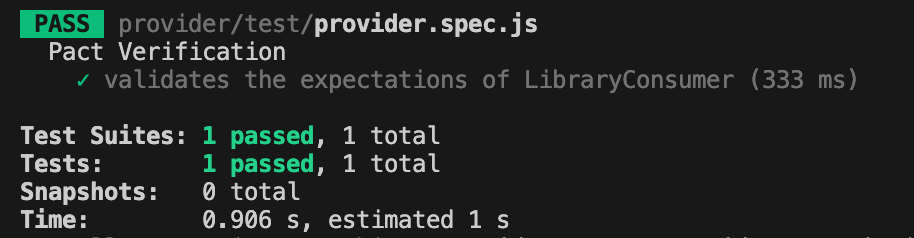
    npm run test:provider

    If everything set up correctly you should get one test passing:

    Conclusion

    Today, we explored a practical implementation of the consumer-driven contract testing approach. We created test cases for both the consumer and provider and stored the contract in the same repository.

    But you might be wondering—what if the consumer’s and provider’s repositories are separate, unlike our case? Since these two microservices are independent, the contract needs to be accessible to both. So, where should it be stored?

    Let’s to explore possible solution in the next part.

    Bye for now! Hope you enjoyed it!

  • Key Aspects I Consider in Automation Project Code Reviews.

    Key Aspects I Consider in Automation Project Code Reviews.

    Recently, I’ve been involved in conducting code reviews for my team’s end-to-end test automation project, which utilizes Playwright technology. I dedicate about a couple of hours each day to this task, either by reviewing others’ code or by responding to feedback on my own pull requests. 

    I firmly believe that we as test automation engineers should approach test automation as any kind of software because test automation is software development. Software developers should have solid knowledge on tools and best practices like: coding and naming standards, configuration management, code review practices, modularization, abstraction, static analysis tools, SOLID and DRY principles, etc. A well-established code review process is one of the success points while working on the test automation projects. You might find a lot of best resources on how to conduct code review: code reviews best practices by Google, by GitLab and others. In this article, I would like to point out several aspects I pay attention to while reviewing test automation code in addition to standard guidelines. 

    Automate what can be automated!

    Make your life easier 🙂 Automation can significantly simplify managing run-time errors, stylistic issues, formatting challenges, and more. Numerous tools are available to assist with this. For a Playwright project using TypeScript, I recommend installing and configure the following:

    • ESLint: This tool performs static analysis of your code to identify problems. ESLint integrates with most IDEs and can be implemented as part of your CI/CD pipeline.
    • Prettier: A code formatter that is helpful in enforcing a consistent format across your codebase.
    • Husky: Facilitates the easy implementation of Git hooks.

    In this detailed guide by Butch Mayhew you can find all the information you need to install and configure these tools in your project.

    Identify easy to spot issues first

    First thing you have to look for is any preliminary checks required for the PR to be merged, like: merge conflicts, outdated branches, failed static analysis tools or formatter checks. Then you might briefly look for easy to spot poor coding practices and errors: naming convention, redundant debug lines (for example, console.log()), formatting, long or complex functions, unnecessary comments, typos and so on. Moreover, you might spot violation of agreed rules within the team, like test case id or description, etc. 

    Verify that each test should focus on a single aspect. 

    The general guideline is that tests should contain only one assertion, reflecting the primary objective of the test. For example, if you’re verifying that a button is correctly displayed and functional on the UI, the test should be limited to that specific check.

    Here’s an example using Playwright for a TypeScript project:

    import { test, expect } from '@playwright/test'; 
    
    test('should display and enable the submit button', async ({ page }) => {        
     await page.goto('https://example.com'); 
     const submitButton = page.locator('#submit-button'); 
     await expect(submitButton).toBeVisible(); 
     await expect(submitButton).toBeEnabled(); 
    });


    Additionally, name the test to reflect its purpose, capturing the intent rather than the implementation details.

    Separation of concerns

    Separation of concerns is a fundamental design principle that we might need to stick to. When structuring code with functions and methods, it’s crucial to determine the appropriate scope for each. Ideally, a function should do one thing and one thing only. Following this approach, you will achieve a distinct and manageable codebase.

    In UI testing, the most popular approach for maintaining separation of concerns is the Page Object Pattern. This pattern separates the code that interacts with the DOM from the code that contains the test steps and assertions.

    Proper separation of concerns within tests also means placing setup and teardown steps in separate functions or methods or beforeEach or afterEach steps. This practice makes it easier to understand the core validation of the test without being distracted by the preparatory steps. Importantly, setup and teardown functions should avoid assertions; instead, they should throw exceptions if errors occur. This approach ensures that the primary focus of the test remains on its intended verification.

    Is the locator / selector strategy solid?

    A solid locator/selector strategy is crucial for ensuring that your tests are stable and maintainable. This means using selectors that are resilient to changes in the UI and are as specific as necessary to avoid false positives. It’s important to explore framework-specific best practices for locator or selector strategies. For example, Playwright best practices recommend using locators and user-facing attributes.

    To make your test framework resilient to DOM changes, avoid relying on the DOM structure directly. Instead, use locators that are resistant to DOM modifications:

    page.getByRole(‘button’, { name: ‘submit’ });

    Different frameworks may have their own guidelines for building element locating strategies, so it’s beneficial to consult the tool-specific documentation for best practices.

    Hard-coded values.

    Hard-coded values might be dangerous to automation framework flexibility and maintainability in the future. There are a few questions you might ask while reviewing: 

    1. Can we use data models to verify data types at runtime? Consider implementing data models to validate data types during execution, ensuring robustness and reducing errors.
    2. Should this variable be a shared constant? Evaluate if the value is used in multiple places and would benefit from being defined as a constant for easier maintenance.
    3. Should we pass this parameter as an environment variable or external input? This approach can significantly improve configurability and adaptability.
    4. Can we extract this value directly from the API interface? Investigate if the value can be dynamically retrieved from the API, reducing the need for hard-coding and improving reliability.

    Is the code properly abstracted and structured?

    As test automation code tends to grow rapidly, it is important to ensure that common code is properly abstracted and reusable by other tests. Data structures, page objects and API utilities should be separated and organized in the right way. 

    But don’t overuse abstraction and tolerate little duplication in favour of readability.

    Code Comments

    Code comments should not duplicate information the code can provide. Comments should provide context and rationale that the code alone cannot. Additionally, functions and classes should follow a self-explanatory naming convention, making their purpose clear without needing additional comments.

    “Trust, but verify.”

    Don’t rely on an automated test until you’ve seen it fail. If you can’t modify the test to produce a failure, it might not be testing what you intend. Additionally, be wary of unstable test cases that intermittently pass or fail. Such tests need to be improved, fixed, or removed altogether to ensure reliability.

    Communication is the key.

    Navigating the human aspects of code reviews can be as challenging as the technical ones. Here are some strategies that have worked for me when reviewing code.

    1. I often engage with the code by asking clarifying questions. For example:
    • “How does this method work?”
    • “If this requirement changes, what else would need to be updated?”
    • “How could we make this more maintainable?”
    1. Praise the good! Notice when people did something well and praise them for it. Positive feedback from peers is highly motivating. 
    2. Focus on the code, not the person. It’s important to frame discussions around the code itself rather than the person who wrote it. This helps reduce defensiveness and keeps the focus on improving the code quality.
    3. Discuss detailed points in-person. Sometimes, a significant change is easier to discuss face-to-face rather than in written comments. If a discussion is becoming lengthy or complex, I’ll often suggest continuing it in person.
    4. Explain your reasoning. When suggesting changes, it’s helpful to explain why you think the change is necessary and ask if there might be a better alternative. Providing context can prevent suggestions from seeming nit-picky.

    Conclusion

    This is not an exhaustive list of considerations for code reviews. For more guidance, I recommend checking out articles by Andrew Knight and Angie Jones. Their insights can provide additional strategies to enhance your code review process.

  • Part4: Implementing Page Object Pattern to Structure The Test Suite

    Part4: Implementing Page Object Pattern to Structure The Test Suite

    Introduction

    Page object models is a best practice for Playwright to organize test suites by representing various components of a web application. For instance, in the context of a website, pages such as the login , home page, product listings page, etc. can each be encapsulated within a corresponding page objects.

    Breaking down the Page Object: Understanding its Components

    A Page Object serves as a container for all interactions and elements found on a particular web page or a segment of it. Within this structure, there are three fundamental components:

    1. Element Selectors: These serve as the blueprints pinpointing specific elements residing on the web page.
    2. Methods: These functions encapsulate various interactions with the web elements, simplifying complex operations into manageable actions.
    3. Properties: These encompass any supplementary information or attributes pertaining to the page, such as its unique URL or other metadata.

    Step by Step Guide to write POM for the project

    Identify Properties

    Create pages folder. To create an abstraction for common methods and properties, we will first create base.page.ts to hold page property.

    import { Page } from '@playwright/test'

    export class BasePage {
    readonly page: Page;

    constructor(page: Page) {
    this.page = page;
    }
    }

    Then create login.page.ts file which will contain abstraction for Login Page. Extend LoginPage class with BasePage class to inherit page property.

    import { Locator, Page, expect } from '@playwright/test'
    import { BasePage } from '../base.page';

    export class LoginPage extends BasePage {

    constructor(page: Page) {
    super(page);
    }
    };

    Identify Locators

    Add locators for the elements on the Login page:

    import { Locator, Page, expect } from '@playwright/test'
    import { BasePage } from '../base.page';

    export class LoginPage extends BasePage {
    readonly usernameInput: Locator;
    readonly passwordInput: Locator;
    readonly loginButton: Locator;

    constructor(page: Page) {
    super(page);
    this.usernameInput = page.locator('[data-test="username"]');
    this.passwordInput = page.locator('[data-test="password"]');
    this.loginButton = page.locator('[data-test="login-button"]');
    }
    };

    Identify Methods

    Write methods which describe actions you might reuse in test cases:

    import { Locator, Page, expect } from '@playwright/test'
    import { BasePage } from '../base.page';

    export class LoginPage extends BasePage {
    readonly usernameInput: Locator;
    readonly passwordInput: Locator;
    readonly loginButton: Locator;

    constructor(page: Page) {
    super(page);
    this.usernameInput = page.locator('[data-test="username"]');
    this.passwordInput = page.locator('[data-test="password"]');
    this.loginButton = page.locator('[data-test="login-button"]');
    }

    async enterCredentials(username: string, password: string) {
    await this.usernameInput.fill(username);
    await this.passwordInput.fill(password);
    }

    async clickLoginButton() {
    await this.loginButton.click();
    }
    }

    Identify Assertions

    import { Locator, Page, expect } from '@playwright/test'
    import { BasePage } from '../base.page';

    export class LoginPage extends BasePage {
    readonly usernameInput: Locator;
    readonly passwordInput: Locator;
    readonly loginButton: Locator;

    constructor(page: Page) {
    super(page);
    this.usernameInput = page.locator('[data-test="username"]');
    this.passwordInput = page.locator('[data-test="password"]');
    this.loginButton = page.locator('[data-test="login-button"]');
    }

    async enterCredentials(username: string, password: string) {
    await this.usernameInput.fill(username);
    await this.passwordInput.fill(password);
    }

    async clickLoginButton() {
    await this.loginButton.click();
    }

    async IsSignedIn() {
    await expect(this.page.getByText('Products')).toBeVisible();
    }
    }

    Use Page Objects in test cases

    With the abstraction provided by the Page Object, we can easily integrate it into our test cases. This involves initializing the object and invoking its functions whenver needed.

    import { test } from '../utils/fixtures';
    import expect from "@playwright/test"
    import { LoginPage } from "../pages/login/login.page"

    test.beforeEach(async ({page}) => {
    await page.goto('https://www.saucedemo.com/');
    });

    test("login successfully", async ({ page }) => {
    const loginPage = new LoginPage(page);
    await loginPage.enterCredentials("standard_user", "secret_sauce");
    await loginPage.clickLoginButton();
    await loginPage.IsSignedIn();
    });
    }

    Looks good now! However there is one more improvement we can make to avoid duplication of objects initialisation in each and every test case. For this purpose, Playwright provides fixtures which are reusable between test files. You can define pages once and use in all your tests.

    Using Fixtures with Page Object Patterns

    That’s how Playwright’s built-in page fixture could be implemented:

    import { test as base } from "@playwright/test"
    import { LoginPage } from "../pages/login/login.page"

    export const test = base.extend({
    loginPage: async ({page}, use) => {
    // Set up the fixture
    const loginPage = new LoginPage(page);

    // Use the fixture value in the test
    await use(loginPage);
    }
    })

    In order to use fixture, you have to mention fixture in your test function argument, and test runner will take care of it.

    import { test } from '../utils/fixtures';
    import expect from "@playwright/test"

    test.beforeEach(async ({page}) => {
    await page.goto('https://www.saucedemo.com/');
    });

    test("login successfully", async ({ loginPage }) => {
    await loginPage.enterCredentials("standard_user", "secret_sauce");
    await loginPage.clickLoginButton();
    await loginPage.IsSignedIn();
    });
    }

    Fixture helped us to reduce number code lines and improve maintainability.

    Bonus: Create Datafactory to store Users Data and Parametrize Test Case.

    To centralize all the data utilized within our test cases, let’s establish a dedicated location. For this purpose, we will create /datafactory folder and login.data.ts file to store usernames and passwords needed to test an application. Also, important to remember establishing interfaces and types which will validate data we store.

    export interface USERS {
    username: string;
    password: string;
    }

    type userTypes =
    "standard_user" |
    "locked_out_user" |
    "problem_user" |
    "performance_glitch_user"|
    "error_user"|
    "visual_user"

    export const users: Record<userTypes, USERS> = {
    "standard_user": {
    username: "standard_user",
    password: "secret_sauce",
    },
    "locked_out_user": {
    username: "locked_out_user",
    password: "secret_sauce",
    },
    "problem_user": {
    username: "problem_user",
    password: "secret_sauce",
    },
    "performance_glitch_user": {
    username: "performance_glitch_user",
    password: "secret_sauce",
    },
    "error_user": {
    username: "error_user",
    password: "secret_sauce"
    },
    "visual_user": {
    username: "visual_user",
    password: "secret_sauce"
    }
    }

    And the last step: we have to parametrise test case we have with different target users. There are a lot of ways to do so, you can check in documentation for more information. For this demo, I am going to iterate through the object we have and test against each user.

    import { test } from '../utils/fixtures';
    import expect from "@playwright/test"
    import { users } from '../utils/datafactory/login.data';

    test.beforeEach(async ({page}) => {
    await page.goto('https://www.saucedemo.com/');
    });

    for (const userType in users) {
    test(`login successfully with ${userType}`, async ({ page, loginPage }) => {
    await loginPage.enterCredentials(users[userType]["username"], users[userType]["password"]);
    await loginPage.clickLoginButton();
    await loginPage.IsSignedIn();
    });
    }

    Execute Test Cases and Generate a Report.

    Execute Test cases by running npx playwright test command from command line. As a result, report stores parametrised title for each test case by including name of the user.

    Best Practices for Page Object Pattern

    1. Make Pages Small. Break down web pages into smaller, more manageable components to improve readability and maintainability of the page objects, ensuring each object focuses on a specific functionality or section of the page.
    2. Separate Actions and Assertions. Maintain a clear distinction between actions, such as interacting with elements, and assertions, which verify expected outcomes. This separation enhances the clarity and maintainability of test cases, facilitating easier troubleshooting and debugging.
    3. Keep a Minimum Number of Assertions in Test Cases. Limit the number of assertions within each test case to maintain clarity and focus. By reducing complexity, it becomes easier to pinpoint the cause of a failed test case, ensuring that the reason for failure is readily identifiable.

    Conclusion

    In this article, we explored the implementation of the Page Object Model (POM), a powerful design pattern that abstracts crucial elements like page properties, locators, actions, and assertions. When implementing POM in Playwright, it’s essential to keep in mind best practices, such as creating distinct classes for each page, defining methods for user interactions, and integrating these page objects into your tests. Additionally, we also took a look at how to approach data handling and test parametrization.

    Repository with the code you can find here.