As part of an open-source project by the Women Coding Community, we’re building a Playwright test suite to ensure our frontend works reliably. While functional tests cover most interactions, we noticed that for some static pages, like FAQs or other content-heavy sections, visual testing could add real value. Even minor CSS changes or layout shifts can break the page in ways users notice, but automated functional tests often miss these subtle regressions.
This is where visual testing comes in. It lets us capture screenshots of key pages and automatically compare them against a reference, so we can catch unintended visual changes before they reach our users.
Playwright makes it easy to implement visual testing in just a few lines of code:
The challenge: different machines, different results.
While this code works on a single machine, it may fail on another due to subtle rendering differences. Fonts, spacing, and other visual details vary between operating systems: Windows renders fonts differently than macOS, which renders differently than Linux. For users, this is expected and harmless. But for visual tests, it creates false positives when running on different developer machines or in our CI pipeline.
See the difference in the screenshots shared in this article:
Different rendering in Chromium on Ubuntu and Safari on macOS
For example, a screenshot taken on a macOS laptop may fail if the same test runs on a Linux-based CI environment.
The solution? Docker. It gives us a consistent environment so tests pass reliably everywhere.
We built DockerFile on the official Playwright image, which includes browsers and system dependencies. Then we installed our project dependencies and copied the code.
Docker Compose was introduced to make running visual tests easy and consistent. It lets developers start and run everything with a single command, using the same setup locally and in CI. This avoids environment differences and reduces “works on my machine” issues.
Our Compose file:
Defines a service playwright responsible for running the tests.
Builds the Docker image using our Dockerfile.
Sets /app as the default working directory.
Loads environment variables from .env.local for consistency with local development.
Mounts volumes for:
Project directory – so the container can access source code without copying it every time.
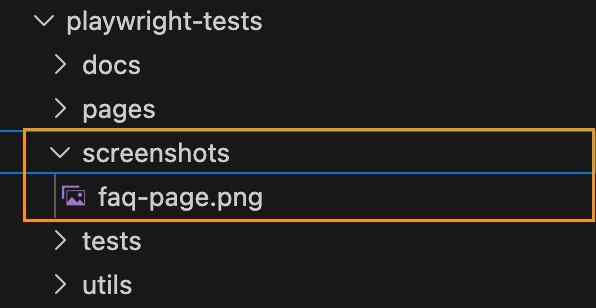
Screenshots – so new screenshots persist and visual diffs remain across container runs.
Playwright reports – so test reports are available locally and in CI artifacts.
"test:e2e": "playwright test --grep-invert @visual"
This prevents false positives during regular development, while maintaining reliable visual tests in Docker.
Why It Matters
With this setup, we can catch real visual regressions while ignoring harmless OS-level differences. Docker guarantees a consistent testing environment, and Playwright makes capturing and comparing screenshots simple.
Our users may see slightly different fonts depending on their OS—but our tests are now reliable, reproducible, and actionable, keeping our UI looking great everywhere.
This is actually my first time working with Playwright using the Model-Based Testing (MBT) approach, and I’ve been learning it recently. Honestly, it’s been a pretty cool experience! What really stood out to me is how easy it can be to test all the possible paths of your app without writing a bunch of repetitive test code. You basically define your app’s behavior in a model, and Playwright can automatically generate tests that cover everything, whether it’s valid logins or invalid ones.
I’m pretty excited about how MBT, combined with Playwright, can keep things organized, scalable, and maintainable. So, if you’re like me and just getting started with this, I’ll walk you through how I set things up, step by step, and what I learned along the way.
What is Model Based Testing?
Model Based Testing is the testing methodology that leverages model-based design for designing and executing test cases. The model represents the system’s states, the transitions between those states, the actions that trigger the transitions, and the expected outcomes.
State Machine Models
The state machine model is one of the most popular models in MBT. It represents a system in terms of its states and the transitions between them.
States: Represent various configurations or conditions of the system.
Transitions: Describe the movement between states, triggered by specific events or actions.
Actions: Input or conditions that cause a transition from one state to another.
This type of the model suits the systems with discrete states (e.g. login flow, traffic lights, etc.). It is simple to understand and visualize.
Example: Login Flow
Let’s consider a simple login form with two fields (Email and Password) and a Submit button.
When the user submits the login form, the system checks the credentials and triggers the SUBMIT action. If the credentials are valid (user@example.com and password), the system transitions from the formFilledValid state to the success state, displaying the “Welcome!” message. However, if the credentials are invalid, the system transitions from the formFilledInvalid state to the failure state, displaying the “Invalid credentials.” message.
States
Definition: Represent various configurations or conditions of the system.
In the login machine, the states are:
idle:
The initial state when the login form is first loaded.
In this state, the email and password fields should be visible.
formFilledValid:
Represents the state when the form is filled out with valid credentials (user@example.com / password).
formFilledInvalid:
Represents the form being filled with invalid credentials (wrong@example.com / wrongpass).
success:
A final state indicating successful login (e.g., “Welcome!” message is shown).
failure:
A final state indicating login failure (e.g., “Invalid credentials.” message is shown).
Events/Actions
Definition: Inputs or conditions that cause a transition from one state to another.
These are the inputs sent to the machine that trigger transitions:
FILL_FORM: Filling the form with valid data.
FILL_FORM_INVALID: Filling the form with invalid data.
SUBMIT: Submitting the login form (used in both valid and invalid paths).
Transitions
Definition: Describe the movement between states, triggered by specific events.
The transitions in this case are:
Transition 1: From the formFilledValid state to the success state, triggered by the SUBMIT action when the credentials are correct.
Transition 2: From the formFilledInvalid state to the failure state, triggered by the SUBMIT action when the credentials are incorrect.
Install xstate and xstate/test. XState is used to define the state machine logic, while @xstate/test allows us to generate tests automatically based on the defined model. This reduces boilerplate and ensures consistency between model and tests.
npm install xstate @xstate/test
Import the necessary xstate libraries into your spec file:
import { createMachine } from "xstate";
import { createModel } from "@xstate/test";
idle: Initial state when the form is empty, waiting for user input.
formFilledValid: State after the form is filled with valid credentials.
formFilledInvalid: State after the form is filled with invalid credentials.
success: Final state when the user has successfully logged in.
failure: Final state when the login fails due to incorrect credentials.
Transitions:
FILL_FORM: Transition that occurs when the user fills out the form correctly.
FILL_FORM_INVALID: Transition when the user fills out the form with invalid credentials.
SUBMIT: Transition that occurs when the user submits the form.
You can visualize this model using XState Visualizeror Stately, which automatically generates a graphical representation of your state machine, making it easier to understand and communicate the flow.
Meta properties
The meta properties define assertions or checks that validate whether the state machine has transitioned successfully between states.
!! Important to highlight that meta properties themselves do not involve actions or events (like clicking buttons or submitting forms). They are purely for validating if the system has reached a specific state.
Example: In the idle state, we should assert that the form’s input fields (Email and Password) are visible and present on the page. This ensures that the system is in the correct state and ready to receive user input:
Creating the tests is super easy since we let xstate generate our test plans for us. The snippet below basically generates the tests dynamically based on the model.
While both methods work, they introduce unnecessary variability in locator strategies. This can lead to confusion.
To avoid this inconsistency, we can introduce a more structured way to define and reuse locators. One effective approach is to adopt the Page Object Model (POM) pattern.
Advantages of Model-Based Testing approach
Ensures all possible user paths (valid/invalid logins) are tested. With a proper model, you’ll never forget a test case again! Every valid and invalid login, every happy path and error state, it’s all there, mapped out.
One model defines both behavior and tests, easy to update. This is a huge win. Once you’ve got your model, it doubles as both a behavior map and a test generator. So when the app changes, you just tweak the model.
Tests are generated automatically from the model. This is absolute magic. The model can automatically produce test cases, helping you focus on designing better logic instead of managing test scripts.
State diagrams help explain app behavior clearly. These diagrams aren’t just for testers, they’re great for showing developers, designers, and even PMs how the app behaves. Everyone can see the “big picture”.
Encourages thinking through logic before coding. You’re forced (in a good way!) to plan how the system should behave before jumping into code.
Disadvantages of Model-Based Testing approach
More effort than needed for simple flows. If you’re testing a basic login form or something tiny, setting up a full model might feel like overkill. The setup time pays off for complex systems, but not always for quick one-off tests.
Requires understanding XState and state machines. Here is a bit of a learning curve. If you are new to the concept of states, transitions and actions, you definitely need to spend some time to understand it, but with practice it gets easier.
The model must stay in sync with the actual UI. As soon as the UI changes, it needs a bit of discipline to align it with the existing model.
Harder to model non-deterministic flows. Some parts of an app (like random data, unpredictable user input, or flaky network calls) can be tricky to represent in a model.
Conclusion
Model-Based Testing with Playwright and XState is a super powerful way to keep your tests organized, maintainable, and easy to scale. By turning your app’s behavior into a state machine, you can automatically generate tests that cover all the possible paths, no more wondering if you missed something. This approach really shines when you’re working with flows that have clear steps, like login forms, authentication, or multi-step processes. It’s all about making testing smarter, not harder!
When testing APIs that require authentication or involve dependent requests, hardcoding tokens and dynamic values can quickly lead to fragile and hard-to-maintain tests. PactumJS offers a solution for this – stores, which allow you to capture and reuse values like tokens, IDs, and other response data.
In this article, you’ll learn how to:
Handle authentication using Pactum stores
Chain requests by capturing and reusing dynamic values
Clean up test data using afterEach hooks
Recap: POST Add Room request resulting 401 status code
In the previous article, we created a test case Create a New Room but encountered a 401 Unauthorized error due to missing authentication:
This captures the token field from the login response and stores it under the key ‘token’.
To use the stored token in subsequent requests:
.withHeaders('Cookie', 'token=$S{token}')
Chaining Requests
You can also extract and store specific values like IDs from response bodies using the built-in json-query support in PactumJS. This allows you to query deeply nested JSON data with simple expressions.
For example, to capture a roomId based on a dynamic roomName from the response:
The stash object in Pactum provides access to test data and stored values during runtime. Specifically, stash.getDataTemplate() allows you to retrieve values generated from the data template used earlier in .withJson({ ‘@DATA:TEMPLATE@’: ‘RandomRoom’ }).
This is useful here to extract values from dynamically generated templates (like roomName) to use them in later requests.
Bonus: Fetching Rooms without authentication
Here’s a simple test for fetching all rooms without authentication:
Chain requests by dynamically storing and reusing values
By combining this with beforeEach and afterEach hooks, you can effectively manage test preconditions and postconditions, ensuring your test cases remain clean, maintainable.
Page object models is a best practice for Playwright to organize test suites by representing various components of a web application. For instance, in the context of a website, pages such as the login , home page, product listings page, etc. can each be encapsulated within a corresponding page objects.
Breaking down the Page Object: Understanding its Components
A Page Object serves as a container for all interactions and elements found on a particular web page or a segment of it. Within this structure, there are three fundamental components:
Element Selectors: These serve as the blueprints pinpointing specific elements residing on the web page.
Methods: These functions encapsulate various interactions with the web elements, simplifying complex operations into manageable actions.
Properties: These encompass any supplementary information or attributes pertaining to the page, such as its unique URL or other metadata.
Step by Step Guide to write POM for the project
Identify Properties
Create pages folder. To create an abstraction for common methods and properties, we will first create base.page.ts to hold page property.
import { Page } from '@playwright/test'

export class BasePage {
    readonly page: Page;

    constructor(page: Page) {
        this.page = page;
    }
}
Then create login.page.ts file which will contain abstraction for Login Page. Extend LoginPage class with BasePage class to inherit page property.
import { Locator, Page, expect } from '@playwright/test'
import { BasePage } from '../base.page';

export class LoginPage extends BasePage {

    constructor(page: Page) {
        super(page);
    }
};
Identify Locators
Add locators for the elements on the Login page:
import { Locator, Page, expect } from '@playwright/test' import { BasePage } from '../base.page';
With the abstraction provided by the Page Object, we can easily integrate it into our test cases. This involves initializing the object and invoking its functions whenver needed.
import { test } from '../utils/fixtures'; import expect from "@playwright/test" import { LoginPage } from "../pages/login/login.page"
Looks good now! However there is one more improvement we can make to avoid duplication of objects initialisation in each and every test case. For this purpose, Playwright provides fixtures which are reusable between test files. You can define pages once and use in all your tests.
Using Fixtures with Page Object Patterns
That’s how Playwright’s built-in page fixture could be implemented:
import { test as base } from "@playwright/test"
import { LoginPage } from "../pages/login/login.page"

export const test = base.extend({
    loginPage: async ({page}, use) => {
        // Set up the fixture
        const loginPage = new LoginPage(page);

        // Use the fixture value in the test
        await use(loginPage);
    }
})
In order to use fixture, you have to mention fixture in your test function argument, and test runner will take care of it.
import { test } from '../utils/fixtures'; import expect from "@playwright/test"
Fixture helped us to reduce number code lines and improve maintainability.
Bonus: Create Datafactory to store Users Data and Parametrize Test Case.
To centralize all the data utilized within our test cases, let’s establish a dedicated location. For this purpose, we will create /datafactory folder and login.data.ts file to store usernames and passwords needed to test an application. Also, important to remember establishing interfaces and types which will validate data we store.
And the last step: we have to parametrise test case we have with different target users. There are a lot of ways to do so, you can check in documentation for more information. For this demo, I am going to iterate through the object we have and test against each user.
import { test } from '../utils/fixtures'; import expect from "@playwright/test" import { users } from '../utils/datafactory/login.data';
for (const userType in users) { test(`login successfully with ${userType}`, async ({ page, loginPage }) => { await loginPage.enterCredentials(users[userType]["username"], users[userType]["password"]); await loginPage.clickLoginButton(); await loginPage.IsSignedIn(); }); }
Execute Test Cases and Generate a Report.
Execute Test cases by running npx playwright test command from command line. As a result, report stores parametrised title for each test case by including name of the user.
Best Practices for Page Object Pattern
Make Pages Small. Break down web pages into smaller, more manageable components to improve readability and maintainability of the page objects, ensuring each object focuses on a specific functionality or section of the page.
Separate Actions and Assertions. Maintain a clear distinction between actions, such as interacting with elements, and assertions, which verify expected outcomes. This separation enhances the clarity and maintainability of test cases, facilitating easier troubleshooting and debugging.
Keep a Minimum Number of Assertions in Test Cases. Limit the number of assertions within each test case to maintain clarity and focus. By reducing complexity, it becomes easier to pinpoint the cause of a failed test case, ensuring that the reason for failure is readily identifiable.
Conclusion
In this article, we explored the implementation of the Page Object Model (POM), a powerful design pattern that abstracts crucial elements like page properties, locators, actions, and assertions. When implementing POM in Playwright, it’s essential to keep in mind best practices, such as creating distinct classes for each page, defining methods for user interactions, and integrating these page objects into your tests. Additionally, we also took a look at how to approach data handling and test parametrization.
More examples of automation testing friendly websites you can find in the repo throughly curated by Butch Mayhew.
In Playwright, structuring a test suite involves organizing your test cases within descriptive blocks (test.describe) and utilizing setup and teardown functions (test.beforeEach and test.afterEach) to ensure consistent test environments. Here’s a brief description of each component and an example:
test.describe block provides a high-level description of the test suite, allowing you to group related test cases together. It helps in organizing tests based on functionality or feature sets.
Inside test.describe, individual test cases are defined using the test block. Each test block represents a specific scenario or behavior that you want to verify.
test.beforeEach block is used to define setup actions that need to be executed before each test case within the test.describe block. It ensures that the test environment is in a consistent state before each test runs.
test.afterEach block is utilized for defining teardown actions that need to be executed after each test case within the test.describe block. It helps in cleaning up the test environment and ensuring that resources are properly released.
Here’s an example demonstrating the structure of a test suite in Playwright:
import { chromium, Browser, Page } from 'playwright';

// Define the test suite
test.describe('Login functionality', () => {
  let browser: Browser;
  let page: Page;

  // Setup before each test case
  test.beforeEach(async () => {
    browser = await chromium.launch();
    page = await browser.newPage();
    await page.goto('https://example.com/login');
  });

  // Teardown after each test case
  test.afterEach(async () => {
    await browser.close();
  });

  // Test case 1: Verify successful login
  test('Successful login', async () => {
    // Test logic for successful login
  });

  // Test case 2: Verify error message on invalid credentials
  test('Error message on invalid credentials', async () => {
    // Test logic for error message on invalid credentials
  });
});
DOM Terminology
Before we start writing test cases, it will be useful to brush up our memory on DOM Terminology
HTML tags are simple instructions that tell a web browser how to format text. You can use tags to format italics, line breaks, objects, bullet points, and more. Examples: <input>, <div>, <p>
Elements in HTML have attributes; these are additional values that configure the elements or adjust their behavior in various ways to meet the criteria the users want. Sometimes these attributes can have a value and sometimes doesn’t. Refer to Developer Mozilla Website for more information.”Class” and “id” are the most used attributes in HTML. (image: show class attribute, class value)
Value in between angle braces is a plain text
HTML tags usually come in pairs of Opening and Closing Tags.
There are other ways to locate elements by using built-in APIs Playwright provides.
There is one best practice we have to keep in mind: automated tests must focus on verifying that the application code functions as intended for end users, while avoiding reliance on implementation specifics that are not typically visible, accessible, or known to users. Users will only see or interact with the rendered output on the page; therefore, tests should primarily interact with this same rendered output. Playwright documentation: https://playwright.dev/docs/best-practices#test-user-visible-behavior.
There are recommended built-in locators:
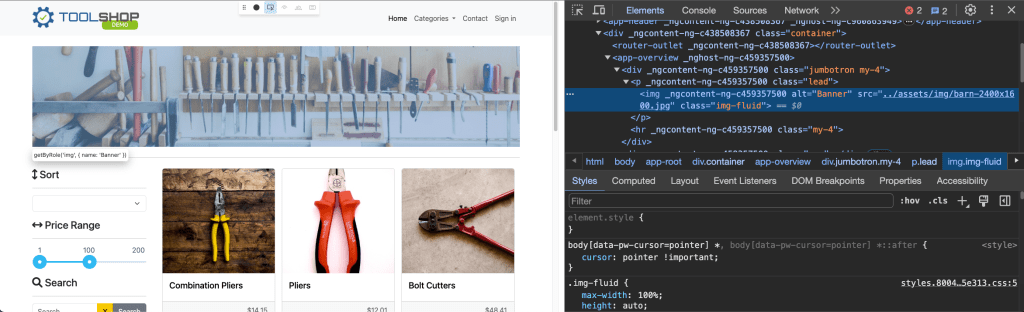
page.getByRole() to locate by explicit and implicit accessibility attributes.
4. Then we have to verify if no items have been found by asserting text on this page:
Result after clicking on Search buttonNo Result Found HTML
await expect (page.getByRole('heading', {name: "Searched for: Hand Tools"})).toBeVisible();
5. Run this test case and make sure test is passing.
Assertions
Playwright incorporates test assertions utilizing the expect function. To perform an assertion, utilize expect(value) and select a matcher that best represents the expectation. Various generic matchers such as toEqual, toContain, and toBeTruthy are available to assert various conditions.
General Assertions
// Using toEqual matcher
test('Adding numbers', async () => {
  const result = 10 + 5;
  expect(result).toEqual(15);
});
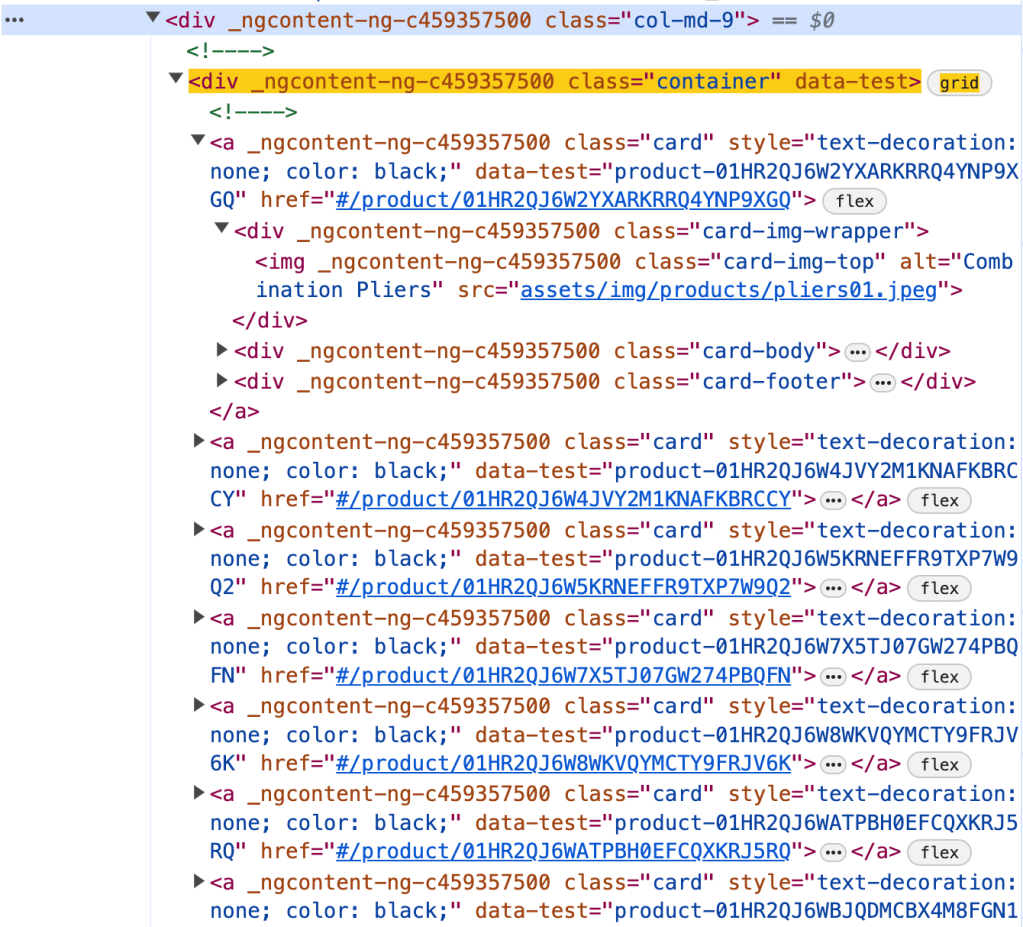
Assert that the title of the product is “Combination Pliers”.
Element on the pageElement HTML
const element = page.locator('.col-md-9 .container').first().locator('.card-title');
const text = element.textContent();
expect(text).toEqual('Combination Pliers');
Locator Assertions
Playwright provides asynchronous matchers, ensuring they wait until the expected condition is fulfilled. For instance, in the following scenario:
const element = page.locator('.col-md-9 .container').first().locator('.card-title');
await expect(element).toHaveText('Combination Pliers');
!Note: do not forget to use await when asserting locators
Playwright continuously checks the element with the test id of “status” until it contains the text “Combination Pliers”. This process involves repeated fetching and verification of the element until either the condition is satisfied or the timeout limit is reached. You have the option to either specify a custom timeout or configure it globally using the testConfig.expect value in the test configuration.
By default, the timeout duration for assertions is set to 5 seconds.
There are two types assertion though: Auto-Retrying Assertions and Non-Retrying Assertions.
Auto-Retrying assertions provided below will automatically retry until they pass successfully or until the assertion timeout is exceeded. It’s important to note that these retrying assertions operate asynchronously, necessitating the use of the await keyword before them.
It’s advisable to prioritize auto-retrying assertions whenever feasible.
Soft Assertions
As a default behavior, when an assertion fails, it terminates the test execution. However, Playwright offers support for soft assertions. In soft assertions, failure doesn’t immediately stop the test execution; instead, it marks the test as failed while allowing further execution.
For example, if we take the previous example and put .soft it assertion, in case assertion fails, it will not lead to termination of test execution.
const element = page.locator('.col-md-9 .container').first().locator('.card-title');
await expect.soft(element).toHaveText('Combination Pliers');
Conclusion.
In conclusion, we’ve explored the aspects of writing test cases using Playwright. We delved into the standard structure of a test case, incorporating essential elements such as hooks and grouping for efficient test management. Additionally, we examined various strategies for locating elements within web pages. Lastly, we discussed the importance of assertions in verifying expected behaviors, covering different assertion techniques to ensure robust and reliable testing. Examples of code, you can see in repository.
This is the second part of a series on Playwright using Typescript and today we are going to talk about challenges in UI Test Framework and explore how leveraging Playwright Best Practices can help us overcome them.
End-to-end test cases have unique challenges due to their complex nature, as they involve testing the entire application user flow from start to finish. These tests often require coordination between different systems and components, making them non-sensitive to environmental inconsistencies and complex dependencies.
What are other challenges we might encounter while working with UI Test Frameworks?
Test cases can be slow to execute, as they often involve the entire application stack, including backend, frontend, database.
End-to-End tests can be fragile, as they vulnerable to breaking whenever there is a change in DOM, even if the functionality stays the same.
UI Tests consume more resources compared to other types of testing, requiring robust infrastructure to run efficiently.
This type of test cases suffering from flakiness. Oh, yes, did I say flakiness? It could be a very annoying problem.
Flaky tests pose a risk to the integrity of the testing process and the product. I would refer to great resource where The Domino Effect of Flaky Tests described.
Main idea: while a single test with a flaky failure rate of 0.05% may seem insignificant, the challenge becomes apparent when dealing with numerous tests. An insightful article highlights this issue by demonstrating that a test suite of 100 tests, each with a 0.05% flaky failure rate, yields an overall success rate of 95.12%. However, in larger-scale applications with thousands of tests, this success rate diminishes significantly. For instance, with 1,000 flaky tests, the success rate drops to a concerning 60.64%.And seems, this problem is real and we have to handle it otherwise it will be “expensive” and annoying for test execution for a large-scale applications.
Remember: Most of the time, flakiness is not the outcome of a bad test framework. Instead, it is the result of how you design the test framework and whether you follow its best practices.
By following best practices and designing your tests carefully, you can prevent many flaky tests from appearing in the first place. That’s why before diving right into the implementation, let’s take a look at best practices for Playwright framework.
1. Locate Elements on the page:
👉 Use locators! Playwright provides a whole set of built-in locators. It comes with auto waiting and retry-ability. Auto waiting means that Playwright performs a range of actionability checks on the elements, such as ensuring the element is visible and enabled before it performs the click.
👉 Prefer user-facing attributes over XPath or CSS selectors when selecting elements. The DOM structure of a web page can easily change, which can lead to failing tests if your locators depend on specific CSS classes or XPath expressions. Instead, use locators that are resilient to changes in the DOM, such as those based on role or text.
🚫 Example of locator which could lead to flakiness in the future: page.locator('button.buttonIcon.episode-actions-later');
✅ Example of robust locator, which is resilient to DOM change: page.getByRole('button', { name: 'submit' });
👉 Make use of built-in codegen tool. Playwright has a test generator, which can generate locators and code for you. By leveraging this tool, you might get the most optimised locator. There is more information on codegen tool and capability to generate locators using VS Code Extension in the introductory article I wrote before.
👉 Playwright has an amazing feature of auto-waiting. You can leverage this feature in web-first assertions. In this case, Playwright will wait until the expected condition is met. Consider this example: await expect(page.getByTestId('status')).toHaveText('Submitted'); . Playwright will be re-testing the element with the test id of status until the fetched element has the "Submitted" text. It will re-fetch the element and check it over and over, until the condition is met or until the timeout is reached. By default, the timeout for assertions is set to 5 seconds.
👉 Make tests isolated. Each test should be completely isolated, not rely on other tests. This approach improves maintainability, allows parallel execution and make debugging easier.
To avoid repetition, you might consider using before and afterhooks. More ways of achieving isolation in Playwright, you can find by following this link: https://playwright.dev/docs/browser-contexts
Examples:
🚫 Not Isolated test case which assumes that the first test case should always pass and it will be a precondition for the next one (in this case, in the first test case user is logging in, and then test case has been reused in the next one. What if the first test case has been failed?
// Verify Post Created await verifyPost(title, content); });
// more test cases could be added });
👉 Keep test cases small and avoid million assertions in one test case. Make sure, that one test case has one reason for test failure. You will thank yourself later for that.
👉 Make sure you handle data correctly in the test case. Ensure that each test case is independent and does not rely on the state of previous tests. Initialize or reset the test data as needed before each test to prevent data dependency issues. When testing functionalities that interact with external services or APIs, consider using mock data or stubs to simulate responses.
How to combat flaky tests?
👉 Use debugging capabilities of Playwright tool. Run test cases with the flag --debug. This will run tests one by one, and open the inspector and a browser window for each test. it will display a debug inspector and give you insights on what the browser actually did in every step.
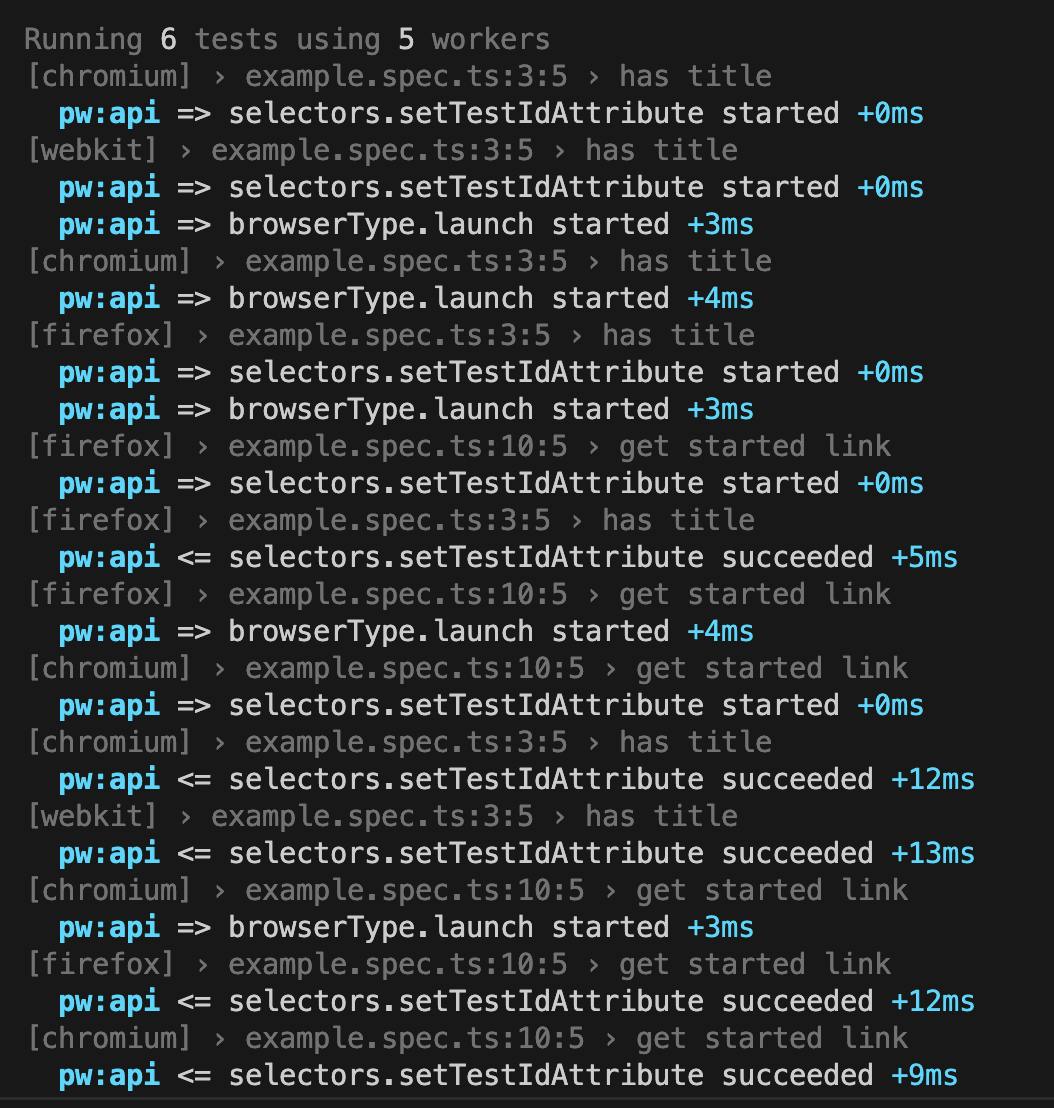
👉 Playwright supports verbose logging with the DEBUG environment variable: DEBUG=pw:api npx playwright test. In one of my articles, I also explain how to enable this mode from VSCode Extension.
👉 Playwright provides a tracing feature that allows you to capture a detailed log of all the actions and events taking place within the browser. With tracing enabled, you can closely monitor network requests, page loads, and code execution. This feature is helpful for debugging and performance optimization.
To record a trace during development mode set the --trace flag to on when running your tests: npx playwright test --trace on
You can then open the HTML report and click on the trace icon to open the trace: npx playwright show-report.
👉 You might want to slow down test execution by test.slow() to see more details. Slow test will be given triple the default timeout.
In conclusion, as you start working with new test automation tool, it’s vital to dive into best practices and familiarize yourself with the tool’s capabilities. Remember, flakiness isn’t solely the fault of the test tool itself; more often than not, it comes from how you utilize and implement it.
Summing up best practices for Playwright:
Utilize Locators and prioritize user-facing attributes.
This article will be part of a series focusing on the Playwright framework implemented with Typescript.
Playwright is a modern web testing framework that is primarily used for testing web applications. It was developed by Microsoft and released in 2019. Playwright provides a set of APIs that allow developers to automate interactions with web pages, such as clicking buttons, filling out forms, and navigating through pages. It supports multiple programming languages including JavaScript, Python, and C#, making it accessible to a wide range of developers.
Key Features:
Playwright supports cross-browser test execution including Chromium, WebKit, and Firefox
It is designed to work on various operating systems including Windows, Linux, MacOS
Playwright offers a rich set of APIs for automating interactions with web pages. Developers can simulate user actions such as clicking, typing, hovering, and navigating through pages.
Playwright includes built-in mechanisms for waiting for specific conditions to be met before executing further actions. This helps handle asynchronous behavior in web applications more effectively.
Playwright provides parallel execution option out the box that can significantly reduce the overall execution time, especially for large test suites.
It provides codegen capability to generate test steps and assertions.
Moreover, Playwright uses unique approach for browser automation. Instead of launching a full new browser instance for each test case, Playwright launches one browser instance for entire suite of tests. It then creates a unique browser context from that instance for each test. A browser context is essentially like an incognito session: it has its own session storage and tabs that are not shared with any other context. Browser contexts are very fast to create and destroy. Then, each browser context can have one or more pages. All Playwright interactions happen through a page, like clicks and scrapes. Most tests only ever need one page.
Setup the project
Get started by installing Playwright using npm: npm init playwright@latest.
Run the install command and select the following to get started:
Choose between TypeScript or JavaScript (we are going to use TypeScript for this project)
Name of your Tests folder (tests)
Add a GitHub Actions workflow to easily run tests on CI (false)
This command will create a bunch of new project files, including:
package.json file with the Playwright package dependency
playwright.config.ts file with test configurations
tests directory with basic example tests
tests-examples directory with more extensive example tests
Running Tests using command line.
npx playwright test – run test cases in headless mode. In this case browser will not appear, all projects will be executed. On the screenshot below you can see that 4 test cases have been executed, all of them are passed, 2 workers have been used. Number of workers is configurable parameter in the playwright config.
Playwright has built-in reporter. To see full report you can run npx playwright show-report command in the terminal.
You can see test results, test duration, filter them by category “passed”, “failed”, “flaky”, “skipped”. All test cases marked with the name of project (in our case this is a name of the browser we are running test against). Moreover, you can expand and check test steps and traces (if available).
If you want to run against one particular browser, run: npx playwright test --project=chromium.Test cases will be executed in headless mode.
Headed mode: npx playwright test --project=chromium --headed
In order to execute only one test spec add the name of the test spec: npx playwright test <name-of-the-test-spec> --project=chromium
If you’d like to execute only one specific test case: npx playwright test -g <name-of-the-test-case> --project=chromium
To skip test case add test.skip in test case file, like:
// Click the get started link. await page.getByRole('link', { name: 'Get started' }).click();
// Expects page to have a heading with the name of Installation. await expect(page.getByRole('heading', { name: 'Installation' })).toBeVisible(); });
Result after test execution:
Report shows that two test cases are skipped as intended:
While test development you might need to run only one test. In this case use test.only.
Test execution in UI mode.
One of its most helpful features is UI mode, which visually shows and executes tests.
To open UI mode, run the following command in your terminal: npx playwright test --ui
Once you launch UI Mode you will see a list of all your test files. You can run all your tests by clicking the triangle icon in the sidebar. You can also run a single test file, a block of tests or a single test by hovering over the name and clicking on the triangle next to it.
In the middle you will see a step-by-step trace of the test execution, together with screenshots of each step. It is also important to mention that you can debug test case here by checking “before” and “after” view, code source, logs and errors. One flaw of this mode is that the browser is not a browser itself, technically this is simply screenshot. That’s why it is more convenient to use it in combination with Playwright Extension (in VSCode).
Test Execution with Playwright Extension.
Install Extension by navigating to Preferences -> Extensions. Search for official extension called Playwright Test for VSCode, hit Install button. Once it’s been installed, navigate to Testing section on the left panel. List of test cases should be loaded.
Before running test cases, you might want to provide specific settings by enabling/disabling headed execution, choosing target project, enabling / disabling trace generation. It is also possible to leverage codegen capabilities by recording test case, picking locator.
Important point for this type of execution, that after execution is completed, browser stays open and you can easily interact with elements on the page like in real browser.
Make debugging your friend.
Playwright provides a tracing feature that allows you to capture a detailed log of all the actions and events taking place within the browser. With tracing enabled, you can closely monitor network requests, page loads, and code execution. This feature is helpful for debugging and performance optimization.
To record a trace during development mode set the --trace flag to on when running your tests: npx playwright test --trace on
You can then open the HTML report and click on the trace icon to open the trace: npx playwright show-report
At the first glance the report looks the same:
But you can find more information inside when you open one of the test case information:
Also, to open trace you can run this command from the terminal: npx playwright show-trace path/to/trace.zip
To debug all tests run the test command with the --debug flag. This will run tests one by one, and open the inspector and a browser window for each test: npx playwright test --debug
Generating Test Code
Playwright provides a codegen feature that allows users to easily generate code for their browser automation scripts. The Codegen feature in Playwright captures user interactions with the webpage, such as clicks, fills, and navigation, and then translates these interactions into executable code. This makes it easier for developers to create and maintain browser automation scripts, as they can simply record their actions and generate code.
To launch code generator, run: npx playwright codegen
Try loading a web page and making interactions with it. You’ll see Playwright code generated in real time. Once recording is complete, you can copy the code and refine it into a test case.
With the test generator you can record:
Actions like click or fill by simply interacting with the page
Assertions by clicking on one of the icons in the toolbar and then clicking on an element on the page to assert against. You can choose:
'assert visibility' to assert that an element is visible
'assert text' to assert that an element contains specific text
'assert value' to assert that an element has a specific value
Once you’ve done with changes, you can press the 'record' button to stop the recording and use the 'copy' button to copy the generated code to your editor.
Conclusion.
In this introductory article, we made a journey to creating a Playwright framework using Typescript. We delved into executing test cases, setting up the development environment, and installing necessary extensions. Additionally, we gained insights into debugging properly and speeding up development process through the utilization of the built-in codegen functionality.
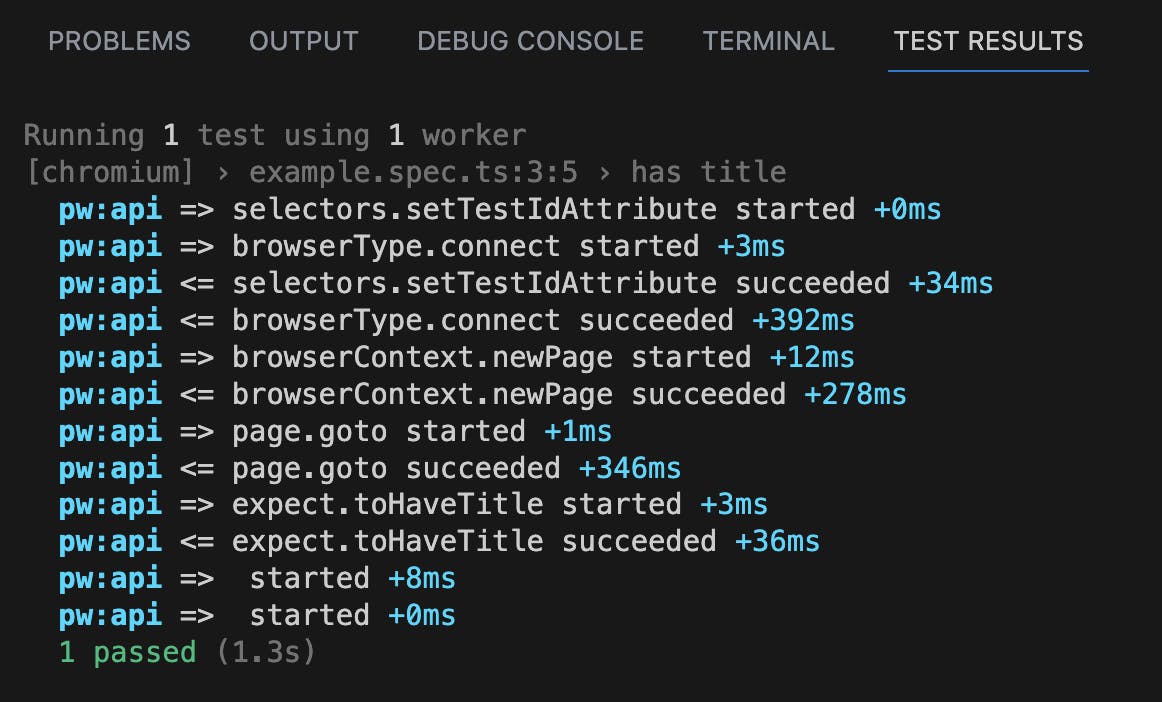
Playwright provides bunch of powerful features for debugging! And one of them is verbose logging. According to the Playwright documentation, by running the command:
DEBUG=pw:api npx playwright test
you can get detailed overview of what is happening behind the scenes.
If you make a step further and install Playwright Extension, which will give you the whole spectrum of opportunities for effective test development, like: running tests with a single click, easier configuration, codegen capabilities, etc.
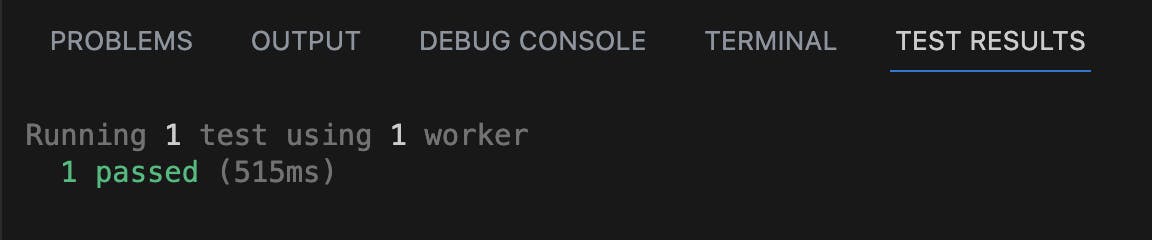
While utilising all these awesome capabilities, you might miss verbose logging in test output.
How to put all these nice capabilities (leveraging Playwright Extension features and verbose logging) together? There is a way: let’s add one line of code in VSCode Playwright Extension configuration file.
Steps to achieve it:
In your VSCode IDE navigate to Extensions
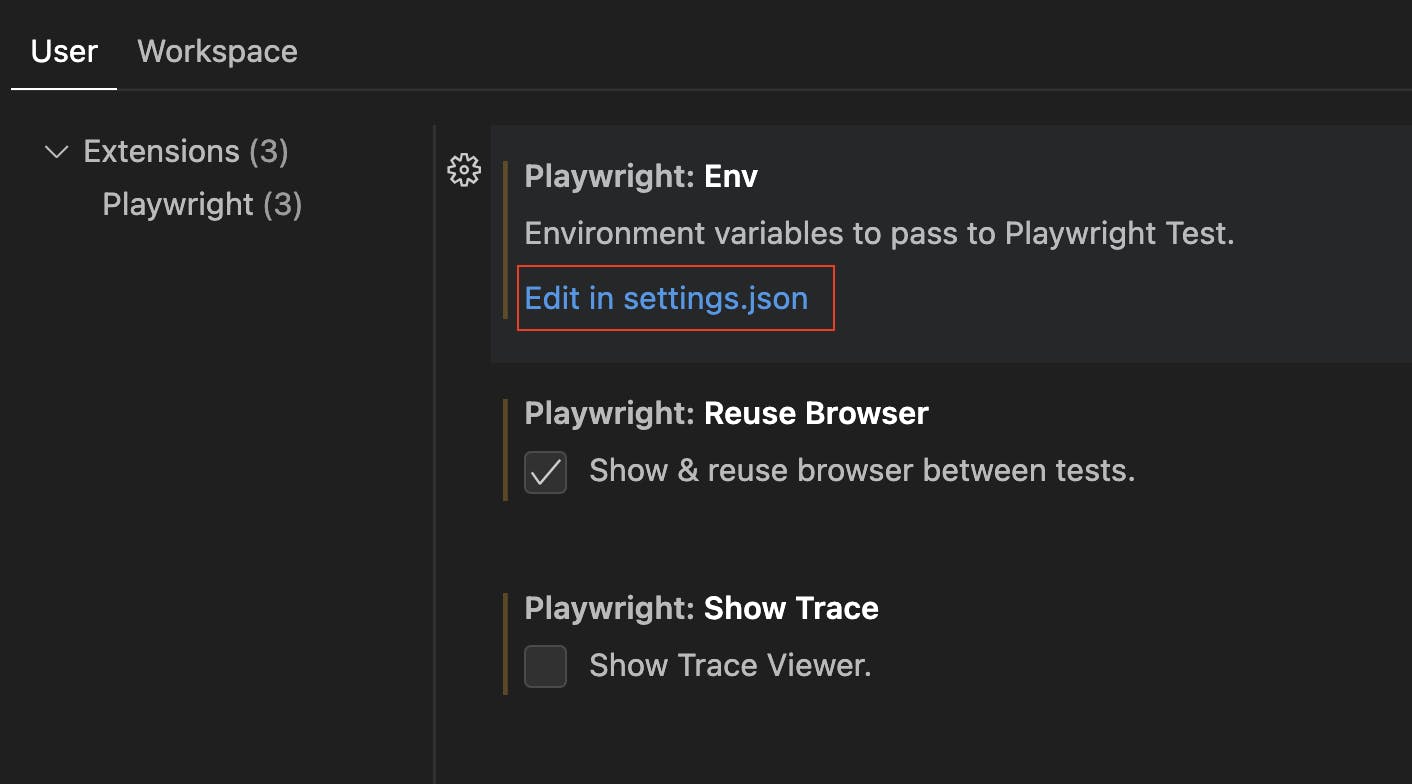
Find Playwright Extension and click on gear icon. Navigate to extension settings.
Click on Edit in settings.json
Add one line of configuration: "DEBUG": "pw:api"COPY "playwright.env": { "DEBUG": "pw:api" }




















 TechNotes