Introduction:
In this tutorial, we are going to explore public website: https://practicesoftwaretesting.com
More examples of automation testing friendly websites you can find in the repo throughly curated by Butch Mayhew.
In Playwright, structuring a test suite involves organizing your test cases within descriptive blocks (test.describe) and utilizing setup and teardown functions (test.beforeEach and test.afterEach) to ensure consistent test environments. Here’s a brief description of each component and an example:
test.describeblock provides a high-level description of the test suite, allowing you to group related test cases together. It helps in organizing tests based on functionality or feature sets.- Inside
test.describe, individual test cases are defined using thetestblock. Each test block represents a specific scenario or behavior that you want to verify. test.beforeEachblock is used to define setup actions that need to be executed before each test case within thetest.describeblock. It ensures that the test environment is in a consistent state before each test runs.test.afterEachblock is utilized for defining teardown actions that need to be executed after each test case within thetest.describeblock. It helps in cleaning up the test environment and ensuring that resources are properly released.
Here’s an example demonstrating the structure of a test suite in Playwright:
import { chromium, Browser, Page } from 'playwright';

// Define the test suite
test.describe('Login functionality', () => {
  let browser: Browser;
  let page: Page;

  // Setup before each test case
  test.beforeEach(async () => {
    browser = await chromium.launch();
    page = await browser.newPage();
    await page.goto('https://example.com/login');
  });

  // Teardown after each test case
  test.afterEach(async () => {
    await browser.close();
  });

  // Test case 1: Verify successful login
  test('Successful login', async () => {
    // Test logic for successful login
  });

  // Test case 2: Verify error message on invalid credentials
  test('Error message on invalid credentials', async () => {
    // Test logic for error message on invalid credentials
  });
});
DOM Terminology
Before we start writing test cases, it will be useful to brush up our memory on DOM Terminology
- HTML tags are simple instructions that tell a web browser how to format text. You can use tags to format italics, line breaks, objects, bullet points, and more. Examples: <input>, <div>, <p>
- Elements in HTML have attributes; these are additional values that configure the elements or adjust their behavior in various ways to meet the criteria the users want. Sometimes these attributes can have a value and sometimes doesn’t. Refer to Developer Mozilla Website for more information.”Class” and “id” are the most used attributes in HTML. (image: show class attribute, class value)
- Value in between angle braces is a plain text
- HTML tags usually come in pairs of Opening and Closing Tags.

Locator Syntax Rules
Locate Element by tag name:
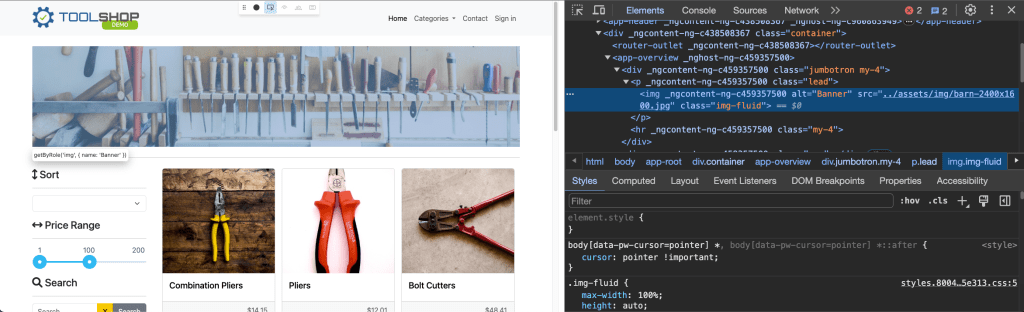
page.locator('img');
Locate by id:

page.locator('.img-fluid');
Locate by class value:

page.locator('.img-fluid');
Locate by attribute:

page.locator('[data-test="nav-home"]');
Combine several selectors:
page.locator('img.img-fluid');
Locate by full class value:
page.locator('[class=collapse d-md-block col-md-3 mb-3]');
Locate by partial text match:

page.locator(':text("Combination")');
Locate by exact text match:
page.locator(':text-is("Combination Pliers")');
XPATH:
As for XPath: it is not recommended approach to locate elements according to Playwright Best Practices:

Source: https://playwright.dev/docs/other-locators#xpath-locator
User-facing Locators.
There are other ways to locate elements by using built-in APIs Playwright provides.
There is one best practice we have to keep in mind: automated tests must focus on verifying that the application code functions as intended for end users, while avoiding reliance on implementation specifics that are not typically visible, accessible, or known to users. Users will only see or interact with the rendered output on the page; therefore, tests should primarily interact with this same rendered output. Playwright documentation: https://playwright.dev/docs/best-practices#test-user-visible-behavior.
There are recommended built-in locators:
- page.getByRole() to locate by explicit and implicit accessibility attributes.
- page.getByText() to locate by text content.
- page.getByLabel() to locate a form control by associated label’s text.
- page.getByPlaceholder() to locate an input by placeholder.
- page.getByAltText() to locate an element, usually image, by its text alternative.
- page.getByTitle() to locate an element by its title attribute.
- page.getByTestId() to locate an element based on its
data-testidattribute (other attributes can be configured).
Let’s check out the example:
test('User facing locators', async({page}) => {
  await page.getByPlaceholder('Search').click();
  await page.getByPlaceholder('Search').fill("Hand Tools");
  await page.getByRole('button', {name: "Search"}).click();
  await expect (page.getByRole('heading', {name: "Searched for: Hand Tools"})).toBeVisible();
})
where we would like to explore search functional test:

- click on the Search Placeholder

await page.getByPlaceholder('Search').click();
2. enter “Hand Tools” text to search for available items.
await page.getByPlaceholder('Search').fill("Hand Tools");
3. locate Search button and click it to confirm.

4. Then we have to verify if no items have been found by asserting text on this page:


await expect (page.getByRole('heading', {name: "Searched for: Hand Tools"})).toBeVisible();
5. Run this test case and make sure test is passing.
Assertions
Playwright incorporates test assertions utilizing the expect function. To perform an assertion, utilize expect(value) and select a matcher that best represents the expectation. Various generic matchers such as toEqual, toContain, and toBeTruthy are available to assert various conditions.
General Assertions
// Using toEqual matcher
test('Adding numbers', async () => {
  const result = 10 + 5;
  expect(result).toEqual(15);
});
Assert that the title of the product is “Combination Pliers”.

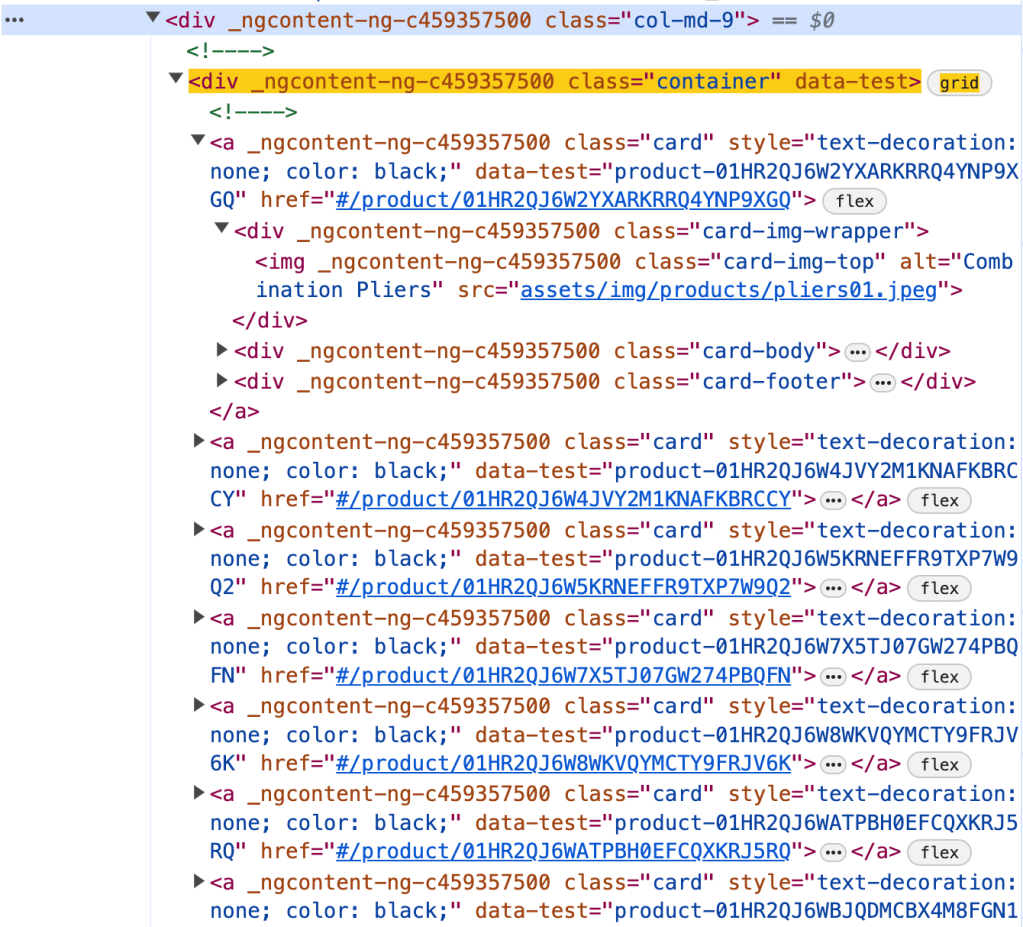
const element = page.locator('.col-md-9 .container').first().locator('.card-title');
const text = element.textContent();
expect(text).toEqual('Combination Pliers');
Locator Assertions
Playwright provides asynchronous matchers, ensuring they wait until the expected condition is fulfilled. For instance, in the following scenario:
const element = page.locator('.col-md-9 .container').first().locator('.card-title');
await expect(element).toHaveText('Combination Pliers');!Note: do not forget to use await when asserting locators
Playwright continuously checks the element with the test id of “status” until it contains the text “Combination Pliers”. This process involves repeated fetching and verification of the element until either the condition is satisfied or the timeout limit is reached. You have the option to either specify a custom timeout or configure it globally using the testConfig.expect value in the test configuration.
By default, the timeout duration for assertions is set to 5 seconds.
There are two types assertion though: Auto-Retrying Assertions and Non-Retrying Assertions.
Auto-Retrying assertions provided below will automatically retry until they pass successfully or until the assertion timeout is exceeded. It’s important to note that these retrying assertions operate asynchronously, necessitating the use of the await keyword before them.
Non-Retrying assertions enable testing various conditions but do not automatically retry.
It’s advisable to prioritize auto-retrying assertions whenever feasible.
Soft Assertions
As a default behavior, when an assertion fails, it terminates the test execution. However, Playwright offers support for soft assertions. In soft assertions, failure doesn’t immediately stop the test execution; instead, it marks the test as failed while allowing further execution.
For example, if we take the previous example and put .soft it assertion, in case assertion fails, it will not lead to termination of test execution.
const element = page.locator('.col-md-9 .container').first().locator('.card-title');
await expect.soft(element).toHaveText('Combination Pliers');
Conclusion.
In conclusion, we’ve explored the aspects of writing test cases using Playwright. We delved into the standard structure of a test case, incorporating essential elements such as hooks and grouping for efficient test management. Additionally, we examined various strategies for locating elements within web pages. Lastly, we discussed the importance of assertions in verifying expected behaviors, covering different assertion techniques to ensure robust and reliable testing. Examples of code, you can see in repository.
 TechNotes
Leave a comment