As part of an open-source project by the Women Coding Community, we’re building a Playwright test suite to ensure our frontend works reliably. While functional tests cover most interactions, we noticed that for some static pages, like FAQs or other content-heavy sections, visual testing could add real value. Even minor CSS changes or layout shifts can break the page in ways users notice, but automated functional tests often miss these subtle regressions.
This is where visual testing comes in. It lets us capture screenshots of key pages and automatically compare them against a reference, so we can catch unintended visual changes before they reach our users.
Playwright makes it easy to implement visual testing in just a few lines of code:
The challenge: different machines, different results.
While this code works on a single machine, it may fail on another due to subtle rendering differences. Fonts, spacing, and other visual details vary between operating systems: Windows renders fonts differently than macOS, which renders differently than Linux. For users, this is expected and harmless. But for visual tests, it creates false positives when running on different developer machines or in our CI pipeline.
See the difference in the screenshots shared in this article:
Different rendering in Chromium on Ubuntu and Safari on macOS
For example, a screenshot taken on a macOS laptop may fail if the same test runs on a Linux-based CI environment.
The solution? Docker. It gives us a consistent environment so tests pass reliably everywhere.
We built DockerFile on the official Playwright image, which includes browsers and system dependencies. Then we installed our project dependencies and copied the code.
Docker Compose was introduced to make running visual tests easy and consistent. It lets developers start and run everything with a single command, using the same setup locally and in CI. This avoids environment differences and reduces “works on my machine” issues.
Our Compose file:
Defines a service playwright responsible for running the tests.
Builds the Docker image using our Dockerfile.
Sets /app as the default working directory.
Loads environment variables from .env.local for consistency with local development.
Mounts volumes for:
Project directory – so the container can access source code without copying it every time.
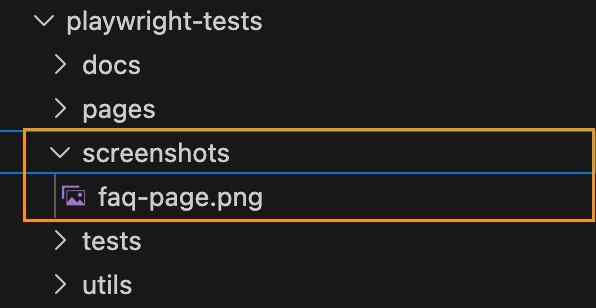
Screenshots – so new screenshots persist and visual diffs remain across container runs.
Playwright reports – so test reports are available locally and in CI artifacts.
"test:e2e": "playwright test --grep-invert @visual"
This prevents false positives during regular development, while maintaining reliable visual tests in Docker.
Why It Matters
With this setup, we can catch real visual regressions while ignoring harmless OS-level differences. Docker guarantees a consistent testing environment, and Playwright makes capturing and comparing screenshots simple.
Our users may see slightly different fonts depending on their OS—but our tests are now reliable, reproducible, and actionable, keeping our UI looking great everywhere.
Utilize faker Library to Compile Dynamic Test Data
Introduction
In Part 1, we explored how to make API tests more maintainable by introducing data templates for the /auth/login endpoint. We saw how to use @DATA:TEMPLATE, @OVERRIDES, and @REMOVES can simplify test logic and reduce duplication.
Now, in Part 2, we’ll apply the same approach to another key endpoint: POST /room – Create a new room
This endpoint typically requires structured input like room names, types, and status — perfect candidates for reusable templates. We’ll define a set of room templates using Faker for dynamic test data, register them alongside our auth templates, and write test cases that validate room creation.
Let’s dive into how data templates can help us test POST /room more effectively, with minimal boilerplate and maximum clarity.
Exploring the API Endpoint
Step 1: Inspecting the API with DevTools
Before automating, it’s helpful to understand the structure of the request and response. Visit https://automationintesting.online and follow the steps shown in the GIF below, or use the guide here:
Open DevTools: Press F12 or right-click anywhere on the page and select Inspect to open DevTools.
Navigate to the Network Tab. Go to the Network tab to monitor API requests.
Trigger the API Call: On the website, fill in the room creation form and submit it. Watch for a request to the /room endpoint using the POST method.
Inspect the API Details.
Once you click the POST rooms request, you will see the following details:
URL and method details.
Headers tab: Shows request URL and method
Payload tab: Shows the room data you sent (like number, type, price, etc.)
Response tab: Shows the response from the server (confirmation or error)
Example payload from this API request:
{
  "roomName":"111",
  "type":"Single",
  "accessible":false,
  "description":"Please enter a description for this room",
  "image":"https://www.mwtestconsultancy.co.uk/img/room1.jpg",
  "roomPrice":"200",
  "features":[
      "WiFi",
      "TV",
      "Radio"
  ]
}
Field Breakdown:
roomName: A string representing an identifier for the room (e.g., “111”).
type: Room type; must be one of the following values: “Single”, “Double”, “Twin”, “Family”, “Suite”.
accessible: A boolean (true or false) indicating whether the room is wheelchair accessible.
description: A text description of the room.
image: A URL to an image representing the room.
roomPrice: A string representing the price of the room.
features: An array of one or more of the following feature options: “WiFi“, “Refreshments“, “TV“, “Safe“, “Radio“, “Views“.
⚠️ Note: This breakdown is based on personal interpretation of the API structure and response; it is not taken from an official specification.
In order to generate payload for the room, we will use faker library. This library allows you to generate realistic test data such as names, prices, booleans, or even images on the fly. This helps reduce reliance on hardcoded values and ensures that each test run simulates real-world API usage.
Step 2: Installing the faker Library
To add the faker library to your project, run:
npm install @faker-js/faker
Step 3: Registering a Dynamic Room Template
Use faker to generate dynamic values for each room field:
In this hands-on guide, we’ll explore how to improve the maintainability and flexibility of your API tests using data templates in PactumJS. Our focus will be on the authentication endpoint: POST /auth/login
While this works for one case, hardcoding test data like this can quickly become difficult to manage as your test suite grows.
Improving Test Maintainability with Data Templates
To make our tests more scalable and easier to manage, we’ll introduce data templates — a PactumJS feature that allows you to centralize and reuse test data for different scenarios, such as valid and invalid logins.
Step 1: Define Auth Templates
Create a file auth.js inside your templates directory /helpers/datafactory/templates/ and register your authentication templates:
Data templates in PactumJS are a simple yet powerful way to make your API tests more maintainable and scalable. By centralizing test data, you reduce duplication, improve readability, and make your test suite easier to evolve as your API grows.
In this part, we focused on authentication. In the next article, we’ll explore how to apply the same pattern to other endpoints — like POST /room — and build more complex test scenarios using nested data and dynamic generation.
As discussed in the previous article, PactumJS is an excellent choice for API automation testing.
As your API testing suite grows, maintaining a clean and organized repository structure becomes essential. We’ll explore a folder structure for your PactumJS-based testing framework, provide tips and tricks for configuration and scripting, and walk through executing tests with reporting.
To follow along, make sure you have the following:
Node.js v10 or above
Basic understanding of JavaScript or TypeScript
Node.js modules
Testing frameworks like Mocha
If you’re new to any of the above, it’s worth reviewing basic tutorials, for example, on Automation University: on Node.js and test runners like Mocha.
Install Dependencies
Start by creating a fresh Node.js project:
mkdir api_testing_with_pactumjs
cd api_testing_with_pactumjs
npm init -y
Then install necessary packages via NPM:
# install pactum
npm install -D pactum

# install a test runner
npm install -D mocha
tests/ folder contains your test specifications organized by feature or endpoint, such as auth.spec.ts. This keeps tests modular and easy to locate.
helpers/ folder houses centralized reusable logic and utilities. This separation keeps test files focused on what they test rather than how, improving readability and maintainability.
setup/ folder contains global setup files like base.js to configure common test environment settings, such as base URLs and global hooks.
.env.example — A sample environment configuration file listing required environment variables, serving as a reference and template for developers.
.env (not shown in repo) is used locally to store sensitive configuration and secrets, enabling easy environment switching without code changes.
.gitignore file includes folders and files like .env to prevent committing sensitive data to version control.
package.json is a central place for managing project dependencies (like pactum, dotenv, mocha) and defining test scripts (e.g., npm run test, npm run test:report). This facilitates CI/CD integration and consistent test execution.
While this test currently focuses on verifying the status code, future articles will enhance it by adding validations for the authentication token returned in the response.
Manage Environment Variables
Create .env file
To keep sensitive data like URLs and credentials, create a .env.example file as a reference for required environment variables:
BASE_URL=""
USERNAME=""
PASSWORD=""
👉 Tip: Don’t commit your actual .env to version control
Use .env.example to document the required variables.
Add .env to your .gitignore file to keep credentials secure.
Share .env.example with your team so they can configure their environments consistently.
Load Environment Variables in Tests
Install dotenv and configure it in your test files or setup scripts:
Once your test files are set up and your .env file is configured with valid credentials and base URL, you’re ready to execute your test cases.
PactumJS works seamlessly with test runners like Mocha, which means running your tests is as simple as triggering a test command defined in your package.json. Here’s how to proceed:
Add a Test Script
In your package.json, add a script under “scripts” to define how to run your tests. For example:
This tells Mocha to look for test files in the tests/ directory and run them.
Run the Tests
In your terminal, from the root of your project, run:
npm test
This will execute test specs and display results in the terminal.
You should see output indicating whether the test passed or failed, for example:
  /authenticate
    ✓ should succeed with valid credentials (150ms)

  1 passing (151ms)
Add a Reporting Tool
By default, PactumJS uses Mocha’s basic CLI output. For richer reporting—especially useful in CI/CD pipelines—you can use Mochawesome, a popular HTML and JSON reporter for Mocha.
Install Mochawesome
Install Mochawesome as a development dependency:
npm install -D mochawesome
Update Your Test Script
Modify the scripts section in your package.json to include a command for generating reports:
This script tells Mocha to run your tests using the Mochawesome reporter.
Run the tests with reporting
Execute your tests using the new script:
npm run test:report
This generates a mocha report in JSON and HTML format which you can review locally or attach in CI pipelines.
  /authenticate
    ✔ should succeed with valid credentials (364ms)


  1 passing (366ms)

[mochawesome] Report JSON saved to ./pactum_test/mochawesome-report/mochawesome.json  [mochawesome] Report HTML saved to ./pactum_test/mochawesome-report/mochawesome.html
View the report
Open the HTML report in your browser to visually inspect test results:
Configure Base Test Setup (base.js)
Create a Shared Configuration
Create a base.js file in the setup/ directory. This file is a shared configuration used to define reusable logic like setting the base URL, request headers, or global hooks (beforeEach, afterEach).
To ensure this configuration runs before any tests, register the setup file using Mocha’s –file option. This guarantees Mocha will execute base.js within its context, making all Mocha globals (like before) available.
To avoid repeating the full Mocha command in multiple scripts, define a single base script (e.g., test) that includes your common options. Then, reuse it for other variants by passing additional flags:
"scripts": {
  "test": "mocha tests --file setup/base.js",
  "test:report": "npm run test -- --reporter mochawesome"
}
This approach keeps your scripts concise and easier to maintain by centralizing the core test command. It also allows you to easily extend or customize test runs with additional options without duplicating configuration. Overall, it reduces the chance of errors and inconsistencies when updating your test scripts.
Conclusion
By structuring your PactumJS repository with clear separation of tests, helpers, and setup files—and by leveraging environment variables, global setup, and reporting—you build a scalable and maintainable API testing framework. This approach supports growth, team collaboration, and integration with CI/CD pipelines.
I’ve spent a fair bit of time writing API test automation. After exploring a few JavaScript-based tools and libraries, I’ve found Pactum to be particularly powerful. I wanted to take a moment to share a brief overview of my experience and why I think it stands out.
If you’re setting up a PactumJS project from scratch, I recommend starting with the official Quick Start guide, which covers installation and basic setup clearly. Additionally, this article by Marie Cruz offers a great walkthrough of writing API tests with PactumJS and Jest, especially useful for beginners.
Fluent and expressive syntax
One of the aspects I appreciate the most is how naturally you can chain descriptive methods from the spec object to build complex requests with support for headers, body payloads, query parameters, and more.
Data Management is a critical aspect of test automation and often one of the more challenging pain points in any automation project. Test suites frequently reuse similar request payloads, making it difficult to maintain and organize these payloads when they are scattered across different test files or folders. Without a structured approach, this can lead to duplication, inconsistency, and increased maintenance overhead. So, it is important to have an intuitive way to handle data in the test framework.
In PactumJS, data management is typically handled using data templates and data stores. These help you define reusable request bodies, dynamic data, or test user information in a clean and maintainable way.
Data Templates
Data Templates help you define reusable request bodies and user credentials. Templates can also be locally customized within individual tests without affecting the original definition.
For example, in testing different authentication scenarios:
Valid credentials
Invalid password
Non-existing user
Rather than hard-coding values in each test, as it is done below:
This approach improves consistency and reduces duplication. When credential details change, updates can be made centrally in the datafactory without touching individual tests. As a result, test logic remains clean, focused on validating behaviour rather than being cluttered with data setup.
In integration and e2e API testing, one common challenge is managing dynamic data between requests. For example, you might need to extract an authentication token from an authentication response and use it in the header of subsequent requests. Without a clean way to store and reuse this data, tests can become messy, brittle, and hard to maintain.
PactumJS provides a data store feature that allows you to save custom response data during test execution in a clean way.
Example:
Suppose you want to send a POST request to create a room, but the endpoint requires authentication. First, you make an authentication request and receive a token in the response. Using data store functionality, you can capture and store this token, then inject it into the headers of the room creation request.
Data store functionality also supports json-query libraries. It enables you to extract and store specific values from complex JSON responses. This is particularly helpful when dealing with nested structures, where you only need to capture a portion of the response—such as an ID, token, or status—from a larger payload.
Unlike other setups that require integrating libraries like zod, ajv, or custom helper functions, PactumJS allows you to validate JSON responses using the expectJsonSchema method. All you need to do is define the expected schema and apply it directly in your test, no extra configuration needed.
For example, in an authentication test case, the response schema is defined in a separate data factory:
Most REST API responses return data in JSON format that must be validated. Fortunately, PactumJS provides a powerful and expressive assertion system that goes far beyond basic status code checks. Its assertion system allows for
it('get users', async () => {
  await pactum.spec()
    .get('/api/users')
    .expectJsonLike('$V.length === 10'); // api should return an array with length 10
    .expectJsonLike([
      {
        id: 'typeof $V === "string"',
        name: 'jon',
        age: '$V > 30' // age should be greater than 30
      }
    ]);
});
And all of them are in a clean and readable format.
For example, you can validate only parts of a response, use regex or custom matchers, and even plug in JavaScript expressions or reusable assertion handlers. In my opinion, this level of granularity is a game-changer compared to assertion styles in other frameworks.
To reduce repetition and keep tests clean, PactumJS allows you to define default values that apply globally across your test suite — such as headers, base URL, and request timeouts. This helps maintain consistency and simplifies test configuration.
In my experience, PactumJS has proven to be a well-designed and developer-friendly tool for API test automation. Its fluent syntax, robust data handling, and built-in features like schema validation and dynamic stores eliminate the need for developing third-party solutions for the test framework.
If you’re working with API testing in JavaScript / Typescript, PactumJS is definitely worth a look.
Resources
You can find the complete set of test cases, data templates, and helper functions shown in this post in the GitHub Repo.
Using a Pact Broker to Manage Contracts Across Microservices
In the previous article, I raised an important question: What if the provider and consumer microservices do not share the same repository but still need access to the contract from a third-party source? The solution to this challenge is the Pact Broker.
In this article, we will explore how the Pact Broker works and how to implement pipeline using GitHub Actions.
When Do You Need a Pact Broker?
A Pact Broker is essential in scenarios where:
The provider and consumer microservices are in separate repositories but must share the same contract.
You need to manage contracts across different branches and environments.
Coordinating releases between multiple teams is required.
Options for Setting Up a Pact Broker
There are multiple ways to set up a Pact Broker:
Own Contract Storage Solution – Implement your own contract-sharing mechanism.
Hosted Pact Broker (PactFlow) – A cloud-based solution provided by SmartBear.
Self-Hosted Open-Source Pact Broker – Deploy and manage the Pact Broker on your infrastructure.
As a starting point, PactFlow is a great solution due to its ease of use.
Publishing Contracts to the Pact Broker
For demonstration purposes, we will use the free version of PactFlow. Follow these steps to publish contracts:
Broker URL: Copy the URL from the address bar (e.g., https://custom.pactflow.io/).
Broker API Token: Navigate to Settings → API Tokens and copy the read/write token for CI/CD pipeline authentication.
3. Setting Up a CI/CD Pipeline with GitHub Actions
Setting up CI/CD pipeline using GitHub Actions.
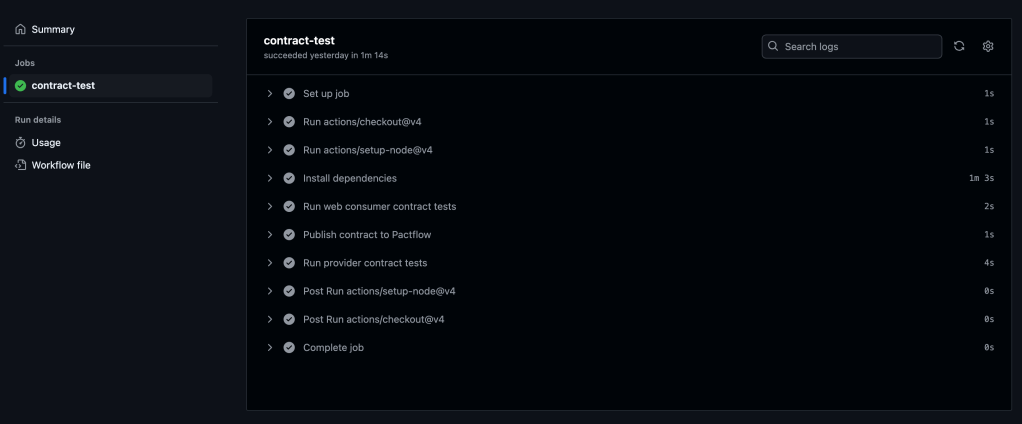
We will configure GitHub Actions to trigger on a push or merge to the main branch. The workflow consists of the steps displayed on the diagram.
To set up GitHub Actions, create a .yml file in the .github/workflows directory. In this example, we’ll use contract-test-sample.yml:
name: Run contract tests

on: push

env:
  PACT_BROKER_BASE_URL: ${{ secrets.PACT_BROKER_BASE_URL }}
  PACT_BROKER_TOKEN: ${{ secrets.PACT_BROKER_TOKEN }}

jobs:
  contract-test:
    runs-on: ubuntu-latest
    steps:
      - uses: actions/checkout@v4
      - uses: actions/setup-node@v4
        with:
          node-version: 18
      - name: Install dependencies
        run: npm install
      - name: Run web consumer contract tests
        run: npm run test:consumer
      - name: Publish contract to PactFlow
        run: npm run publish:pact
      - name: Run provider contract tests
        run: npm run test:provider
Before running the workflow, store the required secrets in your GitHub repository:
Navigate to Repository → Settings → Secrets and Variables.
Create two secrets:
PACT_BROKER_BASE_URL
PACT_BROKER_TOKEN
Save, commit, and push your changes to the remote repository.
Navigate to the Actions tab in GitHub to verify if the pipeline runs successfully.
You should see all the steps running successfully like on the screenshot below:
7. Verifying the Contract in PactFlow
Once the pipeline runs successfully:
Navigate to PactFlow.
Verify if the contract has been published.
You should see two microservices and the contract established between them.
Two microservices – Library Consumer and Library ProviderPact between two microservices, which is published and stored in PactFlow
Configuring Contract Versioning
If there are changes in the contract (e.g., if a new version of a consumer or provider is released), versioning should evolve too. Automating this process is crucial.
A recommended approach is using GitHub Commit ID (SHA), ensuring that contract versions are traceable to relevant code changes.
1. Define the Versioning Variable
In the contract-test-sample.yml file, introduce a new environment variable GITHUB_SHA:
GITHUB_SHA: ${{ github.sha }}
2. Update the Pact Publish Script
Modify the pact:publish script to use the automatically generated version:
3. Update provider options with providerVersion value:
const opts = {
            provider: "LibraryProvider",
            providerBaseUrl: "http://localhost:3000",
            pactBrokerToken: process.env.PACT_BROKER_TOKEN,
            providerVersion: process.env.GITHUB_SHA,
            publishVerificationResult: true,
            stateHandlers: {
                "A book with ID 1 exists": () => {
                    return Promise.resolve("Book with ID 1 exists")
                },
            },
        }
Configuring Branches for Contract Management
If multiple people are working on the product in different branches, it is crucial to assign contracts to specific branches to ensure accurate verification.
1. Define the Branching Variable
Add GITHUB_BRANCH to the .yml file:
GITHUB_BRANCH: ${{ github.ref_name }}
2. Update the Pact Publish Script for Branching
Modify pact:publish to associate contracts with specific branches:
3. Update provider options with providerVersionBranch value:
const opts = {
            provider: "LibraryProvider",
            providerBaseUrl: "http://localhost:3000",
            pactBrokerToken: process.env.PACT_BROKER_TOKEN,
            providerVersion: process.env.GITHUB_SHA,
            providerVersionBranch: process.env.GITHUB_BRANCH,
            publishVerificationResult: true,
            stateHandlers: {
                "A book with ID 1 exists": () => {
                    return Promise.resolve("Book with ID 1 exists")
                },
            },
        }
Using the can-i-deploy tool
The can-i-deploy tool is a Pact feature that queries the matrix table to verify if a contract version is safe to deploy. This ensures that new changes are successfully verified against the currently deployed versions in the environment.
name: Run contract tests

on: push

env:
  PACT_BROKER_BASE_URL: ${{ secrets.PACT_BROKER_BASE_URL }}
  PACT_BROKER_TOKEN: ${{ secrets.PACT_BROKER_TOKEN }}
  GITHUB_SHA: ${{ github.sha }}
  GITHUB_BRANCH: ${{ github.ref_name }}

jobs:
  contract-test:
    runs-on: ubuntu-latest
    steps:
      - uses: actions/checkout@v4
      - uses: actions/setup-node@v4
        with:
          node-version: 18
      - name: Install dependencies
        run: npm i
      - name: Run web consumer contract tests
        run: npm run test:consumer
      - name: Publish contract to Pactflow
        run: npm run publish:pact
      - name: Run provider contract tests
        run: npm run test:provider
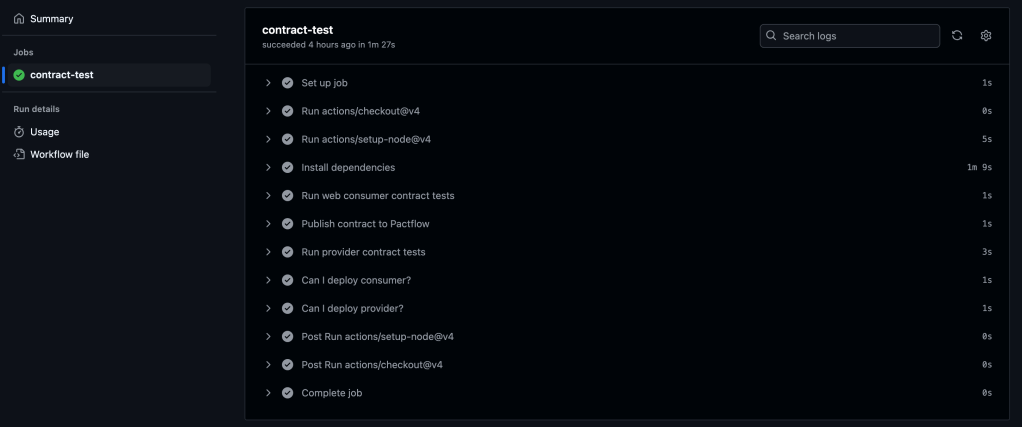
      - name: Can I deploy consumer?
        run: npm run can:i:deploy:consumer
      - name: Can I deploy provider?
        run: npm run can:i:deploy:provider
Add changes, commit and push. Navigate to the Actions tab in GitHub to verify if the pipeline runs successfully.
You should see all the steps running successfully like on the screenshot below:
GitHub Actions pipeline contains extra steps, which verify if a contract version is safe to deploy
Conclusion
The Pact Broker is important for managing contracts across microservices, ensuring smooth collaboration between independent services. By automating contract versioning, branch-based contract management, and deployment workflows using GitHub Actions, teams can can reduce deployment risks, improve service reliability, and speed-up release cycles.
For a complete implementation, refer to the final version of the code in the repository.
In the previous article consumer-driven contract testing has been introduced. And at this point, I am sure you can’t wait to start actual implementation. So let’s not delay any further!
Let’s start with the implementation using Pact.
Based on official documentation, Pact is a code-first tool for testing HTTP and message integrations using contract tests.
As a system under test we are going to use consumer-provider applications written in JavaScript. You can find the source code in the GitHub Repository.
Consumer Tests
The focus of the consumer test is the way to check if the consumer’s expectations match what the provider does. These tests are not supposed to verify any functionality of the provider, instead focus solely on what the consumer requires and validate whether those expectations are met.
Loose Matchers
To avoid brittle and flaky tests, it is important to use loose matchers as a best practice. This makes contract tests more resilient to minor changes in the provider’s response. Generally, the exact value returned by the provider during verification is not critical, as long as the data types match (Pact documentation). However, an exception can be made when verifying a specific value in the response.
Pact provides several matchers that allow flexible contract testing by validating data types and structures instead of exact values. Key loose matchers can be found in the Pact documentation.
Example without loose matchers (strict matching):
describe("getBook", () => {
    test("returns a book when a valid book id is provided", async () => {

        await provider.addInteraction({
            states: [{ description: "A book with ID 1 exists" }],
            uponReceiving: "a request for book 1",
            withRequest: {
                method: "GET",
                path: "/books/1",
            },
            willRespondWith: {
                status: 200,
                headers: { "Content-Type": "application/json" },
                body: {
                    id: 1,
                    title: "To Kill a Mockingbird",
                    author: "Harper Lee",
                    isbn: "9780446310789"
                },
            },
        })

        await provider.executeTest(async (mockService) => {
            const client = new LibraryClient(mockService.url)
            const book = await client.getBook(1)
            expect(book).toEqual(expectedBook)
        })
    })
})
Problem: This test will fail if id, title, or author, isbn changes even slightly.
Example with loose matchers (flexible and maintainable):
Using Pact matchers, we allow the provider to return any valid values of the expected types:
describe("getBook", () => {
    test("returns a book when a valid book id is provided", async () => {
      const expectedBook = { id: 1, title: "To Kill a Mockingbird", author: "Harper Lee", isbn: "9780446310789" }

      await provider.addInteraction({
        states: [{ description: "A book with ID 1 exists" }],
        uponReceiving: "a request for book 1",
        withRequest: {
          method: "GET",
          path: "/books/1",
        },
        willRespondWith: {
          status: 200,
          headers: { "Content-Type": "application/json" },
          body: like(expectedBook),
        },
      })

      await provider.executeTest(async (mockService) => {
        const client = new LibraryClient(mockService.url)
        const book = await client.getBook(1)
        expect(book).toEqual(expectedBook)
      })
    })
  })
In this case the contract remains valid even if actual values change, validation focused only on ensuring that data types and formats are correct.
Steps to write consumer contract tests
Scenarios:
Validate that LibraryClient.getAllBooks() retrieves a list of books.
Validate that LibraryClient.getBook(id) correctly fetches a single book when given a valid ID.
To start with consumer, open consumer.js file. Inside you can find the LibraryClient class represents the consumer in a consumer-driven contract testing setup. It acts as a client that interacts with an external Library API (provider) to fetch and manage book data.
There are a few functions present:
getBook(id) – Fetches a single book by its id. Returns the data in JSON format.
getAllBooks() – Fetches all books from the API. Returns a list of books in JSON format.
addBook(title, author, isbn) – Sends a POST request to add a new book. Returns the newly created book’s details.
Writing the first consumer contract test:
Importing the required dependencies and Consumer Class.
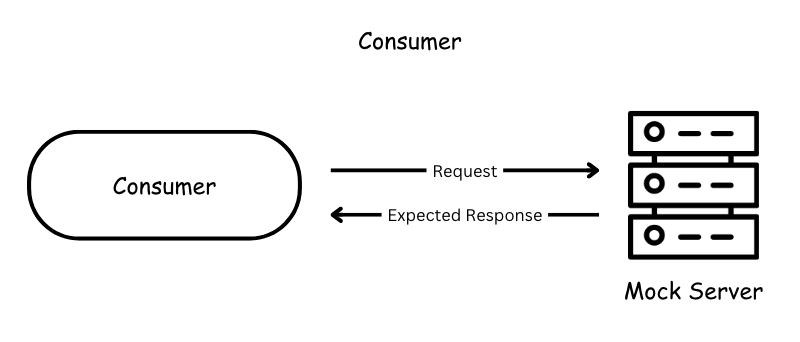
The code above creates a Pact mock provider (provider) using PactV3 library where specifies:
LibraryConsumer as the name of the consumer (the client making requests).
LibraryProvider as the name of the provider (the API responding to requests).
Passing parameter dir to define directory for the contract to be stored.
Setting up the interaction of the consumer and mock provider and register consumer expectations.
const EXPECTED_BOOK = { id: 1, title: "To Kill a Mockingbird", author: "Harper Lee", isbn: "9780446310789" }

describe("getAllBooks", () => {
    test("returns all books", async () => {

        provider
            .uponReceiving("a request for all books")
            .withRequest({
                method: "GET",
                path: "/books",
            })
            .willRespondWith({
                status: 200,
                body: MatchersV3.eachLike(EXPECTED_BOOK),
            })

        await provider.executeTest(async (mockService) => {
            const client = new LibraryClient(mockService.url)
            const books = await client.getAllBooks()
            expect(books[0]).toEqual(EXPECTED_BOOK)
        })
    })
})

describe("getBook", () => {
    test("returns a book when a valid book id is provided", async () => {

        provider
            .given('A book with ID 1 exists')
            .uponReceiving("a request for book 1")
            .withRequest({
                method: "GET",
                path: "/books/1",
            })
            .willRespondWith({
                status: 200,
                body: MatchersV3.like(EXPECTED_BOOK),
            }),

        await provider.executeTest(async mockProvider => {
            const libraryClient = new LibraryClient(mockProvider.url)
            const book = await libraryClient.getBook(1);
            expect(book).toEqual(EXPECTED_BOOK);
        })
    })
})
First we define the expected book. This object represents a single book that we expect the API to return. It acts as a template for what a book response should look like.
provider.addInteraction({...}) sets up a mock interaction.
uponReceiving: Describes what the test expects.
withRequest: Defines the expected request details:
Method: GET
Endpoint: /books
willRespondWith: Defines the expected response:
Status Code: 200
Body: MatchersV3.eachLike(EXPECTED_BOOK)
eachLike(EXPECTED_BOOK): Ensures the response contains an array of objects that match the structure of EXPECTED_BOOK.
4. Calling the consumer against the mock provider:
        await provider.executeTest(async mockProvider => {
            const libraryClient = new LibraryClient(mockProvider.url)
            const book = await libraryClient.getBook(1);
            expect(book).toEqual(EXPECTED_BOOK);
        })
Now, you are ready to run the test! First, create a new script in our package.json file called test:consumer, which uses jest command followed by the test file you want to execute:
Save the changes and run tests by executing this command:
npm run test:consumer
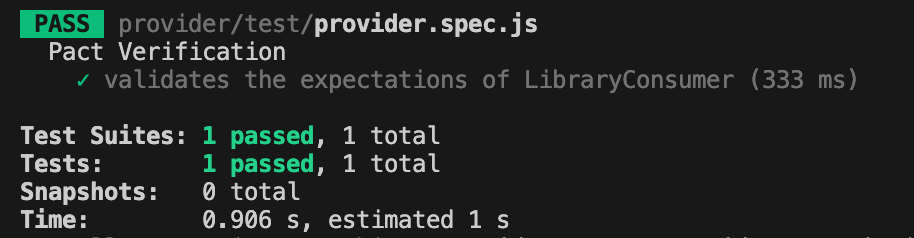
If everything set up correctly you should get one test passing:
If the test passes, a contract is generated and saved in the pacts folder. If it fails, the contract cannot be created.
The content of the contract should include the information about the consumer, provider, interaction which have been set up, the request and response details expected from the provider, matching rules and any other relevant information.
The primary goal of provider contract tests is to verify the contract generated by the consumer. Pact provides a framework to retrieve this contract and replay all registered consumer interactions to ensure compliance. The test is run against the real service.
Provider States
Before writing provider tests, I’d like to introduce another useful concept: provider states.
Following best practices, interactions should be verified in isolation, making it crucial to maintain context independently for each test case. Provider states allow you to set up data on the provider by injecting it directly into the data source before the interaction runs. This ensures the provider generates a response that aligns with the consumer’s expectations.
The provider state name is defined in the given clause of an interaction on the consumer side. This name is then used to locate the corresponding setup code in the provider, ensuring the correct data is in place.
Example
Consider the test case: “A book with ID 1 exists.”
To ensure the necessary data exists, we define a provider state inside stateHandlers, specifying the name from the consumer’s given clause:
            stateHandlers: {
                "A book with ID 1 exists": () => {
                    return Promise.resolve("Book with ID 1 exists")
                },
            },
On the consumer side, the provider state is referenced in the given clause:
        provider
            .given('A book with ID 1 exists')
            .uponReceiving("a request for book 1")
            .withRequest({
                method: "GET",
                path: "/books/1",
            })
            .willRespondWith({
                status: 200,
                body: MatchersV3.like(EXPECTED_BOOK),
            }),
This setup ensures that before the interaction runs, the provider has the necessary data, allowing it to return the expected response to the consumer.
4. Writing the provider contract test. After setting up the provider verifier options, let’s write the actual provider contract test using Jest framework.
Before running tests, you have to create a new script in the package.json file called test:provider, which uses jest command followed by the test file you want to execute:
Save the changes and run tests by executing this command:
npm run test:provider
If everything set up correctly you should get one test passing:
Conclusion
Today, we explored a practical implementation of the consumer-driven contract testing approach. We created test cases for both the consumer and provider and stored the contract in the same repository.
But you might be wondering—what if the consumer’s and provider’s repositories are separate, unlike our case? Since these two microservices are independent, the contract needs to be accessible to both. So, where should it be stored?
Let’s to explore possible solution in the next part.
Today, I want to introduce you to the concept of contract testing using an analogy—buying the house of your dreams 🏡. Whether you already own your dream home or are still searching for it, you probably know the excitement and anticipation that comes with the process.
Imagine you’ve finally found the perfect house. You’re happy to move forward, but before the keys are in your hand, it’s crucial to set clear expectations with the seller. This involves agreeing on the details: the price, the condition of the house, and any other terms. To formalize this, a contract is drawn up, and a neutral party, like a notary or bank, helps ensure everything is clear and fair.
This scenario mirrors contract testing in software development, where a consumer (the buyer) and a provider (the seller) agree on a contract to ensure their interactions meet expectations.The contract broker (like the notary) acts as a mediator to validate and enforce these agreements.
Let’s break this analogy down further.
Consumer.
In this scenario you’re a consumer. You have specific expectations: size, number of rooms, location, price, neighbourhood, etc.
In contract testing, the consumer is a service or application that needs to consume data or services from a provider. The consumer is usually a web or mobile application making a request to a backend service, also it could be another service calling a backend service.
A consumer test verifies that the consumer correctly creates requests, handles provider responses as expected, and uncovers any misunderstandings about the provider’s behavior.
Provider
Then, the seller is the person offering the house. They promise certain features in the house: a garden, a modern kitchen, friendly neighbourhood and so on.
Provider on the other side of the consumer in contract testing that promises to deliver specific data or functionality. Usually it is a backend service.
Contract
The contract is the written agreement between you and the seller. It ensures both parties understand and agree on what is being provided and what is expected (e.g., the price, delivery date, features of the house).
The contract is no different in software. The contract is a formal agreement between the consumer and provider about how they will interact (e.g., API specifications, request/response formats).
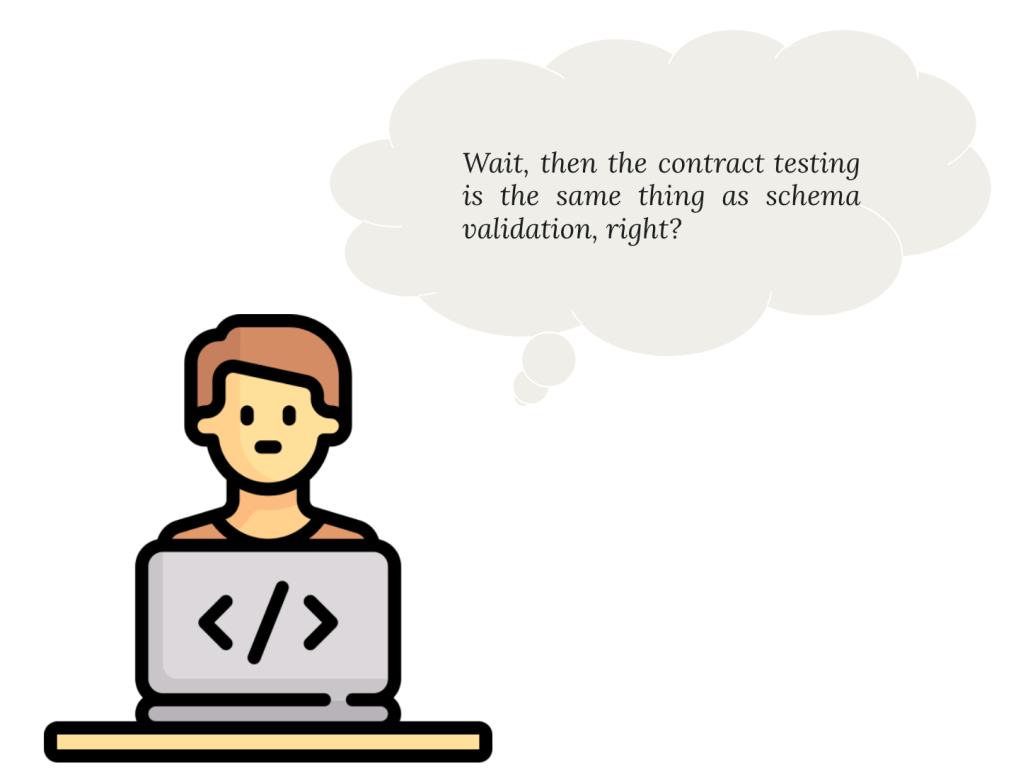
Hmmm.. not really! Contract isn’t the same as JSON Schema. This article explains well the difference between schema-based and contract-based testing.
In short: A schema is a structural blueprint or definition of how data in JSON is organized. It describes the structure, format, and relationships of data.
But the schema does not specify how the data should be used, when it should be provided, or how the interaction between the consumer and provider should behave. It’s purely about the data format and structure.
A contract includes the schema but also goes beyond it to define the behavioral and interaction agreements between the consumer and provider.
Contract includes following data:
The name of the consumer and provider
Data requirements for the request
Interactions between consumer and provider
Matching rules for the dynamic values
Environment and deployment information
Contract Broker
The contract broker, like a bank or notary, helps validate and mediate the agreement. They ensure that both parties adhere to their commitments.
In contract testing, the contract broker could be a tool or framework (e.g., Pact) that stores and validates contracts. It ensures the provider and consumer stick to their agreed-upon specifications.
The broker helps verify the compatibility between the two parties independently, ensuring that both can work together smoothly.
Can-I-Deploy Tool
To enable consumers and providers to check if they can deploy their changes to production, Pact provides a command-line interface (CLI) tool called can-i-deploy, which enables consumer and provider to determine the verification status of the contract.
Contract testing approaches
There are mainly two ways to approach contract testing:
The consumer-driven contract testing (CDCT) approach
The provider-driven contract testing (PDCT) approach
In these series I am going to discuss traditional CDCT approach.
Consumer-Driven Testing
In the consumer-driven approach the consumer is driving the contract. As a consumer before finalizing the house purchase, you might inspect the house to confirm it meets your expectations and publish your expectations as a contract to the broker. On another side, the seller must ensure their house is as described in the contract and ready for sale. This is like provider-side testing, ensuring they deliver what the contract specifies.
Contract testing ensures that consumers (buyers) and providers (sellers) are on the same page regarding their expectations and deliverables, with a broker (notary or bank) facilitating the process. This approach reduces the risk of miscommunication and ensures smooth collaboration—whether you’re buying a house or building software systems.
Conclusion
Contract testing acts as the bridge between consumers and providers, ensuring smooth collaboration. Much like finalizing the purchase of your dream house, both parties agree on a contract that outlines expectations and deliverables, with a broker ensuring everything aligns. Whether you’re buying a house or developing software, clear agreements lead to smoother outcomes!
Next, we’ll explore the application under test and hit the ground running with implementation!
More examples of automation testing friendly websites you can find in the repo throughly curated by Butch Mayhew.
In Playwright, structuring a test suite involves organizing your test cases within descriptive blocks (test.describe) and utilizing setup and teardown functions (test.beforeEach and test.afterEach) to ensure consistent test environments. Here’s a brief description of each component and an example:
test.describe block provides a high-level description of the test suite, allowing you to group related test cases together. It helps in organizing tests based on functionality or feature sets.
Inside test.describe, individual test cases are defined using the test block. Each test block represents a specific scenario or behavior that you want to verify.
test.beforeEach block is used to define setup actions that need to be executed before each test case within the test.describe block. It ensures that the test environment is in a consistent state before each test runs.
test.afterEach block is utilized for defining teardown actions that need to be executed after each test case within the test.describe block. It helps in cleaning up the test environment and ensuring that resources are properly released.
Here’s an example demonstrating the structure of a test suite in Playwright:
import { chromium, Browser, Page } from 'playwright';

// Define the test suite
test.describe('Login functionality', () => {
  let browser: Browser;
  let page: Page;

  // Setup before each test case
  test.beforeEach(async () => {
    browser = await chromium.launch();
    page = await browser.newPage();
    await page.goto('https://example.com/login');
  });

  // Teardown after each test case
  test.afterEach(async () => {
    await browser.close();
  });

  // Test case 1: Verify successful login
  test('Successful login', async () => {
    // Test logic for successful login
  });

  // Test case 2: Verify error message on invalid credentials
  test('Error message on invalid credentials', async () => {
    // Test logic for error message on invalid credentials
  });
});
DOM Terminology
Before we start writing test cases, it will be useful to brush up our memory on DOM Terminology
HTML tags are simple instructions that tell a web browser how to format text. You can use tags to format italics, line breaks, objects, bullet points, and more. Examples: <input>, <div>, <p>
Elements in HTML have attributes; these are additional values that configure the elements or adjust their behavior in various ways to meet the criteria the users want. Sometimes these attributes can have a value and sometimes doesn’t. Refer to Developer Mozilla Website for more information.”Class” and “id” are the most used attributes in HTML. (image: show class attribute, class value)
Value in between angle braces is a plain text
HTML tags usually come in pairs of Opening and Closing Tags.
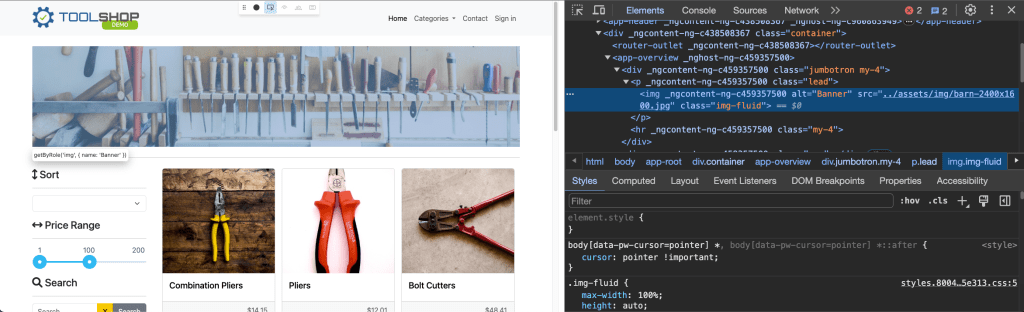
There are other ways to locate elements by using built-in APIs Playwright provides.
There is one best practice we have to keep in mind: automated tests must focus on verifying that the application code functions as intended for end users, while avoiding reliance on implementation specifics that are not typically visible, accessible, or known to users. Users will only see or interact with the rendered output on the page; therefore, tests should primarily interact with this same rendered output. Playwright documentation: https://playwright.dev/docs/best-practices#test-user-visible-behavior.
There are recommended built-in locators:
page.getByRole() to locate by explicit and implicit accessibility attributes.
4. Then we have to verify if no items have been found by asserting text on this page:
Result after clicking on Search buttonNo Result Found HTML
await expect (page.getByRole('heading', {name: "Searched for: Hand Tools"})).toBeVisible();
5. Run this test case and make sure test is passing.
Assertions
Playwright incorporates test assertions utilizing the expect function. To perform an assertion, utilize expect(value) and select a matcher that best represents the expectation. Various generic matchers such as toEqual, toContain, and toBeTruthy are available to assert various conditions.
General Assertions
// Using toEqual matcher
test('Adding numbers', async () => {
  const result = 10 + 5;
  expect(result).toEqual(15);
});
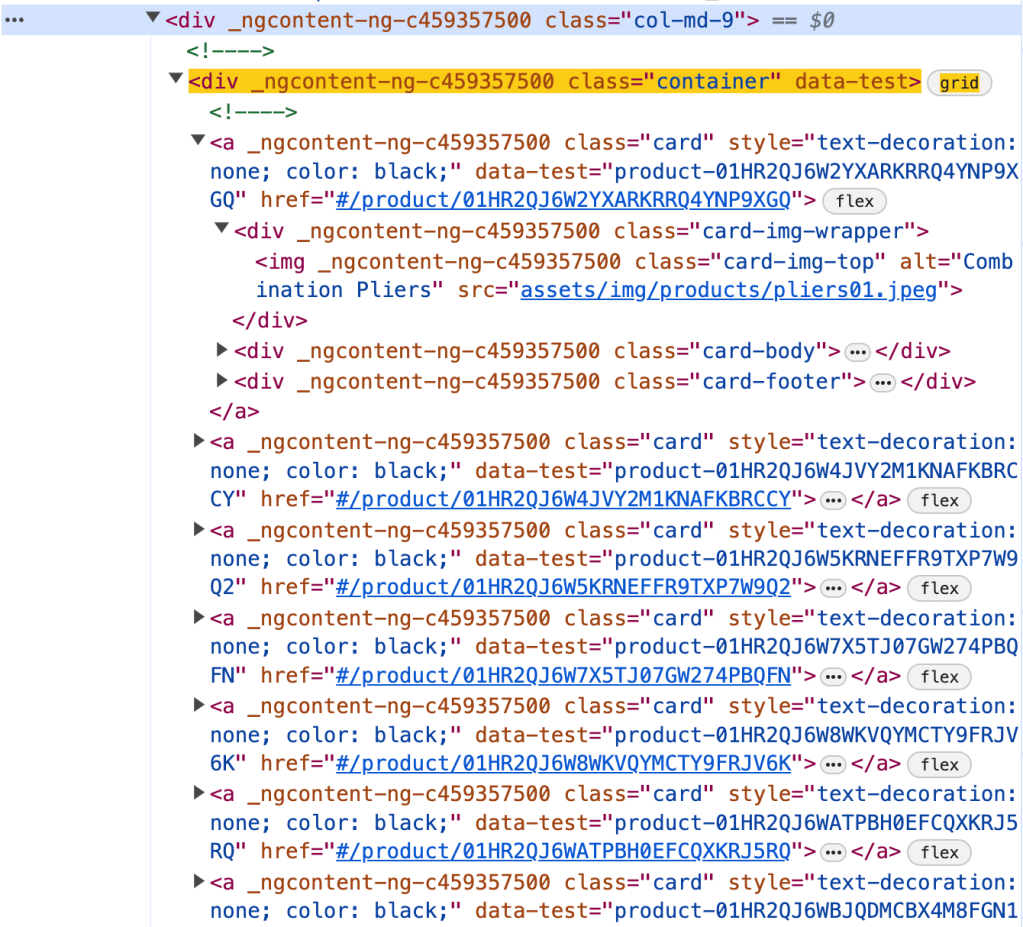
Assert that the title of the product is “Combination Pliers”.
Element on the pageElement HTML
const element = page.locator('.col-md-9 .container').first().locator('.card-title');
const text = element.textContent();
expect(text).toEqual('Combination Pliers');
Locator Assertions
Playwright provides asynchronous matchers, ensuring they wait until the expected condition is fulfilled. For instance, in the following scenario:
const element = page.locator('.col-md-9 .container').first().locator('.card-title');
await expect(element).toHaveText('Combination Pliers');
!Note: do not forget to use await when asserting locators
Playwright continuously checks the element with the test id of “status” until it contains the text “Combination Pliers”. This process involves repeated fetching and verification of the element until either the condition is satisfied or the timeout limit is reached. You have the option to either specify a custom timeout or configure it globally using the testConfig.expect value in the test configuration.
By default, the timeout duration for assertions is set to 5 seconds.
There are two types assertion though: Auto-Retrying Assertions and Non-Retrying Assertions.
Auto-Retrying assertions provided below will automatically retry until they pass successfully or until the assertion timeout is exceeded. It’s important to note that these retrying assertions operate asynchronously, necessitating the use of the await keyword before them.
It’s advisable to prioritize auto-retrying assertions whenever feasible.
Soft Assertions
As a default behavior, when an assertion fails, it terminates the test execution. However, Playwright offers support for soft assertions. In soft assertions, failure doesn’t immediately stop the test execution; instead, it marks the test as failed while allowing further execution.
For example, if we take the previous example and put .soft it assertion, in case assertion fails, it will not lead to termination of test execution.
const element = page.locator('.col-md-9 .container').first().locator('.card-title');
await expect.soft(element).toHaveText('Combination Pliers');
Conclusion.
In conclusion, we’ve explored the aspects of writing test cases using Playwright. We delved into the standard structure of a test case, incorporating essential elements such as hooks and grouping for efficient test management. Additionally, we examined various strategies for locating elements within web pages. Lastly, we discussed the importance of assertions in verifying expected behaviors, covering different assertion techniques to ensure robust and reliable testing. Examples of code, you can see in repository.
This is the second part of a series on Playwright using Typescript and today we are going to talk about challenges in UI Test Framework and explore how leveraging Playwright Best Practices can help us overcome them.
End-to-end test cases have unique challenges due to their complex nature, as they involve testing the entire application user flow from start to finish. These tests often require coordination between different systems and components, making them non-sensitive to environmental inconsistencies and complex dependencies.
What are other challenges we might encounter while working with UI Test Frameworks?
Test cases can be slow to execute, as they often involve the entire application stack, including backend, frontend, database.
End-to-End tests can be fragile, as they vulnerable to breaking whenever there is a change in DOM, even if the functionality stays the same.
UI Tests consume more resources compared to other types of testing, requiring robust infrastructure to run efficiently.
This type of test cases suffering from flakiness. Oh, yes, did I say flakiness? It could be a very annoying problem.
Flaky tests pose a risk to the integrity of the testing process and the product. I would refer to great resource where The Domino Effect of Flaky Tests described.
Main idea: while a single test with a flaky failure rate of 0.05% may seem insignificant, the challenge becomes apparent when dealing with numerous tests. An insightful article highlights this issue by demonstrating that a test suite of 100 tests, each with a 0.05% flaky failure rate, yields an overall success rate of 95.12%. However, in larger-scale applications with thousands of tests, this success rate diminishes significantly. For instance, with 1,000 flaky tests, the success rate drops to a concerning 60.64%.And seems, this problem is real and we have to handle it otherwise it will be “expensive” and annoying for test execution for a large-scale applications.
Remember: Most of the time, flakiness is not the outcome of a bad test framework. Instead, it is the result of how you design the test framework and whether you follow its best practices.
By following best practices and designing your tests carefully, you can prevent many flaky tests from appearing in the first place. That’s why before diving right into the implementation, let’s take a look at best practices for Playwright framework.
1. Locate Elements on the page:
👉 Use locators! Playwright provides a whole set of built-in locators. It comes with auto waiting and retry-ability. Auto waiting means that Playwright performs a range of actionability checks on the elements, such as ensuring the element is visible and enabled before it performs the click.
👉 Prefer user-facing attributes over XPath or CSS selectors when selecting elements. The DOM structure of a web page can easily change, which can lead to failing tests if your locators depend on specific CSS classes or XPath expressions. Instead, use locators that are resilient to changes in the DOM, such as those based on role or text.
🚫 Example of locator which could lead to flakiness in the future: page.locator('button.buttonIcon.episode-actions-later');
✅ Example of robust locator, which is resilient to DOM change: page.getByRole('button', { name: 'submit' });
👉 Make use of built-in codegen tool. Playwright has a test generator, which can generate locators and code for you. By leveraging this tool, you might get the most optimised locator. There is more information on codegen tool and capability to generate locators using VS Code Extension in the introductory article I wrote before.
👉 Playwright has an amazing feature of auto-waiting. You can leverage this feature in web-first assertions. In this case, Playwright will wait until the expected condition is met. Consider this example: await expect(page.getByTestId('status')).toHaveText('Submitted'); . Playwright will be re-testing the element with the test id of status until the fetched element has the "Submitted" text. It will re-fetch the element and check it over and over, until the condition is met or until the timeout is reached. By default, the timeout for assertions is set to 5 seconds.
👉 Make tests isolated. Each test should be completely isolated, not rely on other tests. This approach improves maintainability, allows parallel execution and make debugging easier.
To avoid repetition, you might consider using before and afterhooks. More ways of achieving isolation in Playwright, you can find by following this link: https://playwright.dev/docs/browser-contexts
Examples:
🚫 Not Isolated test case which assumes that the first test case should always pass and it will be a precondition for the next one (in this case, in the first test case user is logging in, and then test case has been reused in the next one. What if the first test case has been failed?
// Verify Post Created await verifyPost(title, content); });
// more test cases could be added });
👉 Keep test cases small and avoid million assertions in one test case. Make sure, that one test case has one reason for test failure. You will thank yourself later for that.
👉 Make sure you handle data correctly in the test case. Ensure that each test case is independent and does not rely on the state of previous tests. Initialize or reset the test data as needed before each test to prevent data dependency issues. When testing functionalities that interact with external services or APIs, consider using mock data or stubs to simulate responses.
How to combat flaky tests?
👉 Use debugging capabilities of Playwright tool. Run test cases with the flag --debug. This will run tests one by one, and open the inspector and a browser window for each test. it will display a debug inspector and give you insights on what the browser actually did in every step.
👉 Playwright supports verbose logging with the DEBUG environment variable: DEBUG=pw:api npx playwright test. In one of my articles, I also explain how to enable this mode from VSCode Extension.
👉 Playwright provides a tracing feature that allows you to capture a detailed log of all the actions and events taking place within the browser. With tracing enabled, you can closely monitor network requests, page loads, and code execution. This feature is helpful for debugging and performance optimization.
To record a trace during development mode set the --trace flag to on when running your tests: npx playwright test --trace on
You can then open the HTML report and click on the trace icon to open the trace: npx playwright show-report.
👉 You might want to slow down test execution by test.slow() to see more details. Slow test will be given triple the default timeout.
In conclusion, as you start working with new test automation tool, it’s vital to dive into best practices and familiarize yourself with the tool’s capabilities. Remember, flakiness isn’t solely the fault of the test tool itself; more often than not, it comes from how you utilize and implement it.
Summing up best practices for Playwright:
Utilize Locators and prioritize user-facing attributes.




























 TechNotes