Tag: software-testing

  • Part1: Getting Started with Playwright using Typescript.

    Part1: Getting Started with Playwright using Typescript.

    Introduction

    This article will be part of a series focusing on the Playwright framework implemented with Typescript.

    Playwright is a modern web testing framework that is primarily used for testing web applications. It was developed by Microsoft and released in 2019. Playwright provides a set of APIs that allow developers to automate interactions with web pages, such as clicking buttons, filling out forms, and navigating through pages. It supports multiple programming languages including JavaScript, Python, and C#, making it accessible to a wide range of developers.

    Key Features:

    1. Playwright supports cross-browser test execution including Chromium, WebKit, and Firefox
    2. It is designed to work on various operating systems including Windows, Linux, MacOS
    3. Playwright offers a rich set of APIs for automating interactions with web pages. Developers can simulate user actions such as clicking, typing, hovering, and navigating through pages.
    4. Playwright includes built-in mechanisms for waiting for specific conditions to be met before executing further actions. This helps handle asynchronous behavior in web applications more effectively.
    5. Playwright provides parallel execution option out the box that can significantly reduce the overall execution time, especially for large test suites.
    6. It provides codegen capability to generate test steps and assertions.

    Moreover, Playwright uses unique approach for browser automation. Instead of launching a full new browser instance for each test case, Playwright launches one browser instance for entire suite of tests. It then creates a unique browser context from that instance for each test. A browser context is essentially like an incognito session: it has its own session storage and tabs that are not shared with any other context. Browser contexts are very fast to create and destroy. Then, each browser context can have one or more pages. All Playwright interactions happen through a page, like clicks and scrapes. Most tests only ever need one page.

    Setup the project

    Get started by installing Playwright using npm: npm init playwright@latest.

    Run the install command and select the following to get started:

    1. Choose between TypeScript or JavaScript (we are going to use TypeScript for this project)
    2. Name of your Tests folder (tests)
    3. Add a GitHub Actions workflow to easily run tests on CI (false)
    4. Install Playwright browsers (true)

    What is installed:

    playwright.config.ts
    package.json
    package-lock.json
    tests/
      example.spec.ts
    tests-examples/
      demo-todo-app.spec.ts
    

    This command will create a bunch of new project files, including:

    1. package.json file with the Playwright package dependency
    2. playwright.config.ts file with test configurations
    3. tests directory with basic example tests
    4. tests-examples directory with more extensive example tests

    Running Tests using command line.

    npx playwright test – run test cases in headless mode. In this case browser will not appear, all projects will be executed. On the screenshot below you can see that 4 test cases have been executed, all of them are passed, 2 workers have been used. Number of workers is configurable parameter in the playwright config.

    Playwright has built-in reporter. To see full report you can run npx playwright show-report command in the terminal.

    You can see test results, test duration, filter them by category “passed”, “failed”, “flaky”, “skipped”. All test cases marked with the name of project (in our case this is a name of the browser we are running test against). Moreover, you can expand and check test steps and traces (if available).

    If you want to run against one particular browser, run: npx playwright test --project=chromium.Test cases will be executed in headless mode.

    Headed mode: npx playwright test --project=chromium --headed

    In order to execute only one test spec add the name of the test spec: npx playwright test <name-of-the-test-spec> --project=chromium

    If you’d like to execute only one specific test case: npx playwright test -g <name-of-the-test-case> --project=chromium

    To skip test case add test.skip in test case file, like:

    import { test, expect } from '@playwright/test';

    test.skip('has title', async ({ page }) => {
    await page.goto('https://playwright.dev/');

    // Expect a title "to contain" a substring.
    await expect(page).toHaveTitle(/Playwright/);
    });

    test('get started link', async ({ page }) => {
    await page.goto('https://playwright.dev/');

    // Click the get started link.
    await page.getByRole('link', { name: 'Get started' }).click();

    // Expects page to have a heading with the name of Installation.
    await expect(page.getByRole('heading', { name: 'Installation' })).toBeVisible();
    });

    Result after test execution:

    Report shows that two test cases are skipped as intended:

    While test development you might need to run only one test. In this case use test.only.

    Test execution in UI mode.

    One of its most helpful features is UI mode, which visually shows and executes tests.

    To open UI mode, run the following command in your terminal: npx playwright test --ui

    Once you launch UI Mode you will see a list of all your test files. You can run all your tests by clicking the triangle icon in the sidebar. You can also run a single test file, a block of tests or a single test by hovering over the name and clicking on the triangle next to it.

    In the middle you will see a step-by-step trace of the test execution, together with screenshots of each step. It is also important to mention that you can debug test case here by checking “before” and “after” view, code source, logs and errors. One flaw of this mode is that the browser is not a browser itself, technically this is simply screenshot. That’s why it is more convenient to use it in combination with Playwright Extension (in VSCode).

    Test Execution with Playwright Extension.

    Install Extension by navigating to Preferences -> Extensions. Search for official extension called Playwright Test for VSCode, hit Install button. Once it’s been installed, navigate to Testing section on the left panel. List of test cases should be loaded.

    Before running test cases, you might want to provide specific settings by enabling/disabling headed execution, choosing target project, enabling / disabling trace generation. It is also possible to leverage codegen capabilities by recording test case, picking locator.

    Important point for this type of execution, that after execution is completed, browser stays open and you can easily interact with elements on the page like in real browser.

    Make debugging your friend.

    Playwright provides a tracing feature that allows you to capture a detailed log of all the actions and events taking place within the browser. With tracing enabled, you can closely monitor network requests, page loads, and code execution. This feature is helpful for debugging and performance optimization.

    To record a trace during development mode set the --trace flag to on when running your tests: npx playwright test --trace on

    You can then open the HTML report and click on the trace icon to open the trace: npx playwright show-report

    At the first glance the report looks the same:

    But you can find more information inside when you open one of the test case information:

    Also, to open trace you can run this command from the terminal: npx playwright show-trace path/to/trace.zip

    To debug all tests run the test command with the --debug flag. This will run tests one by one, and open the inspector and a browser window for each test: npx playwright test --debug

    Generating Test Code

    Playwright provides a codegen feature that allows users to easily generate code for their browser automation scripts. The Codegen feature in Playwright captures user interactions with the webpage, such as clicks, fills, and navigation, and then translates these interactions into executable code. This makes it easier for developers to create and maintain browser automation scripts, as they can simply record their actions and generate code.

    To launch code generator, run: npx playwright codegen

    Try loading a web page and making interactions with it. You’ll see Playwright code generated in real time. Once recording is complete, you can copy the code and refine it into a test case.

    With the test generator you can record:

    1. Actions like click or fill by simply interacting with the page
    2. Assertions by clicking on one of the icons in the toolbar and then clicking on an element on the page to assert against. You can choose:
      • 'assert visibility' to assert that an element is visible
      • 'assert text' to assert that an element contains specific text
      • 'assert value' to assert that an element has a specific value

    Once you’ve done with changes, you can press the 'record' button to stop the recording and use the 'copy' button to copy the generated code to your editor.

    Conclusion.

    In this introductory article, we made a journey to creating a Playwright framework using Typescript. We delved into executing test cases, setting up the development environment, and installing necessary extensions. Additionally, we gained insights into debugging properly and speeding up development process through the utilization of the built-in codegen functionality.

    Resources.

    1. Official Documentation: https://playwright.dev/
    2. Repository with the framework: https://github.com/nora-weisser/playwright-typescript

  • Part 2. How to approach API testing?

    Part 2. How to approach API testing?

    🤨 What is API Testing?

    API testing is important for validating the functionality of the API and ensuring that it meets the functional requirements. It is critical for integration testing since APIs are used to communicate between different software systems. API testing helps to identify issues early in the development cycle and prevents costly bugs and errors in production. This process is designed to not only test the API’s functionality — but also its reliability, performance, and security.

    🧪 Why should you care about API Testing?

    You can find bugs earlier and save money

    Testing REST requests means you can find bugs earlier in the development process, sometimes even before the UI has been created!

    FACT:
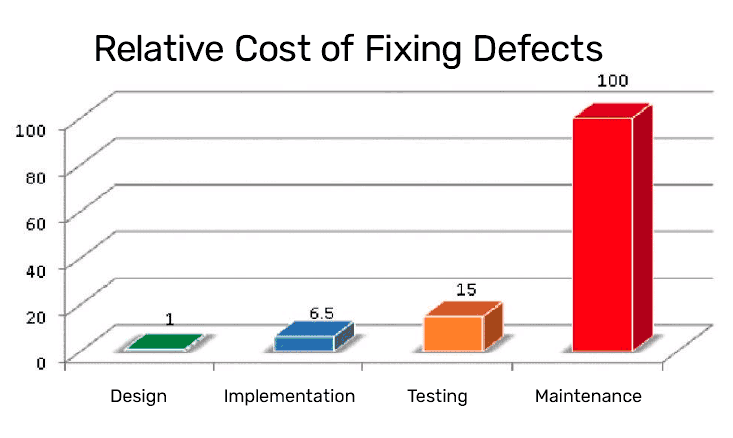
    According to the Systems Sciences Institute at IBM, the cost to fix a bug found during implementation is about six times higher than one identified during design. The cost to fix an error found after product release is then four to five times as much as one uncovered during design, and up to 100 times more than one identified during the maintenance phase. In other words, the cost of a bug grows exponentially as the software progresses through the SDLC.
    Relative Cost of Fixing Defects

    You can find flaws before they are exploited

    Malicious users know how to make REST request and can use them to exploit security flaws in your application by making requests the UI doesn’t allow; you’ll want to find and fix these flaws before they are exploited

    It is easy to automate

    Automation scripts run much faster than UI Automation

    ❌ Everything could go wrong!

    When working with API, there set of risks and potential bugs that you might avoid to ensure the reliability and security of the application (not limited list of risks):

    ⚠️ Risk#1. We could extract personal / private information without proper authentication. It could lead to unauthorized access problems and data breaches.

    🐞 Bugs: Missing or misconfigured authentication tokens, incorrect permission settings, or bypassing authorization checks.


    ⚠️ Risk#2. When a user sends wrong data in the wrong format, it could break the system with 500 errors.


    ⚠️ Risk#3. Improper input validation can lead to security vulnerabilities like SQL-injection cross-site scripting.

    🐞 Bugs: not validation request parameters, not handling unexpected data formats properly


    ⚠️ Risk#4. Insecure data transmission. Transmitting data using unencrypted channels could lead to exposing sensitive information or interception.

    🐞 Bugs: Not using HTTPS, ignoring SSL certification


    ⚠️ Risk#5. Poor error handling may lead to exposing sensitive information or make difficult diagnosing of issues

    🐞 Bugs: returning too details error messages which are revealing implementation details or which are not providing necessary information to the user


    ⚠️ Risk#6. Performance issues. API doesn’t handle loads efficiently which can lead to performance degradation or outages.

    🐞 Bugs: memory leaks, inefficient database queries, not optimized API response times.


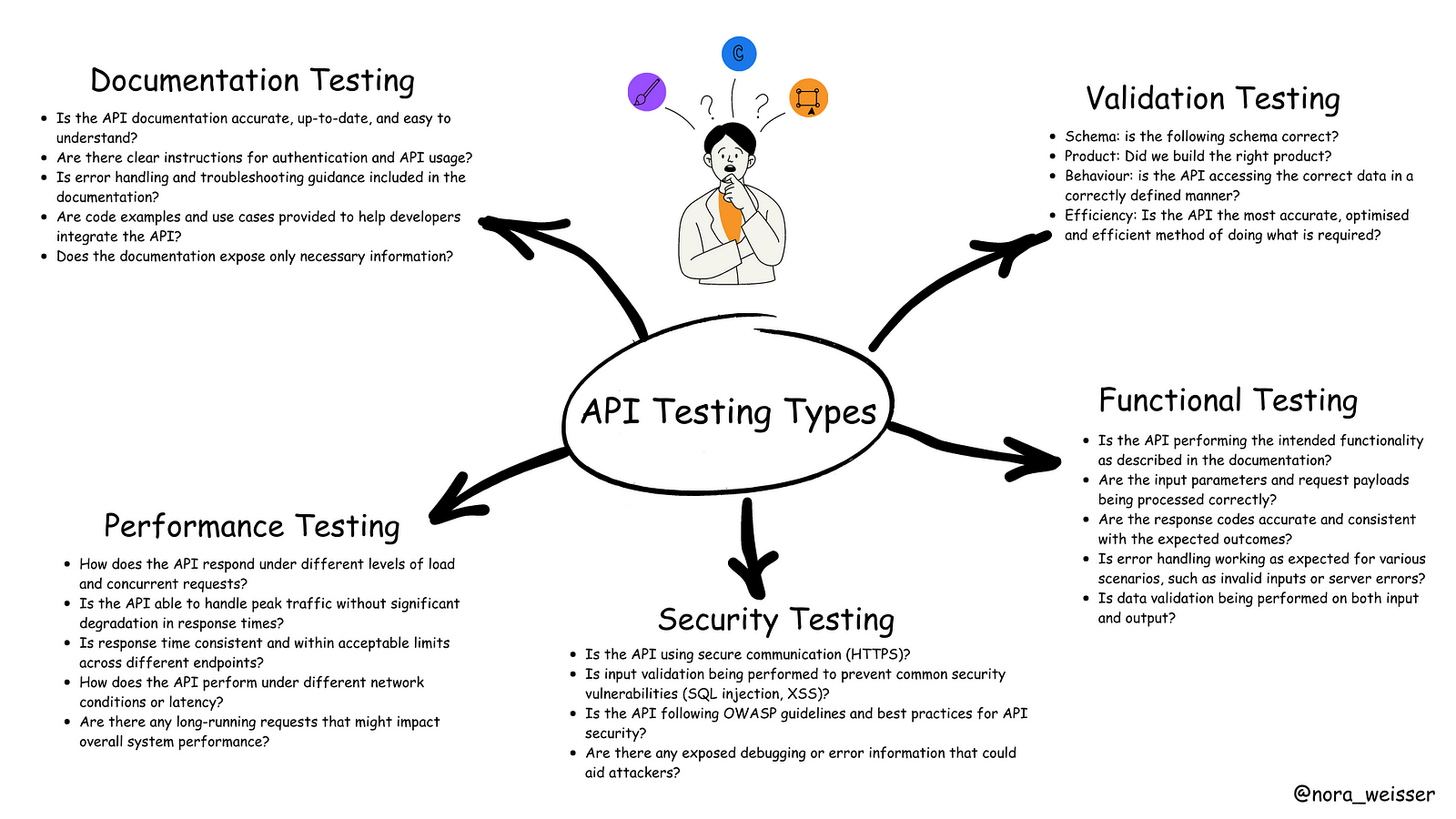
    This schema illustrates the types of questions that a tester can pose to ensure comprehensive API testing. This list is not limited.

    Questions that a tester can pose to ensure comprehensive API testing

    💡 Let’s take a look at the API Testing in more detail

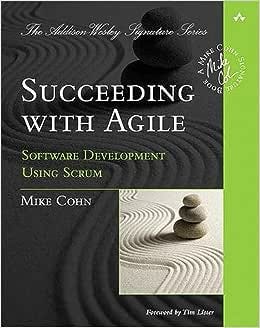
    Introduced by Mike Cohn in his book Succeeding with Agile (2009), the pyramid is a metaphor for thinking about testing in software.

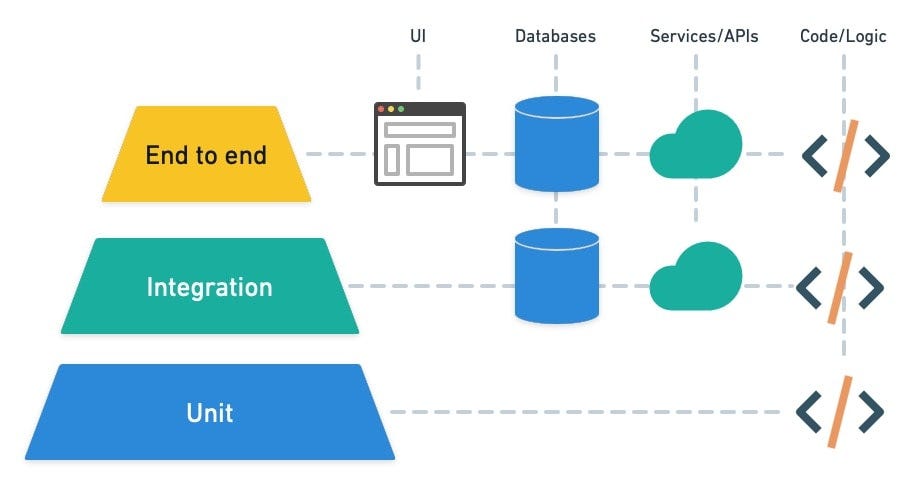
    The testing pyramid is a concept in software testing that represents the ideal distribution of different types of tests in a software development process.

    Source: https://semaphoreci.com/blog/testing-pyramid

    It emphasises having a larger number of lower-level tests and a smaller number of higher-level tests. The testing pyramid is a way to ensure a balanced and effective testing strategy.

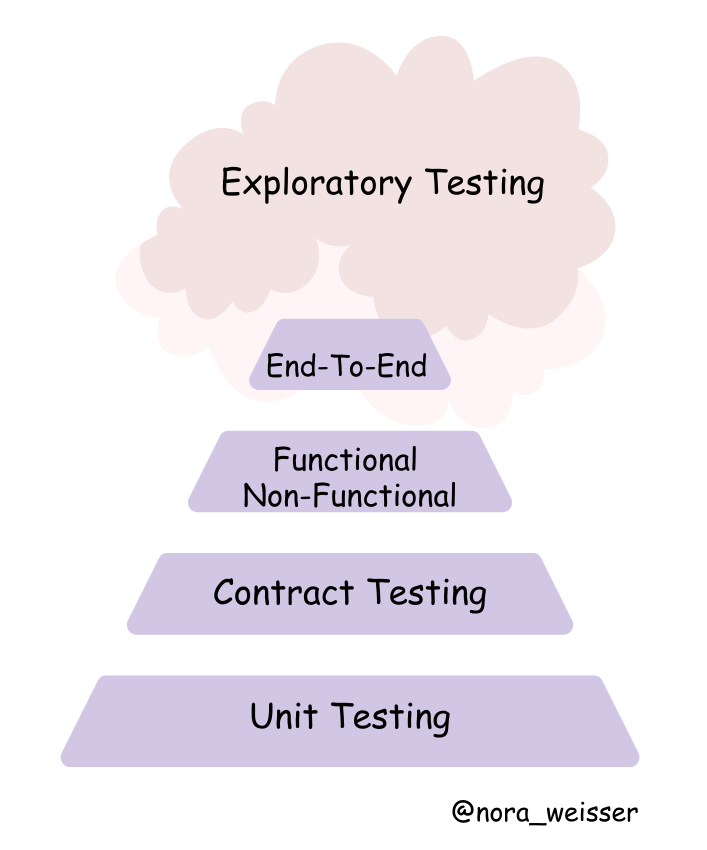
    I adjusted this pyramid to API Testing and what I’ve got:

    API Testing Pyramid

    Unit Testing

    Unit tests, unit tests and unit tests once more. Everybody knows the benefits of unit tests: we should be able to identify any problems with the current components of APIs as soon as possible. The higher unit tests coverage, the better for you and your product.

    Contract Testing

    Assert that the specs have not changed. This type of testing is used to test the contracts or agreements established between various software modules, components, or services that communicate with each other via APIs. These contracts specify the expected inputs, outputs, data formats, error handling, and behaviours of the APIs.

    JSON-schema is a contract that defines the expected data, types and formats of each field in the response and is used to verify the response.

    Example of JSON Schema

    Official Documentation: https://json-schema.org/

    Functional Testing

    The purpose of functional testing is to ensure that you can send a request and get back the anticipated response along with status. That includes positive and negative testing. Make sure to cover all of the possible data combinations.

    Test Scenario categories:

    • – Happy Path (Positive test cases) checks basic information and if the main functionality met
    • – Positive test cases with optional parameters. With these test cases it is possible to extend positive test cases and include more extra checks
    • – Negative cases. Here we expect the application to gracefully handle problem scenarios with both valid user input (for example, trying to add an existing username) and invalid user input (trying to add a username which is null)
    • – Authorization, permission tests

    How to start with Functional Testing?

    1. Read API documentation / specification / requirements carefully to understand its endpoints, request methods, authentication methods, status codes and expected responses.
    2. Based on the functionality you are going to test, outline positive and negative test scenarios which cover use cases and some edge cases as well. Revisit Functional API Testing section for more details.
    3. Setup test environment: create a dedicated test environment that mirrors the production environment.
    4. Select an appropriate tool (for example, Postman, Insomnia), frameworks (for example, pytest, JUnit, Mocha), technologies, programming languages (Python, Javascript, Java, etc.) with appropriate libraries for API Testing.
    5. Plan Test Data: It is always important to populate the environment with the appropriate data.
    6. Write Automation scripts: Automate repetitive test cases, like smoke, regression suites to ensure efficient and consistent testing. Validate responses against expected outcomes and assertions, checking for proper status codes, headers, and data content.
    7. Test the API’s error-handling mechanisms: Verify that the API responds appropriately with clear error messages and correct status codes.
    8. Document Test Results: Maintain detailed documentation of test cases, expected outcomes, actual results to make onboarding of new team members easier.
    9. Collaborate with developers: it is important to have consistent catch-ups with your team and stakeholders to review test results and address any identified issues.
    10. Continuous Improvement: Continuously refine and improve your testing process based on lessons learned from previous test cycles.
    11. Feedback Loop: Provide feedback to the development team regarding the API’s usability, performance, and any issues encountered during testing.

    Non-Functional

    Non-functional API testing is where the testers check the non-functional aspects of an application, like its performance, security, usability, and reliability. Simply put, the functional test focuses on whether API works, whereas non-functional tests focus on how well API works.

    End-to-end testing

    In general, end-to-end testing is the process of testing a piece of software from start to finish. We are checking it by mimicking user actions. If it comes to API, it is crucial to check if APIs can communicate properly by making call like a real client.

    Exploratory testing

    Source: Google Images

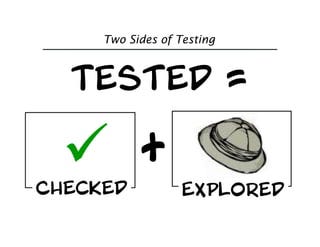
    You’re not done testing until you’ve checked that the software meets expectations and you’ve explored whether there are additional risks. A comprehensive test strategy incorporates both approaches.

    Elisabeth Hendrickson, book “Explore It!”

    When all automation and scripted testing is performed, it is time to examine an API, interact and observe its behavior. This is a great way to learn and explore edge cases to uncover issues that automated or scripted testing would have missed.

    There are two ways of doing it:

    1. When test engineer performs it individually, He/She needs to apply domain knowledge intuition, critical thinking and user-centric thinking.
    2. There is another way — pair testing which involves two people: driver and navigator. It is a time-boxed testing when the driver performs the actual testing while the navigator observes, provides guidance, and takes notes where necessary. This approach maximizes a level of creativity and encourages knowledge sharing and better collaboration between team members.

    More information: https://www.agileconnection.com/article/two-sides-software-testing-checking-and-exploring

    Book “Explore It!”: https://learning.oreilly.com/library/view/explore-it/9781941222584/

    BONUS:

    Health Check API: transition to the cloud and refactoring of the applications to microservices introduced new challenges in effective monitoring these microservices at scale. To standardise the process of validating the status of a service and its dependencies, it becomes helpful to introduce a health check API endpoint to a RESTful (micro) service. As part of the returned service status, a health check API can also include performance information, such as component execution times or downstream service connection times. Depending on the state of the dependencies, an appropriate HTTP return code and JSON object are returned.

    🎬 Conclusion

    In conclusion, mastering the art of API testing requires a good approach that includes strategic planning, and continuous improvement.

    Remember, API testing is not a one-time effort, but an ongoing process that evolves alongside your software development lifecycle. Continuous improvement is key to refining your API testing strategy. Regularly review and update your test cases, incorporating changes due to new features, bug fixes, or code refactoring. Learn from exploratory testing output, identify areas of improvement by listening to your customer’s and team’s feedback.