Tag: typescript

  • PactumJS Hands-On: Leverage stores for AuthenticationΒ 

    PactumJS Hands-On: Leverage stores for AuthenticationΒ 

    Introduction

    When testing APIs that require authentication or involve dependent requests, hardcoding tokens and dynamic values can quickly lead to fragile and hard-to-maintain tests. PactumJS offers a solution for this – stores, which allow you to capture and reuse values like tokens, IDs, and other response data.

    In this article, you’ll learn how to:

    • Handle authentication using Pactum stores
    • Chain requests by capturing and reusing dynamic values
    • Clean up test data using afterEach hooks

    Recap: POST Add Room request resulting 401 status code

    In the previous article, we created a test case Create a New Room but encountered a 401 Unauthorized error due to missing authentication:

    // tests/rooms.spec.js
    
    import pactum from 'pactum';
    const { spec, stash } = pactum;
    
    it('POST: Create a New Room', async () => {
        await spec()
            .post('/room')
            .withJson({ '@DATA:TEMPLATE@': 'RandomRoom' })
            .expectStatus(200)
            .expectJson({
                "success": true
            })
    })

    Since the /room endpoint requires authentication, we need to log in and attach a valid session token to our request.

    Storing and Reusing Tokens

    Pactum allows you to store response values and reuse them across requests using the .stores() method.

    To simulate authentication:

    await spec()
    Β  .post('/auth/login')
    Β  .withJson({ '@DATA:TEMPLATE@': 'ExistingUser' })
    Β  .stores('token', 'token');

    This captures the token field from the login response and stores it under the key ‘token’.

    To use the stored token in subsequent requests:

    .withHeaders('Cookie', 'token=$S{token}')

    Chaining Requests

    You can also extract and store specific values like IDs from response bodies using the built-in json-query support in PactumJS. This allows you to query deeply nested JSON data with simple expressions.

    For example, to capture a roomId based on a dynamic roomName from the response:

    .stores('roomId', `rooms[roomName=${roomName}].roomid`);

    Then use it dynamically in future endpoints:

    .get('/room/$S{roomId}')

    Clean-Up Phase

    Cleaning up test data in afterEach ensures that your tests remain isolated and repeatable β€” a critical practice in CI/CD pipelines.

    In this example you can delete all the rooms, which have been created for the test:

    afterEach(async () => {
        await spec()
          .delete('/room/$S{roomId}')
          .withHeaders('Cookie', 'token=$S{token}');
      });

    Full Example: Creating a Room with Authentication

    Here’s a full test case demonstrating the use of authentication, value storage, and chaining:

    // tests/rooms.spec.js
    
    describe('POST Create a New Room', () => {
    
        beforeEach(async () => {
            await spec()
                .post('/auth/login')
                .withJson({
                    '@DATA:TEMPLATE@': 'ExistingUser'
                }).stores('token', 'token')
        });
    
    
        it('POST: Create a New Room', async () => {
            await spec()
                .post('/room')
                .inspect()
                .withHeaders('Cookie', 'token=$S{token}')
                .withJson({ '@DATA:TEMPLATE@': 'RandomRoom' })
                .expectStatus(200)
                .expectJson({
                    "success": true
                })
    
            const roomName = stash.getDataTemplate().RandomRoom.roomName;
    
            await spec()
                .get('/room')
                .inspect()
                .expectStatus(200)
                .stores('roomId', `rooms[roomName=${roomName}].roomid`);
    
            await spec()
                .get(`/room/$S{roomId}`)
                .inspect()
                .expectStatus(200)
                .expectJson('roomName', roomName);
        })
    
        afterEach(async () => {
            await spec()
                .delete('/room/$S{roomId}')
                .inspect()
                .withHeaders('Cookie', 'token=$S{token}')
        });
    
    })

    Understanding the Stash

    In the full example above, you may have noticed the use of stash.getDataTemplate():

    const roomName = stash.getDataTemplate().RandomRoom.roomName;

    The stash object in Pactum provides access to test data and stored values during runtime. Specifically, stash.getDataTemplate() allows you to retrieve values generated from the data template used earlier in .withJson({ ‘@DATA:TEMPLATE@’: ‘RandomRoom’ }).

    This is useful here to extract values from dynamically generated templates (like roomName) to use them in later requests.

    Bonus: Fetching Rooms without authentication

    Here’s a simple test for fetching all rooms without authentication:

    // tests/rooms.spec.js
    
    describe('GET: All Rooms', () => {
      it('should return all rooms', async () => {
        await spec()
          .get('/room')
          .expectStatus(200);
      });
    });

    Conclusion.

    Pactum’s store feature enables you to:

    • Authenticate without hardcoding credentials
    • Chain requests by dynamically storing and reusing values

    By combining this with beforeEach and afterEach hooks, you can effectively manage test preconditions and postconditions, ensuring your test cases remain clean, maintainable.

  • PactumJS in Practice: Using Data Templates to Manage Test Data – Part 2

    PactumJS in Practice: Using Data Templates to Manage Test Data – Part 2

    Utilize faker Library to Compile Dynamic Test Data

    Introduction

    In Part 1, we explored how to make API tests more maintainable by introducing data templates for the /auth/login endpoint. We saw how to use @DATA:TEMPLATE, @OVERRIDES, and @REMOVES can simplify test logic and reduce duplication.

    Now, in Part 2, we’ll apply the same approach to another key endpoint: POST /room – Create a new room

    This endpoint typically requires structured input like room names, types, and status β€” perfect candidates for reusable templates. We’ll define a set of room templates using Faker for dynamic test data, register them alongside our auth templates, and write test cases that validate room creation.

    Let’s dive into how data templates can help us test POST /room more effectively, with minimal boilerplate and maximum clarity.

    Exploring the API Endpoint

    Step 1: Inspecting the API with DevTools

    Before automating, it’s helpful to understand the structure of the request and response. Visit https://automationintesting.online and follow the steps shown in the GIF below, or use the guide here:

    1. Open DevTools: Press F12 or right-click anywhere on the page and select Inspect to open DevTools.
    2. Navigate to the Network Tab. Go to the Network tab to monitor API requests.
    3. Trigger the API Call: On the website, fill in the room creation form and submit it. Watch for a request to the /room endpoint using the POST method.

    Inspect the API Details. 

    Once you click the POST rooms request, you will see the following details:

    1. URL and method details.
    1. Headers tab: Shows request URL and method
    2. Payload tab: Shows the room data you sent (like number, type, price, etc.)
    1. Response tab: Shows the response from the server (confirmation or error)

    Example payload from this API request:

    {
    Β  "roomName":"111",
    Β  "type":"Single",
    Β  "accessible":false,
    Β  "description":"Please enter a description for this room",
    Β  "image":"https://www.mwtestconsultancy.co.uk/img/room1.jpg",
    Β  "roomPrice":"200",
    Β  "features":[
    Β  Β  Β  "WiFi",
    Β  Β  Β  "TV",
    Β  Β  Β  "Radio"
    Β  ]
    }

    Field Breakdown:

    • roomName: A string representing an identifier for the room (e.g., “111”).
    • type: Room type; must be one of the following values: “Single”, “Double”, “Twin”, “Family”, “Suite”.
    • accessible: A boolean (true or false) indicating whether the room is wheelchair accessible.
    • description: A text description of the room.
    • image: A URL to an image representing the room.
    • roomPrice: A string representing the price of the room.
    • features: An array of one or more of the following feature options: “WiFi“, “Refreshments“, “TV“, “Safe“, “Radio“, “Views“.

    ⚠️ Note: This breakdown is based on personal interpretation of the API structure and response; it is not taken from an official specification.

    In order to generate payload for the room, we will use faker library. This library allows you to generate realistic test data such as names, prices, booleans, or even images on the fly. This helps reduce reliance on hardcoded values and ensures that each test run simulates real-world API usage.

    Step 2: Installing the faker Library

    To add the faker library to your project, run:

    npm install @faker-js/faker

    Step 3: Registering a Dynamic Room Template

    Use faker to generate dynamic values for each room field:

    // helpers/datafactory/templates/randomRoom.js
    
    import { faker } from '@faker-js/faker/locale/en';
    import pkg from 'pactum';
    const { stash } = pkg;
    
    const roomType = ["Single", "Double", "Twin", "Family", "Suite"];
    const features = ['WiFi', 'Refreshment', 'TV', 'Safe', 'Radio', 'Views'];
    
    export function registerRoomTemplates() {
    Β  stash.addDataTemplate({
    Β  Β  RandomRoom: {
    Β  Β  Β  roomName: faker.word.adjective() + '-' + faker.number.int({ min: 100, max: 999 }),
    Β  Β  Β  type: faker.helpers.arrayElement(roomType),
    Β  Β  Β  description: faker.lorem.sentence(),
    Β  Β  Β  accessible: faker.datatype.boolean(),
    Β  Β  Β  image: faker.image.urlPicsumPhotos(),
    Β  Β  Β  features: faker.helpers.arrayElements(features, { min: 1, max: 6 }),
    Β  Β  Β  roomPrice: faker.commerce.price({ min: 100, max: 500, dec: 0 })
    Β  Β  }
    Β  });
    }

    Step 4: Writing the Test Case

    Register the template:

    //helpers/datafactory/templates/registerDataTemplates.js
    
    import { registerAuthTemplates } from "./auth.js";
    
    export function registerAllDataTemplates() {
    Β  Β  registerAuthTemplates();
    Β  Β  registerRoomTemplates();
    Β  }

    With the template registered, you can now use it in your test:

    import pactum from 'pactum';
    const { spec, stash } = pactum;
    
    it('POST: Create a New Room', async () => {
        await spec()
            .post('/room')
            .withJson({ '@DATA:TEMPLATE@': 'RandomRoom' })
            .expectStatus(200)
            .expectJson({
                "success": true
            })
    })

    This approach ensures that each test scenario works with fresh, random input β€” increasing coverage and reliability.

    Step 5: Running the Test

    Run your tests using:

    npm run test

    Most likely you got 401 Unauthorized response, which means authentication is required.

    Don’t worry β€” we’ll handle authentication, by passing the token from the login endpoint to other calls, in the next article.

  • PactumJS in Practice: Using Data Templates to Manage Test Data – Part 1

    PactumJS in Practice: Using Data Templates to Manage Test Data – Part 1

    Introduction

    In this hands-on guide, we’ll explore how to improve the maintainability and flexibility of your API tests using data templates in PactumJS. Our focus will be on the authentication endpoint: POST /auth/login

    Recap: A Basic Login Test

    In the previous article we wrote a basic test case for a successful login:

    it('should succeed with valid credentials', async () => {
    Β  await spec()
    Β  Β  .post('/auth/login')
    Β  Β  .inspect()
    Β  Β  .withJson({
    Β  Β  Β  username: process.env.USERNAME,
    Β  Β  Β  password: process.env.PASSWORD,
    Β  Β  })
    Β  Β  .expectStatus(200);
    });

    While this works for one case, hardcoding test data like this can quickly become difficult to manage as your test suite grows.

    Improving Test Maintainability with Data Templates

    To make our tests more scalable and easier to manage, we’ll introduce data templates β€” a PactumJS feature that allows you to centralize and reuse test data for different scenarios, such as valid and invalid logins.

    Step 1: Define Auth Templates

    Create a file auth.js inside your templates directory /helpers/datafactory/templates/ and register your authentication templates:

    // helpers/datafactory/templates/auth.js
    
    import pkg from 'pactum';
    const { stash } = pkg;
    import { faker } from '@faker-js/faker/locale/en';
    import dotenv from 'dotenv';
    dotenv.config();
    
    export function registerAuthTemplates() {
      stash.addDataTemplate({
        ExistingUser: {
            username: process.env.USERNAME,
            password: process.env.PASSWORD,
        },
        NonExistingUser: {
            username: 'non-existing-user',
            password: 'password',
        }
    });
    }
    

    Step 2: Register All Templates in a Central File

    Next, create a registerDataTemplates.js file to consolidate all your template registrations:

    //helpers/datafactory/templates/registerDataTemplates.js
    import { registerAuthTemplates } from "./auth.js";
    
    export function registerAllDataTemplates() {
    Β  Β  registerAuthTemplates();
    Β  Β  registerRoomTemplates();
    Β  }

    Step 3: Use Templates in Your Test Setup

    Finally, import and register all templates in your test suite’s base configuration:

    // tests/base.js
    
    import pactum from 'pactum';
    import dotenv from 'dotenv';
    dotenv.config();
    import { registerAllDataTemplates } from '../helpers/datafactory/templates/registerDataTemplates.js';
    
    const { request } = pactum;
    
    before(() => {
      request.setBaseUrl(process.env.BASE_URL);
      registerAllDataTemplates()
    });
    

    Writing Login Tests with Templates

    Now let’s implement test cases for three core scenarios:

    // tests/auth.test.js
    
    describe('/auth/login', () => {
    
      it('should succeed with valid credentials', async () => {
        await spec()
          .post('/auth/login')
          .withJson({ '@DATA:TEMPLATE@': 'ExistingUser' })
          .expectStatus(200)
          .expectJsonSchema(authenticationSchema);
      });
    
      it('should fail with non-existing user', async () => {
        await spec()
          .post('/auth/login')
          .withJson({ '@DATA:TEMPLATE@': 'NonExistingUser' })
          .expectStatus(401)
          .expectJsonMatch('error', 'Invalid credentials');
      });
    
      it('should fail with invalid password', async () => {
        await spec()
          .post('/auth/login')
          .withJson({
            '@DATA:TEMPLATE@': 'ExistingUser',
            '@OVERRIDES@': {
              password: faker.internet.password(),
            },
          })
          .expectStatus(401)
          .expectJsonMatch('error', 'Invalid credentials');
      });
    
    });

    πŸ’‘ Did You Know?

    You can use:

    • @OVERRIDES@ to override fields in your template (e.g. testing invalid passwords)
    • @REMOVES@ to remove fields from the payload (e.g. simulating missing inputs)

    Example:

    it('should return 400 when username is missing', async () => {
    Β  await spec()
    Β  Β  .post('/auth/login')
    Β  Β  .withJson({
    Β  Β  Β  '@DATA:TEMPLATE@': 'ExistingUser',
    Β  Β  Β  '@REMOVES@': ['username']
    Β  Β  })
    Β  Β  .expectStatus(400);
    });

    Conclusion

    Data templates in PactumJS are a simple yet powerful way to make your API tests more maintainable and scalable. By centralizing test data, you reduce duplication, improve readability, and make your test suite easier to evolve as your API grows.

    In this part, we focused on authentication. In the next article, we’ll explore how to apply the same pattern to other endpoints β€” like POST /room β€” and build more complex test scenarios using nested data and dynamic generation.

  • Getting started with PactumJS: Project Structure and Your First Test Case

    Getting started with PactumJS: Project Structure and Your First Test Case

    Introduction

    As discussed in the previous article, PactumJS is an excellent choice for API automation testing. 

    As your API testing suite grows, maintaining a clean and organized repository structure becomes essential. We’ll explore a folder structure for your PactumJS-based testing framework, provide tips and tricks for configuration and scripting, and walk through executing tests with reporting.

    For demonstration, we’ll use the Restful Booker API as our test target.

    Set Up Your Project and Install Dependencies

    Prerequisites

    To follow along, make sure you have the following:

    1. Node.js v10 or above
    2. Basic understanding of JavaScript or TypeScript
    3. Node.js modules
    4. Testing frameworks like Mocha

    If you’re new to any of the above, it’s worth reviewing basic tutorials, for example, on Automation University: on Node.js and test runners like Mocha.

    Install Dependencies

    Start by creating a fresh Node.js project:

    mkdir api_testing_with_pactumjs
    cd api_testing_with_pactumjs
    npm init -y

    Then install necessary packages via NPM:

    # install pactum
    npm install -D pactum
    
    # install a test runner
    npm install -D mocha

    Organise your files

    api_testing_with_pactumjs/
    β”œβ”€β”€ helpers/
    β”‚   └── datafactory/
    β”œβ”€β”€ tests/
    β”‚   └── auth.spec.ts
    β”œβ”€β”€ setup/
    β”‚   └── base.js
    β”œβ”€β”€ .env.example
    β”œβ”€β”€ .gitignore
    β”œβ”€β”€ README.md
    β”œβ”€β”€ package-lock.json
    └── package.json
    1. tests/ folder contains your test specifications organized by feature or endpoint, such as auth.spec.ts. This keeps tests modular and easy to locate.
    2. helpers/ folder houses centralized reusable logic and utilities. This separation keeps test files focused on what they test rather than how, improving readability and maintainability.
    3. setup/ folder contains global setup files like base.js to configure common test environment settings, such as base URLs and global hooks.
    4. .env.example β€” A sample environment configuration file listing required environment variables, serving as a reference and template for developers.
    5. .env (not shown in repo) is used locally to store sensitive configuration and secrets, enabling easy environment switching without code changes.
    6. .gitignore file includes folders and files like .env to prevent committing sensitive data to version control.
    7. package.json is a central place for managing project dependencies (like pactum, dotenv, mocha) and defining test scripts (e.g., npm run test, npm run test:report). This facilitates CI/CD integration and consistent test execution.

    Write a Basic Test

    As an example for our demo we will take the Restful-Booker Platform built by Mark Winteringham. This application has been created for bed-and-breakfast (B&B) owners to manage their bookings.

    To explore and test the available API endpoints, you can use the official Postman Collection.

    Let’s write our first set of API tests for the /auth/login endpoint which generates a token for an admin user.

    Endpoint: POST /api/auth/login

    Base URL: https://automationintesting.online

    User Context

    User Role: Admin (default user)

    Credentials Used:

    • username: “admin”
    • password: “password”

    Request:

    Method: POST

    Headers: Content-Type: application/json

    Body:

    {
      "username": "admin",
      "password": "password"
    }

    Expected Response:

    HTTP Status: 200 OK

    / tests/authenticate.spec.js
    import pkg from 'pactum';
    const { spec, stash } = pkg;
    
    describe('/authenticate', () => {
    
        it('should succeed with valid credentials', async () => {
            await spec()
                .post('https://automationintesting.online/api/auth/login')
                .withJson({
                    username: 'admin',
                    password: 'password'
                })
                .expectStatus(200)
        });
    });

    While this test currently focuses on verifying the status code, future articles will enhance it by adding validations for the authentication token returned in the response.

    Manage Environment Variables

    Create .env file

    To keep sensitive data like URLs and credentials, create a .env.example file as a reference for required environment variables:

    BASE_URL=""
    USERNAME=""
    PASSWORD=""
    πŸ‘‰ Tip: Don’t commit your actual .env to version control
    • Use .env.example to document the required variables.
    • Add .env to your .gitignore file to keep credentials secure.
    • Share .env.example with your team so they can configure their environments consistently.

    Load Environment Variables in Tests

    Install dotenv and configure it in your test files or setup scripts:

    npm install --save-dev dotenv

    Example test with environment variables:

    // tests/authenticate.spec.js
    
    import pkg from 'pactum';
    const { spec } = pkg;
    import dotenv from 'dotenv';
    dotenv.config();
    
    describe('/authenticate', () => {
      it('should succeed with valid credentials', async () => {
        await spec()
          .post(`${process.env.BASE_URL}/auth/login`)
          .withJson({
            username: process.env.USERNAME,
            password: process.env.PASSWORD
          })
          .expectStatus(200);
      });
    });

    Execute Test Case

    Once your test files are set up and your .env file is configured with valid credentials and base URL, you’re ready to execute your test cases.

    PactumJS works seamlessly with test runners like Mocha, which means running your tests is as simple as triggering a test command defined in your package.json. Here’s how to proceed:

    Add a Test Script

    In your package.json, add a script under “scripts” to define how to run your tests. For example:

    // package.json
    
    "scripts": {
      "test": "mocha tests"
    }

    This tells Mocha to look for test files in the tests/ directory and run them.

    Run the Tests

    In your terminal, from the root of your project, run:

    npm test

    This will execute test specs and display results in the terminal. 

    You should see output indicating whether the test passed or failed, for example:

      /authenticate
        βœ“ should succeed with valid credentials (150ms)
    
      1 passing (151ms)

    Add a Reporting Tool

    By default, PactumJS uses Mocha’s basic CLI output. For richer reportingβ€”especially useful in CI/CD pipelinesβ€”you can use Mochawesome, a popular HTML and JSON reporter for Mocha.

    Install Mochawesome

    Install Mochawesome as a development dependency:

    npm install -D mochawesome

    Update Your Test Script

    Modify the scripts section in your package.json to include a command for generating reports:

    // package.json
    
    "scripts": {
      "test": "mocha tests"
      "test:report": "mocha tests --reporter mochawesome"
    }

    This script tells Mocha to run your tests using the Mochawesome reporter.

    Run the tests with reporting

    Execute your tests using the new script:

    npm run test:report

    This generates a mocha report in JSON and HTML format which you can review locally or attach in CI pipelines.

      /authenticate
        βœ” should succeed with valid credentials (364ms)
    
    
      1 passing (366ms)
    
    [mochawesome] Report JSON saved to ./pactum_test/mochawesome-report/mochawesome.json  [mochawesome] Report HTML saved to ./pactum_test/mochawesome-report/mochawesome.html

    View the report

    Open the HTML report in your browser to visually inspect test results:

    Configure Base Test Setup (base.js)

    Create a Shared Configuration

    Create a base.js file in the setup/ directory. This file is a shared configuration used to define reusable logic like setting the base URL, request headers, or global hooks (beforeEach, afterEach). 

    // setup/base.js
    
    import pactum from 'pactum';
    import dotenv from 'dotenv';
    dotenv.config();
    
    const { request } = pactum;
    
    before(() => {
      request.setBaseUrl(process.env.BASE_URL);
    });

    Load the Setup Automatically Using –file

    To ensure this configuration runs before any tests, register the setup file using Mocha’s –file option. This guarantees Mocha will execute base.js within its context, making all Mocha globals (like before) available.

    Example package.json script:

    "scripts": {
      "test": "mocha tests --file setup/base.js"
    }

    With this in place, run:

    npm test
    πŸ‘‰ Tip: Simplify and DRY Up Your Test Scripts

    To avoid repeating the full Mocha command in multiple scripts, define a single base script (e.g., test) that includes your common options. Then, reuse it for other variants by passing additional flags:

    "scripts": {
      "test": "mocha tests --file setup/base.js",
      "test:report": "npm run test -- --reporter mochawesome"
    }

    This approach keeps your scripts concise and easier to maintain by centralizing the core test command. It also allows you to easily extend or customize test runs with additional options without duplicating configuration. Overall, it reduces the chance of errors and inconsistencies when updating your test scripts.

    Conclusion

    By structuring your PactumJS repository with clear separation of tests, helpers, and setup filesβ€”and by leveraging environment variables, global setup, and reportingβ€”you build a scalable and maintainable API testing framework. This approach supports growth, team collaboration, and integration with CI/CD pipelines.

  • What makes PactumJS awesome? A quick look at its best features.

    What makes PactumJS awesome? A quick look at its best features.

    1. Introduction
      1. Fluent and expressive syntax
      2. Data Management
        1. Data Templates
        2. Data Store for Dynamic Values
      3. Built-In Schema Validation
      4. Flexible Assertions
      5. Default ConfigurationΒ 
    2. Conclusion
    3. Resources

    Introduction

    I’ve spent a fair bit of time writing API test automation. After exploring a few JavaScript-based tools and libraries, I’ve found Pactum to be particularly powerful. I wanted to take a moment to share a brief overview of my experience and why I think it stands out.

    If you’re setting up a PactumJS project from scratch, I recommend starting with the official Quick Start guide, which covers installation and basic setup clearly. Additionally, this article by Marie Cruz offers a great walkthrough of writing API tests with PactumJS and Jest, especially useful for beginners.

    Fluent and expressive syntax

    One of the aspects I appreciate the most is how naturally you can chain descriptive methods from the spec object to build complex requests with support for headers, body payloads, query parameters, and more.

    Example:Β 

    it('POST with existing username and valid password', async () => {
            await spec()
                .post('/auth/login')             .inspect()
                .withHeaders('Content-Type', 'application/json')
                .withJson({
                    '@DATA:TEMPLATE@': 'ExistingUser'
                })
                .expectStatus(200) # assertion
                .expectJsonSchema(authenticationSchema) # assertion
        })
    

    More on request making: https://github.com/pactumjs/pactum/wiki/API-Testing#request-making 

    Data Management

    Data Management is a critical aspect of test automation and often one of the more challenging pain points in any automation project. Test suites frequently reuse similar request payloads, making it difficult to maintain and organize these payloads when they are scattered across different test files or folders. Without a structured approach, this can lead to duplication, inconsistency, and increased maintenance overhead. So, it is important to have an intuitive way to handle data in the test framework. 

    In PactumJS, data management is typically handled using data templates and data stores. These help you define reusable request bodies, dynamic data, or test user information in a clean and maintainable way.

    Data Templates

    Data Templates help you define reusable request bodies and user credentials. Templates can also be locally customized within individual tests without affecting the original definition.

    For example, in testing different authentication scenarios:

    1. Valid credentials
    2. Invalid password
    3. Non-existing user

    Rather than hard-coding values in each test, as it is done below: 

    describe('/authenticate', () => {
    Β  Β  it('POST with existing username and valid password', async () => {
    Β  Β  Β  Β  await spec()
    Β  Β  Β  Β  Β  Β  .post('/auth/login')
    Β  Β  Β  Β  Β  Β  .inspect()
    Β  Β  Β  Β  Β  Β  .withHeaders('Content-Type', 'application/json')
    Β  Β  Β  Β  Β  Β  .withJson({
    Β  Β  Β  Β  Β  Β  Β  Β  username: process.env.USERNAME,
    Β  Β  Β  Β  Β  Β  Β  Β  password: process.env.PASSWORD,
    Β  Β  Β  Β  Β  Β  })
    Β  Β  Β  Β  Β  Β  .expectStatus(200)
    Β  Β  Β  Β  Β  Β  .expectJsonSchema(authenticationSchema)
    Β  Β  })
    
    Β  Β  it('POST with existing username and invalid password', async () => {
    Β  Β  Β  Β  await spec()
    Β  Β  Β  Β  Β  Β  .post('/auth/login')
    Β  Β  Β  Β  Β  Β  .inspect()
    Β  Β  Β  Β  Β  Β  .withHeaders('Content-Type', 'application/json')
    Β  Β  Β  Β  Β  Β  .withJson({
    Β  Β  Β  Β  Β  Β  Β  Β  username: process.env.USERNAME,
    Β  Β  Β  Β  Β  Β  Β  Β  password: faker.internet.password(),
    Β  Β  Β  Β  Β  Β  })
    Β  Β  Β  Β  Β  Β  .expectStatus(401)
    Β  Β  Β  Β  Β  Β  .expectJsonMatch('error', 'Invalid credentials')
    Β  Β  })
    
    Β  Β  it('POST with non-existing username and password', async () => {
    Β  Β  Β  Β  await spec()
    Β  Β  Β  Β  Β  Β  .post('/auth/login')
    Β  Β  Β  Β  Β  Β  .inspect()
    Β  Β  Β  Β  Β  Β  .withHeaders('Content-Type', 'application/json')
    Β  Β  Β  Β  Β  Β  .withJson({
    Β  Β  Β  Β  Β  Β  Β  Β  username: faker.internet.username(),
    Β  Β  Β  Β  Β  Β  Β  Β  password: faker.internet.password(),
    Β  Β  Β  Β  Β  Β  })
    Β  Β  Β  Β  Β  Β  .expectStatus(401)
    Β  Β  Β  Β  Β  Β  .expectJsonMatch('error', 'Invalid credentials')
    Β  Β  })
    })

    define reusable templates:

    // auth.js
    
    export function registerAuthTemplates() {
    Β  stash.addDataTemplate({
    Β  Β  ExistingUser: {
    Β  Β  Β  Β  username: process.env.USERNAME,
    Β  Β  Β  Β  password: process.env.PASSWORD,
    Β  Β  },
    Β  Β  NonExistingUser: {
    Β  Β  Β  Β  username: faker.internet.username(),
    Β  Β  Β  Β  password: faker.internet.password(),
    Β  Β  }
    });
    }

    Then load them in global setup:

    // registerDataTemplates.js
    
    import { registerAuthTemplates } from "./auth.js";
    
    export function registerAllDataTemplates() {
    Β  Β  registerAuthTemplates();
    Β  }

    Now, tests become cleaner and easier to maintain:

     it('POST with non-existing username and password', async () => {
    Β  Β  Β  Β  await spec()
    Β  Β  Β  Β  Β  Β  .post('/auth/login')
    Β  Β  Β  Β  Β  Β  .inspect()
    Β  Β  Β  Β  Β  Β  .withHeaders('Content-Type', 'application/json')
    Β  Β  Β  Β  Β  Β  .withJson({
    Β  Β  Β  Β  Β  Β  Β  Β  '@DATA:TEMPLATE@': 'NonExistingUser'
    Β  Β  Β  Β  Β  Β  })
    Β  Β  Β  Β  Β  Β  .expectStatus(401)
    Β  Β  Β  Β  Β  Β  .expectJsonMatch('error', 'Invalid credentials')
    Β  Β  })

    Want to override part of a template? 

    Use @OVERRIDES@:

     it('POST with existing username and invalid password', async () => {
    Β  Β  Β  Β  await spec()
    Β  Β  Β  Β  Β  Β  .post('/auth/login')
    Β  Β  Β  Β  Β  Β  .inspect()
    Β  Β  Β  Β  Β  Β  .withHeaders('Content-Type', 'application/json')
    Β  Β  Β  Β  Β  Β  .withJson({
    Β  Β  Β  Β  Β  Β  Β  Β  '@DATA:TEMPLATE@': 'ExistingUser',
    Β  Β  Β  Β  Β  Β  Β  Β  '@OVERRIDES@': {
    Β  Β  Β  Β  Β  Β  Β  Β  Β  Β  'password': faker.internet.password()
    Β  Β  Β  Β  Β  Β  Β  Β  Β  }
    Β  Β  Β  Β  Β  Β  })
    Β  Β  Β  Β  Β  Β  .expectStatus(401)
    Β  Β  Β  Β  Β  Β  .expectJsonMatch('error', 'Invalid credentials')
    Β  Β  })

    This approach improves consistency and reduces duplication. When credential details change, updates can be made centrally in the datafactory without touching individual tests. As a result, test logic remains clean, focused on validating behaviour rather than being cluttered with data setup.

    More information on data templates: https://pactumjs.github.io/guides/data-management.html#data-template 

    Data Store for Dynamic Values

    In integration and e2e API testing, one common challenge is managing dynamic data between requests. For example, you might need to extract an authentication token from an authentication response and use it in the header of subsequent requests. Without a clean way to store and reuse this data, tests can become messy, brittle, and hard to maintain.

    PactumJS provides a data store feature that allows you to save custom response data during test execution in a clean way.

    Example:

    Suppose you want to send a POST request to create a room, but the endpoint requires authentication. First, you make an authentication request and receive a token in the response. Using data store functionality, you can capture and store this token, then inject it into the headers of the room creation request. 

    describe('POST Create a New Room', () => {
    
    Β  Β  beforeEach(async () => {
    Β  Β  Β  Β  await spec()
    Β  Β  Β  Β  Β  Β  .post('/auth/login')
    Β  Β  Β  Β  Β  Β  .withHeaders('Content-Type', 'application/json')
    Β  Β  Β  Β  Β  Β  .withJson({
    Β  Β  Β  Β  Β  Β  Β  Β  '@DATA:TEMPLATE@': 'ExistingUser'
    Β  Β  Β  Β  Β  Β  }).stores('token', 'token')
    Β  Β  });
    
    
    Β  Β  it('POST: Create a New Room', async () => {
    Β  Β  Β  Β  await spec()
    Β  Β  Β  Β  Β  Β  .post('/room')
    Β  Β  Β  Β  Β  Β  .inspect()
    Β  Β  Β  Β  Β  Β  .withHeaders('Content-Type', 'application/json')
    Β  Β  Β  Β  Β  Β  .withHeaders('Cookie', 'token=$S{token}')
    Β  Β  Β  Β  Β  Β  .withJson({ '@DATA:TEMPLATE@': 'RandomRoom' })
    Β  Β  Β  Β  Β  Β  .expectStatus(200)
    Β  Β  Β  Β  Β  Β  .expectBody({
    Β  Β  Β  Β  Β  Β  Β  Β  "success": true
    Β  Β  Β  Β  Β  Β  })
    
    })

    Data store functionality also supports json-query libraries. It enables you to extract and store specific values from complex JSON responses. This is particularly helpful when dealing with nested structures, where you only need to capture a portion of the responseβ€”such as an ID, token, or statusβ€”from a larger payload.

    Example:

    await spec()
    Β  Β  Β  Β  Β  Β  .get('/room')
    Β  Β  Β  Β  Β  Β  .inspect()
    Β  Β  Β  Β  Β  Β  .withHeaders('Content-Type', 'application/json')
    Β  Β  Β  Β  Β  Β  .expectStatus(200)
    Β  Β  Β  Β  Β  Β  .stores('roomId', `rooms[roomName=${roomName}].roomid`);
    
    Β  Β  Β  Β  await spec()
    Β  Β  Β  Β  Β  Β  .get(`/room/$S{roomId}`)
    Β  Β  Β  Β  Β  Β  .inspect()
    Β  Β  Β  Β  Β  Β  .withHeaders('Content-Type', 'application/json')
    Β  Β  Β  Β  Β  Β  .expectStatus(200)
    Β  Β  Β  Β  Β  Β  .expectJson('roomName', roomName);
    Β  Β  })

    More on data store: https://pactumjs.github.io/guides/data-management.html#data-storeΒ 

    Built-In Schema Validation

    Unlike other setups that require integrating libraries like zod, ajv, or custom helper functions, PactumJS allows you to validate JSON responses using the expectJsonSchema method. All you need to do is define the expected schema and apply it directly in your test, no extra configuration needed.

    For example, in an authentication test case, the response schema is defined in a separate data factory:

    export const authenticationSchema = {
        "type": "object",
        "properties": {
            "token": {
                "type": "string"
            }
        },
        "additionalProperties": false,
        "required": ["token"]
    }

    You can then validate the structure of the response like this:

    it('POST with existing username and valid password', async () => {
    Β  Β  Β  Β  await spec()
    Β  Β  Β  Β  Β  Β  .post('/auth/login')
    Β  Β  Β  Β  Β  Β  .inspect()
    Β  Β  Β  Β  Β  Β  .withHeaders('Content-Type', 'application/json')
    Β  Β  Β  Β  Β  Β  .withJson({
    Β  Β  Β  Β  Β  Β  Β  Β  '@DATA:TEMPLATE@': 'ExistingUser'
    Β  Β  Β  Β  Β  Β  })
    Β  Β  Β  Β  Β  Β  .expectStatus(200)
    Β  Β  Β  Β  Β  Β  .expectJsonSchema(authenticationSchema)
    Β  Β  })

    Flexible Assertions

    Most REST API responses return data in JSON format that must be validated. Fortunately, PactumJS provides a powerful and expressive assertion system that goes far beyond basic status code checks. Its assertion system allows for 

    1. Deep JSON matching:
    await spec()
        .get(`/room/$S{roomId}`)
        .inspect()
        .expectStatus(200)
        .expectJson('roomName', roomName);
    })
    it('POST with non-existing username and password', async () => {
    Β  Β  Β await spec()
    Β  Β  Β  Β  .post('/auth/login')
    Β  Β  Β  Β  .inspect()
    Β  Β  Β  Β  .withJson({
    Β  Β  Β  Β  Β  Β  '@DATA:TEMPLATE@': 'NonExistingUser'
    Β  Β  Β  Β  })
    Β  Β  Β  Β  .expectStatus(401)
    Β  Β  Β  Β  .expectJsonMatch('error', 'Invalid credentials')
    Β  Β  })
    1. Partial comparisons:
    it('posts should have a item with title -"some title"', async () => {
      const response = await pactum.spec()
        .get('https://jsonplaceholder.typicode.com/posts')
        .expectStatus(200)
        .expectJsonLike([
          {
            "userId": /\d+/,
            "title": "some title"
          }
        ]);
    });
    1. Path-Based Validation:
    it('get people', async () => {
      const response = await pactum.spec()
        .get('https://some-api/people')
        .expectStatus(200)
        .expectJson({
          people: [
            { name: 'Matt', country: 'NZ' },
            { name: 'Pete', country: 'AU' },
            { name: 'Mike', country: 'NZ' }
          ]
        })
        .expectJsonAt('people[country=NZ].name', 'Matt')
        .expectJsonAt('people[*].name', ['Matt', 'Pete', 'Mike']);
    });
    1. Dynamic Runtime Expressions:
    it('get users', async () => {
      await pactum.spec()
        .get('/api/users')
        .expectJsonLike('$V.length === 10'); // api should return an array with length 10
        .expectJsonLike([
          {
            id: 'typeof $V === "string"',
            name: 'jon',
            age: '$V > 30' // age should be greater than 30
          }
        ]);
    });

    And all of them are in a clean and readable format. 

    For example, you can validate only parts of a response, use regex or custom matchers, and even plug in JavaScript expressions or reusable assertion handlers. In my opinion, this level of granularity is a game-changer compared to assertion styles in other frameworks.

    Check more in the official documentation: https://github.com/pactumjs/pactum/wiki/API-Testing#response-validation 

    Default Configuration 

    To reduce repetition and keep tests clean, PactumJS allows you to define default values that apply globally across your test suite β€” such as headers, base URL, and request timeouts. This helps maintain consistency and simplifies test configuration.

    Here’s how it can be implemented:

    before(() => {
    Β  request.setBaseUrl(process.env.BASE_URL);
    Β  request.setDefaultHeaders('Content-Type', 'application/json');
    });

    More information you can find here: https://github.com/pactumjs/pactum/wiki/API-Testing#request-settings 

    Conclusion

    In my experience, PactumJS has proven to be a well-designed and developer-friendly tool for API test automation. Its fluent syntax, robust data handling, and built-in features like schema validation and dynamic stores eliminate the need for developing third-party solutions for the test framework.

    If you’re working with API testing in JavaScript / Typescript, PactumJS is definitely worth a look.

    Resources

    1. You can find the complete set of test cases, data templates, and helper functions shown in this post in the GitHub Repo.Β 
    2. Official PactumJS Documentation: https://pactumjs.github.io/Β 
    3. PactumJS WiKi Page: https://github.com/pactumjs/pactum/wiki/API-TestingΒ 
    4. Code Examples in PactumJS GitHub: https://github.com/pactumjs/pactum-examplesΒ 
  • Part4: Implementing Page Object Pattern to Structure The Test Suite

    Part4: Implementing Page Object Pattern to Structure The Test Suite

    Introduction

    Page object models is a best practice for Playwright to organize test suites by representing various components of a web application. For instance, in the context of a website, pages such as the login , home page, product listings page, etc. can each be encapsulated within a corresponding page objects.

    Breaking down the Page Object: Understanding its Components

    A Page Object serves as a container for all interactions and elements found on a particular web page or a segment of it. Within this structure, there are three fundamental components:

    1. Element Selectors: These serve as the blueprints pinpointing specific elements residing on the web page.
    2. Methods: These functions encapsulate various interactions with the web elements, simplifying complex operations into manageable actions.
    3. Properties: These encompass any supplementary information or attributes pertaining to the page, such as its unique URL or other metadata.

    Step by Step Guide to write POM for the project

    Identify Properties

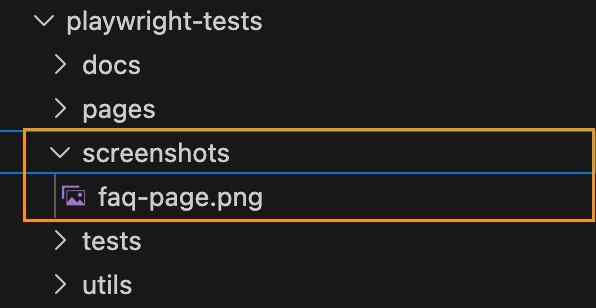
    Create pages folder. To create an abstraction for common methods and properties, we will first create base.page.ts to hold page property.

    import { Page } from '@playwright/test'

    export class BasePage {
    readonly page: Page;

    constructor(page: Page) {
    this.page = page;
    }
    }

    Then create login.page.ts file which will contain abstraction for Login Page. Extend LoginPage class with BasePage class to inherit page property.

    import { Locator, Page, expect } from '@playwright/test'
    import { BasePage } from '../base.page';

    export class LoginPage extends BasePage {

    constructor(page: Page) {
    super(page);
    }
    };

    Identify Locators

    Add locators for the elements on the Login page:

    import { Locator, Page, expect } from '@playwright/test'
    import { BasePage } from '../base.page';

    export class LoginPage extends BasePage {
    readonly usernameInput: Locator;
    readonly passwordInput: Locator;
    readonly loginButton: Locator;

    constructor(page: Page) {
    super(page);
    this.usernameInput = page.locator('[data-test="username"]');
    this.passwordInput = page.locator('[data-test="password"]');
    this.loginButton = page.locator('[data-test="login-button"]');
    }
    };

    Identify Methods

    Write methods which describe actions you might reuse in test cases:

    import { Locator, Page, expect } from '@playwright/test'
    import { BasePage } from '../base.page';

    export class LoginPage extends BasePage {
    readonly usernameInput: Locator;
    readonly passwordInput: Locator;
    readonly loginButton: Locator;

    constructor(page: Page) {
    super(page);
    this.usernameInput = page.locator('[data-test="username"]');
    this.passwordInput = page.locator('[data-test="password"]');
    this.loginButton = page.locator('[data-test="login-button"]');
    }

    async enterCredentials(username: string, password: string) {
    await this.usernameInput.fill(username);
    await this.passwordInput.fill(password);
    }

    async clickLoginButton() {
    await this.loginButton.click();
    }
    }

    Identify Assertions

    import { Locator, Page, expect } from '@playwright/test'
    import { BasePage } from '../base.page';

    export class LoginPage extends BasePage {
    readonly usernameInput: Locator;
    readonly passwordInput: Locator;
    readonly loginButton: Locator;

    constructor(page: Page) {
    super(page);
    this.usernameInput = page.locator('[data-test="username"]');
    this.passwordInput = page.locator('[data-test="password"]');
    this.loginButton = page.locator('[data-test="login-button"]');
    }

    async enterCredentials(username: string, password: string) {
    await this.usernameInput.fill(username);
    await this.passwordInput.fill(password);
    }

    async clickLoginButton() {
    await this.loginButton.click();
    }

    async IsSignedIn() {
    await expect(this.page.getByText('Products')).toBeVisible();
    }
    }

    Use Page Objects in test cases

    With the abstraction provided by the Page Object, we can easily integrate it into our test cases. This involves initializing the object and invoking its functions whenver needed.

    import { test } from '../utils/fixtures';
    import expect from "@playwright/test"
    import { LoginPage } from "../pages/login/login.page"

    test.beforeEach(async ({page}) => {
    await page.goto('https://www.saucedemo.com/');
    });

    test("login successfully", async ({ page }) => {
    const loginPage = new LoginPage(page);
    await loginPage.enterCredentials("standard_user", "secret_sauce");
    await loginPage.clickLoginButton();
    await loginPage.IsSignedIn();
    });
    }

    Looks good now! However there is one more improvement we can make to avoid duplication of objects initialisation in each and every test case. For this purpose, Playwright provides fixtures which are reusable between test files. You can define pages once and use in all your tests.

    Using Fixtures with Page Object Patterns

    That’s how Playwright’s built-inΒ pageΒ fixture could be implemented:

    import { test as base } from "@playwright/test"
    import { LoginPage } from "../pages/login/login.page"

    export const test = base.extend({
    loginPage: async ({page}, use) => {
    // Set up the fixture
    const loginPage = new LoginPage(page);

    // Use the fixture value in the test
    await use(loginPage);
    }
    })

    In order to use fixture, you have to mention fixture in your test function argument, and test runner will take care of it.

    import { test } from '../utils/fixtures';
    import expect from "@playwright/test"

    test.beforeEach(async ({page}) => {
    await page.goto('https://www.saucedemo.com/');
    });

    test("login successfully", async ({ loginPage }) => {
    await loginPage.enterCredentials("standard_user", "secret_sauce");
    await loginPage.clickLoginButton();
    await loginPage.IsSignedIn();
    });
    }

    Fixture helped us to reduce number code lines and improve maintainability.

    Bonus: Create Datafactory to store Users Data and Parametrize Test Case.

    To centralize all the data utilized within our test cases, let’s establish a dedicated location. For this purpose, we will create /datafactory folder and login.data.ts file to store usernames and passwords needed to test an application. Also, important to remember establishing interfaces and types which will validate data we store.

    export interface USERS {
    username: string;
    password: string;
    }

    type userTypes =
    "standard_user" |
    "locked_out_user" |
    "problem_user" |
    "performance_glitch_user"|
    "error_user"|
    "visual_user"

    export const users: Record<userTypes, USERS> = {
    "standard_user": {
    username: "standard_user",
    password: "secret_sauce",
    },
    "locked_out_user": {
    username: "locked_out_user",
    password: "secret_sauce",
    },
    "problem_user": {
    username: "problem_user",
    password: "secret_sauce",
    },
    "performance_glitch_user": {
    username: "performance_glitch_user",
    password: "secret_sauce",
    },
    "error_user": {
    username: "error_user",
    password: "secret_sauce"
    },
    "visual_user": {
    username: "visual_user",
    password: "secret_sauce"
    }
    }

    And the last step: we have to parametrise test case we have with different target users. There are a lot of ways to do so, you can check in documentation for more information. For this demo, I am going to iterate through the object we have and test against each user.

    import { test } from '../utils/fixtures';
    import expect from "@playwright/test"
    import { users } from '../utils/datafactory/login.data';

    test.beforeEach(async ({page}) => {
    await page.goto('https://www.saucedemo.com/');
    });

    for (const userType in users) {
    test(`login successfully with ${userType}`, async ({ page, loginPage }) => {
    await loginPage.enterCredentials(users[userType]["username"], users[userType]["password"]);
    await loginPage.clickLoginButton();
    await loginPage.IsSignedIn();
    });
    }

    Execute Test Cases and Generate a Report.

    Execute Test cases by running npx playwright test command from command line. As a result, report stores parametrised title for each test case by including name of the user.

    Best Practices for Page Object Pattern

    1. Make Pages Small. Break down web pages into smaller, more manageable components to improve readability and maintainability of the page objects, ensuring each object focuses on a specific functionality or section of the page.
    2. Separate Actions and Assertions. Maintain a clear distinction between actions, such as interacting with elements, and assertions, which verify expected outcomes. This separation enhances the clarity and maintainability of test cases, facilitating easier troubleshooting and debugging.
    3. Keep a Minimum Number of Assertions in Test Cases. Limit the number of assertions within each test case to maintain clarity and focus. By reducing complexity, it becomes easier to pinpoint the cause of a failed test case, ensuring that the reason for failure is readily identifiable.

    Conclusion

    In this article, we explored the implementation of the Page Object Model (POM), a powerful design pattern that abstracts crucial elements like page properties, locators, actions, and assertions. When implementing POM in Playwright, it’s essential to keep in mind best practices, such as creating distinct classes for each page, defining methods for user interactions, and integrating these page objects into your tests. Additionally, we also took a look at how to approach data handling and test parametrization.

    Repository with the code you can find here.

  • Part3. Writing your first test case.

    Part3. Writing your first test case.

    Introduction:

    In this tutorial, we are going to explore public website: https://practicesoftwaretesting.com

    More examples of automation testing friendly websites you can find in the repo throughly curated by Butch Mayhew.

    In Playwright, structuring a test suite involves organizing your test cases within descriptive blocks (test.describe) and utilizing setup and teardown functions (test.beforeEach and test.afterEach) to ensure consistent test environments. Here’s a brief description of each component and an example:

    1. test.describe block provides a high-level description of the test suite, allowing you to group related test cases together. It helps in organizing tests based on functionality or feature sets.
    2. Inside test.describe, individual test cases are defined using the test block. Each test block represents a specific scenario or behavior that you want to verify.
    3. test.beforeEach block is used to define setup actions that need to be executed before each test case within the test.describe block. It ensures that the test environment is in a consistent state before each test runs.
    4. test.afterEach block is utilized for defining teardown actions that need to be executed after each test case within the test.describe block. It helps in cleaning up the test environment and ensuring that resources are properly released.

    Here’s an example demonstrating the structure of a test suite in Playwright:

    import { chromium, Browser, Page } from 'playwright';
    
    // Define the test suite
    test.describe('Login functionality', () => {
      let browser: Browser;
      let page: Page;
    
      // Setup before each test case
      test.beforeEach(async () => {
        browser = await chromium.launch();
        page = await browser.newPage();
        await page.goto('https://example.com/login');
      });
    
      // Teardown after each test case
      test.afterEach(async () => {
        await browser.close();
      });
    
      // Test case 1: Verify successful login
      test('Successful login', async () => {
        // Test logic for successful login
      });
    
      // Test case 2: Verify error message on invalid credentials
      test('Error message on invalid credentials', async () => {
        // Test logic for error message on invalid credentials
      });
    });
    

    DOM Terminology

    Before we start writing test cases, it will be useful to brush up our memory on DOM Terminology

    1. HTML tags are simple instructions that tell a web browser how to format text. You can use tags to format italics, line breaks, objects, bullet points, and more.Β Examples: <input>, <div>, <p>
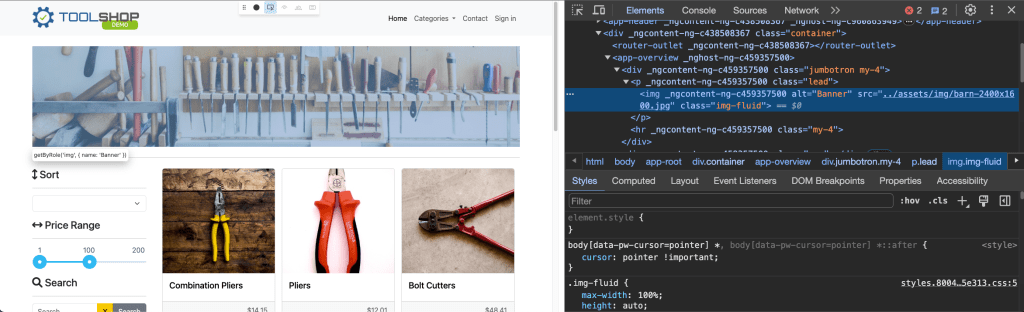
    2. Elements in HTML haveΒ attributes; these are additional values that configure the elements or adjust their behavior in various ways to meet the criteria the users want. Sometimes these attributes can have a value and sometimes doesn’t. Refer to Developer Mozilla Website for more information.”Class” and “id” are the most used attributes in HTML. (image: show class attribute, class value)
    3. Value in between angle braces is a plain text
    4. HTML tags usually come in pairs of Opening and Closing Tags.

    Locator Syntax Rules

    Locate Element by tag name:

    page.locator('img');

    Locate by id:

    page.locator('.img-fluid');

    Locate by class value:

    page.locator('.img-fluid');

    Locate by attribute:

    page.locator('[data-test="nav-home"]');

    Combine several selectors:

    page.locator('img.img-fluid');

    Locate by full class value:

    page.locator('[class=collapse d-md-block col-md-3 mb-3]');

    Locate by partial text match:

    page.locator(':text("Combination")');

    Locate by exact text match:

    page.locator(':text-is("Combination Pliers")');

    XPATH:

    As for XPath: it is not recommended approach to locate elements according to Playwright Best Practices:

    Source: https://playwright.dev/docs/other-locators#xpath-locator

    User-facing Locators.

    There are other ways to locate elements by using built-in APIs Playwright provides.

    There is one best practice we have to keep in mind: automated tests must focus on verifying that the application code functions as intended for end users, while avoiding reliance on implementation specifics that are not typically visible, accessible, or known to users. Users will only see or interact with the rendered output on the page; therefore, tests should primarily interact with this same rendered output. Playwright documentation: https://playwright.dev/docs/best-practices#test-user-visible-behavior.

    There are recommended built-in locators:

    1. page.getByRole()Β to locate by explicit and implicit accessibility attributes.
    2. page.getByText()Β to locate by text content.
    3. page.getByLabel()Β to locate a form control by associated label’s text.
    4. page.getByPlaceholder()Β to locate an input by placeholder.
    5. page.getByAltText()Β to locate an element, usually image, by its text alternative.
    6. page.getByTitle()Β to locate an element by its title attribute.
    7. page.getByTestId()Β to locate an element based on itsΒ data-testidΒ attribute (other attributes can be configured).

    Let’s check out the example:

    test('User facing locators', async({page}) => {
    await page.getByPlaceholder('Search').click();
    await page.getByPlaceholder('Search').fill("Hand Tools");
    await page.getByRole('button', {name: "Search"}).click();
    await expect (page.getByRole('heading', {name: "Searched for: Hand Tools"})).toBeVisible();
    })

    where we would like to explore search functional test:

    Part of the page to be tested
    1. click on the Search Placeholder
    Search placeholder HTML

    await page.getByPlaceholder('Search').click();

    2. enter “Hand Tools” text to search for available items.

    await page.getByPlaceholder('Search').fill("Hand Tools");

    3. locate Search button and click it to confirm.

    Search button HTML

    4. Then we have to verify if no items have been found by asserting text on this page:

    Result after clicking on Search button
    No Result Found HTML

    await expect (page.getByRole('heading', {name: "Searched for: Hand Tools"})).toBeVisible();

    5. Run this test case and make sure test is passing.

    Assertions

    Playwright incorporates test assertions utilizing the expect function. To perform an assertion, utilize expect(value) and select a matcher that best represents the expectation. Various generic matchers such as toEqual, toContain, and toBeTruthy are available to assert various conditions.

    General Assertions

    // Using toEqual matcher
    test('Adding numbers', async () => {
    const result = 10 + 5;
    expect(result).toEqual(15);
    });

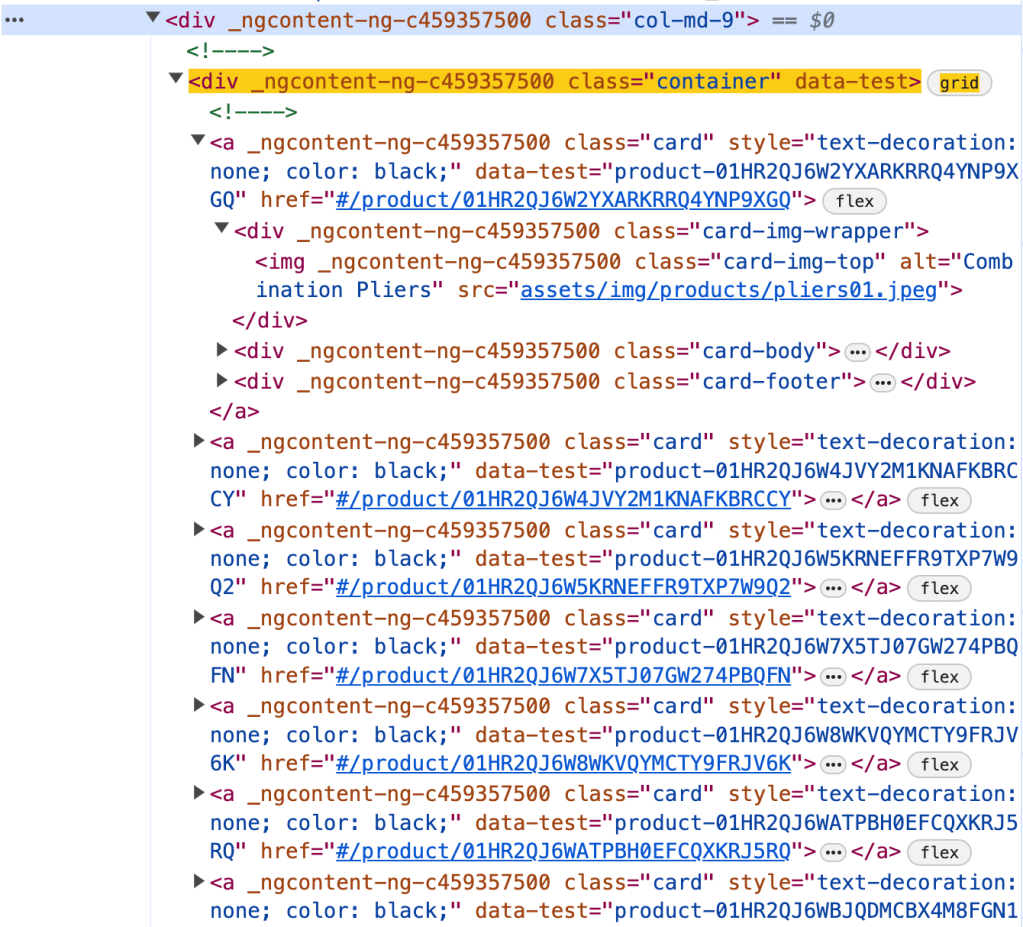
    Assert that the title of the product is “Combination Pliers”.

    Element on the page
    Element HTML
    const element = page.locator('.col-md-9 .container').first().locator('.card-title');
    const text = element.textContent();
    expect(text).toEqual('Combination Pliers');

    Locator Assertions

    Playwright provides asynchronous matchers, ensuring they wait until the expected condition is fulfilled. For instance, in the following scenario:

    const element = page.locator('.col-md-9 .container').first().locator('.card-title');
    await expect(element).toHaveText('Combination Pliers');

    !Note: do not forget to use await when asserting locators

    Playwright continuously checks the element with the test id of “status” until it contains the text “Combination Pliers”. This process involves repeated fetching and verification of the element until either the condition is satisfied or the timeout limit is reached. You have the option to either specify a custom timeout or configure it globally using the testConfig.expect value in the test configuration.

    By default, the timeout duration for assertions is set to 5 seconds.

    There are two types assertion though: Auto-Retrying Assertions and Non-Retrying Assertions.

    Auto-Retrying assertions provided below will automatically retry until they pass successfully or until the assertion timeout is exceeded. It’s important to note that these retrying assertions operate asynchronously, necessitating the use of the await keyword before them.

    Non-Retrying assertions enable testing various conditions but do not automatically retry.

    It’s advisable to prioritize auto-retrying assertions whenever feasible.

    Soft Assertions

    As a default behavior, when an assertion fails, it terminates the test execution. However, Playwright offers support for soft assertions. In soft assertions, failure doesn’t immediately stop the test execution; instead, it marks the test as failed while allowing further execution.

    For example, if we take the previous example and put .soft it assertion, in case assertion fails, it will not lead to termination of test execution.

    const element = page.locator('.col-md-9 .container').first().locator('.card-title');
    await expect.soft(element).toHaveText('Combination Pliers');

    Conclusion.

    In conclusion, we’ve explored the aspects of writing test cases using Playwright. We delved into the standard structure of a test case, incorporating essential elements such as hooks and grouping for efficient test management. Additionally, we examined various strategies for locating elements within web pages. Lastly, we discussed the importance of assertions in verifying expected behaviors, covering different assertion techniques to ensure robust and reliable testing. Examples of code, you can see in repository.

  • Part2: Have your test cases been suffering from ‘Flakiness’?

    Part2: Have your test cases been suffering from ‘Flakiness’?

    This is the second part of a series on Playwright using Typescript and today we are going to talk about challenges in UI Test Framework and explore how leveraging Playwright Best Practices can help us overcome them.

    End-to-end test cases have unique challenges due to their complex nature, as they involve testing the entire application user flow from start to finish. These tests often require coordination between different systems and components, making them non-sensitive to environmental inconsistencies and complex dependencies.

    What are other challenges we might encounter while working with UI Test Frameworks?

    1. Test cases can be slow to execute, as they often involve the entire application stack, including backend, frontend, database.
    2. End-to-End tests can be fragile, as they vulnerable to breaking whenever there is a change in DOM, even if the functionality stays the same.
    3. UI Tests consume more resources compared to other types of testing, requiring robust infrastructure to run efficiently.
    4. This type of test cases suffering from flakiness. Oh, yes, did I say flakiness? It could be a very annoying problem.

    Flaky tests pose a risk to the integrity of the testing process and the product. I would refer to great resource where The Domino Effect of Flaky Tests described.

    Main idea: while a single test with a flaky failure rate of 0.05% may seem insignificant, the challenge becomes apparent when dealing with numerous tests. An insightful article highlights this issue by demonstrating that a test suite of 100 tests, each with a 0.05% flaky failure rate, yields an overall success rate of 95.12%. However, in larger-scale applications with thousands of tests, this success rate diminishes significantly. For instance, with 1,000 flaky tests, the success rate drops to a concerning 60.64%. And seems, this problem is real and we have to handle it otherwise it will be “expensive” and annoying for test execution for a large-scale applications.

    Remember: Most of the time, flakiness is not the outcome of a bad test framework. Instead, it is the result of how you design the test framework and whether you follow its best practices.

    By following best practices and designing your tests carefully, you can prevent many flaky tests from appearing in the first place. That’s why before diving right into the implementation, let’s take a look at best practices for Playwright framework.

    1. Locate Elements on the page:

    • πŸ‘‰ Use locators! Playwright provides a whole set of built-in locators. It comes with auto waiting and retry-ability. Auto waiting means that Playwright performs a range of actionability checks on the elements, such as ensuring the element is visible and enabled before it performs the click.
    await page.getByLabel('User Name').fill('John');

    await page.getByLabel('Password').fill('secret-password');

    await page.getByRole('button', { name: 'Sign in' }).click();

    await expect(page.getByText('Welcome, John!')).toBeVisible();
    • πŸ‘‰ Prefer user-facing attributes over XPath or CSS selectors when selecting elements. The DOM structure of a web page can easily change, which can lead to failing tests if your locators depend on specific CSS classes or XPath expressions. Instead, use locators that are resilient to changes in the DOM, such as those based on role or text.
    • 🚫 Example of locator which could lead to flakiness in the future: page.locator('button.buttonIcon.episode-actions-later');
    • βœ… Example of robust locator, which is resilient to DOM change: page.getByRole('button', { name: 'submit' });
    • πŸ‘‰ Make use of built-in codegen tool. Playwright has a test generator, which can generate locators and code for you. By leveraging this tool, you might get the most optimised locator. There is more information on codegen tool and capability to generate locators using VS Code Extension in the introductory article I wrote before.
    • πŸ‘‰ Playwright has an amazing feature of auto-waiting. You can leverage this feature in web-first assertions. In this case, Playwright will wait until the expected condition is met. Consider this example: await expect(page.getByTestId('status')).toHaveText('Submitted'); . Playwright will be re-testing the element with the test id of status until the fetched element has the "Submitted" text. It will re-fetch the element and check it over and over, until the condition is met or until the timeout is reached. By default, the timeout for assertions is set to 5 seconds.
    • πŸ€– The following assertions will retry until the assertion passes, or the assertion timeout is reached. Note that retrying assertions are async, so you must await them: https://playwright.dev/docs/test-assertions#auto-retrying-assertions
    • πŸ€– Though you have to be careful, since not every assertion has auto-wait feature, please find them in the link by following this link: https://playwright.dev/docs/test-assertions#non-retrying-assertions.
    • βœ… Prefer auto-retrying assertions whenever possible.

    ​2. Design test cases thoughtfully:

    • πŸ‘‰ Make tests isolated. Each test should be completely isolated, not rely on other tests. This approach improves maintainability, allows parallel execution and make debugging easier.
    • To avoid repetition, you might consider using before and after hooks. More ways of achieving isolation in Playwright, you can find by following this link: https://playwright.dev/docs/browser-contexts
    • Examples:
    • 🚫 Not Isolated test case which assumes that the first test case should always pass and it will be a precondition for the next one (in this case, in the first test case user is logging in, and then test case has been reused in the next one. What if the first test case has been failed?
    test('Login', async () => {
    // Login
    await login(username, password);

    // Verify Logged In
    await verifyLoggedIn();
    });

    test('Create Post', async () => {
    // Assuming already logged in for this test
    // Create Post
    await createPost(title, content);

    // Verify Post Created
    await verifyPost(title, content);
    });
    • βœ… In order to make test cases isolated, before and after hooks come handy to set up preconditions for the second test case.
    describe('Test Login', () => {

    // Login
    await login(username, password);

    // Verify Logged In
    await verifyLoggedIn();

    });

    describe('Post Management', () => {

    beforeEach(async () => {
    await login(username, password);
    });

    test('Create Post', async () => {
    // Create Post
    await createPost(title, content);

    // Verify Post Created
    await verifyPost(title, content);
    });

    // more test cases could be added
    });
    • πŸ‘‰ Keep test cases small and avoid million assertions in one test case. Make sure, that one test case has one reason for test failure. You will thank yourself later for that.
    • πŸ‘‰ Make sure you handle data correctly in the test case. Ensure that each test case is independent and does not rely on the state of previous tests. Initialize or reset the test data as needed before each test to prevent data dependency issues. When testing functionalities that interact with external services or APIs, consider using mock data or stubs to simulate responses.

    How to combat flaky tests?

    • πŸ‘‰ Use debugging capabilities of Playwright tool. Run test cases with the flag --debug. This will run tests one by one, and open the inspector and a browser window for each test. it will display a debug inspector and give you insights on what the browser actually did in every step. 
    • πŸ‘‰ Playwright supports verbose logging with the DEBUG environment variable: DEBUG=pw:api npx playwright test. In one of my articles, I also explain how to enable this mode from VSCode Extension.
    • πŸ‘‰ Playwright provides a tracing feature that allows you to capture a detailed log of all the actions and events taking place within the browser. With tracing enabled, you can closely monitor network requests, page loads, and code execution. This feature is helpful for debugging and performance optimization.
    • To record a trace during development mode set the --trace flag to on when running your tests: npx playwright test --trace on
    • You can then open the HTML report and click on the trace icon to open the trace: npx playwright show-report.
    • πŸ‘‰ You might want to slow down test execution by test.slow() to see more details. Slow test will be given triple the default timeout.
    • Example:
    import { test, expect } from '@playwright/test';

    test('slow test', async ({ page }) => {
    test.slow();
    // ...
    });

    Conclusion

    In conclusion, as you start working with new test automation tool, it’s vital to dive into best practices and familiarize yourself with the tool’s capabilities. Remember, flakiness isn’t solely the fault of the test tool itself; more often than not, it comes from how you utilize and implement it.

    Summing up best practices for Playwright:

    1. Utilize Locators and prioritize user-facing attributes.
    2. Ensure test isolation.
    3. Leverage built-in code generation functionalities.
    4. Make debugging your ally