Playwright provides bunch of powerful features for debugging! And one of them is verbose logging. According to the Playwright documentation, by running the command:
DEBUG=pw:api npx playwright test
you can get detailed overview of what is happening behind the scenes.
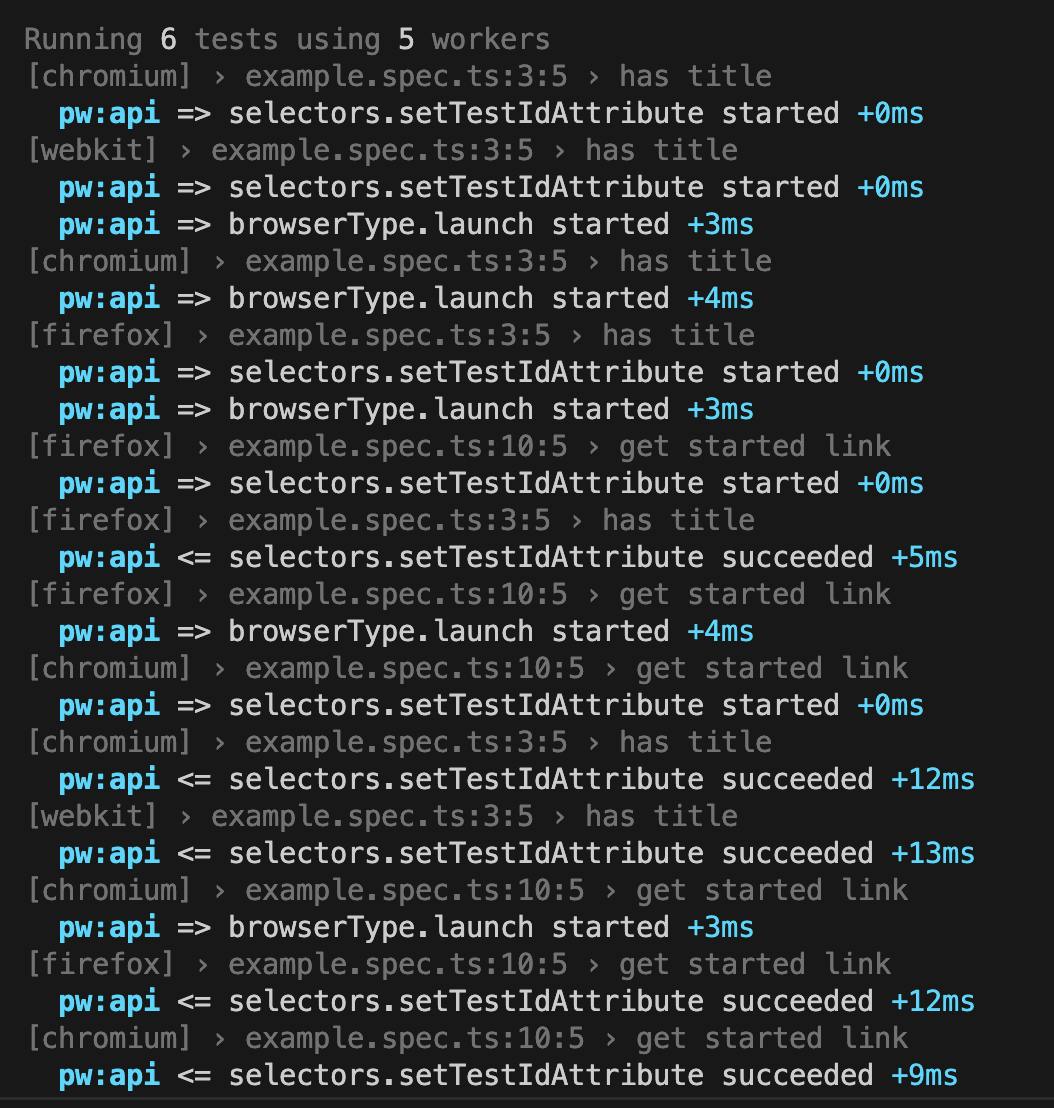
If you make a step further and install Playwright Extension, which will give you the whole spectrum of opportunities for effective test development, like: running tests with a single click, easier configuration, codegen capabilities, etc.
While utilising all these awesome capabilities, you might miss verbose logging in test output.
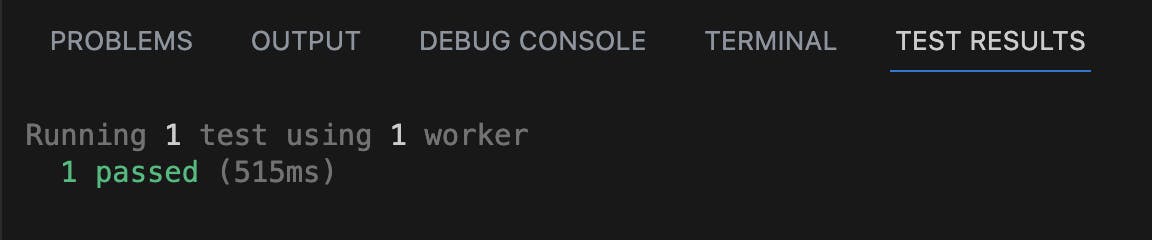
How to put all these nice capabilities (leveraging Playwright Extension features and verbose logging) together? There is a way: let’s add one line of code in VSCode Playwright Extension configuration file.
Steps to achieve it:
- In your VSCode IDE navigate to
Extensions - Find Playwright Extension and click on
gearicon. Navigate to extension settings. - Click on
Edit in settings.json
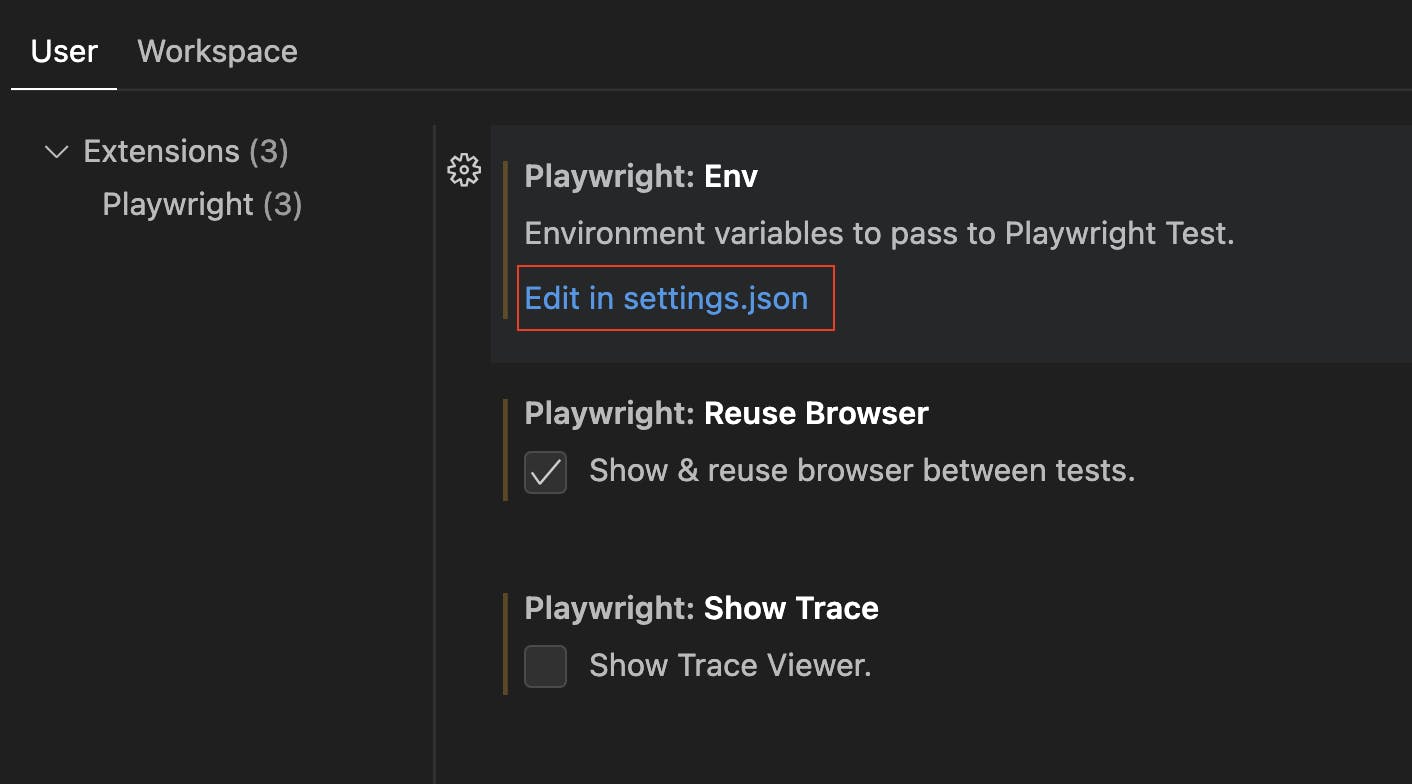
- Add one line of configuration:
"DEBUG": "pw:api"COPY"playwright.env": { "DEBUG": "pw:api" } - Save
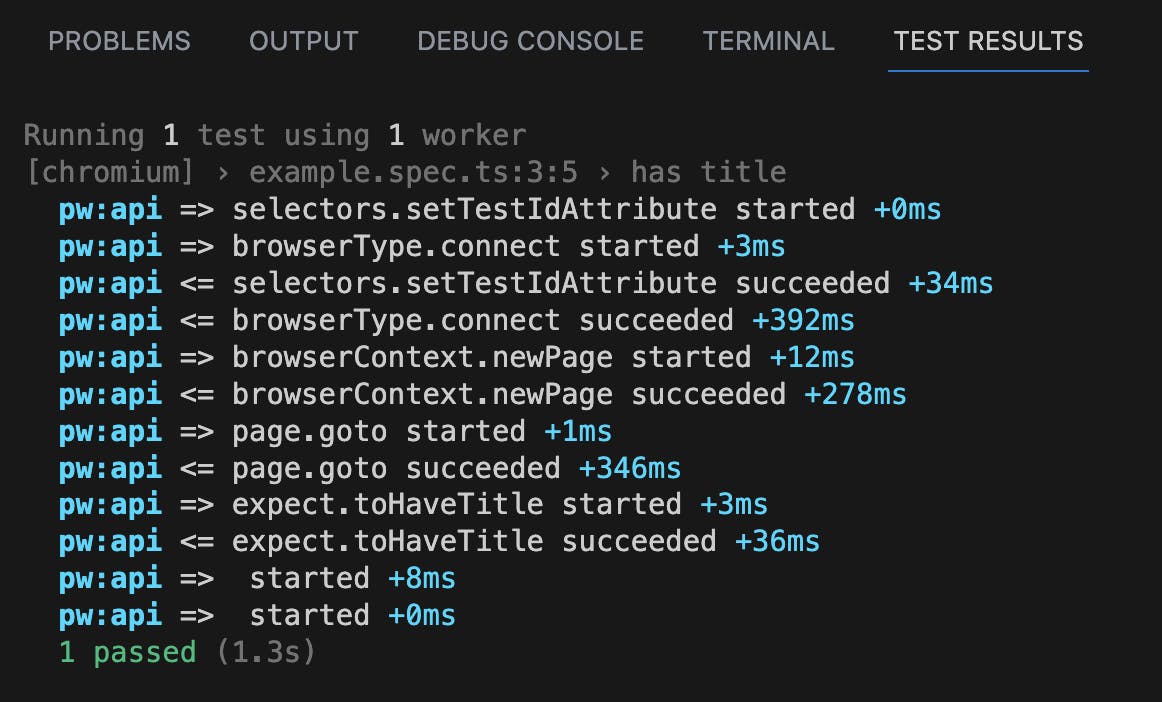
setting.jsonfile and close it. - Run test cases again in a
Testingtab and check - Check Test Output and voilà!


Leave a reply to Part2: Have your test cases been suffering from ‘Flakiness’? – TechNotes Cancel reply