Introduction
As part of an open-source project by the Women Coding Community, we’re building a Playwright test suite to ensure our frontend works reliably. While functional tests cover most interactions, we noticed that for some static pages, like FAQs or other content-heavy sections, visual testing could add real value. Even minor CSS changes or layout shifts can break the page in ways users notice, but automated functional tests often miss these subtle regressions.
This is where visual testing comes in. It lets us capture screenshots of key pages and automatically compare them against a reference, so we can catch unintended visual changes before they reach our users.
Playwright makes it easy to implement visual testing in just a few lines of code:
test('Verify FAQ Page Outline', async ({ page }) => { await page.goto('/mentorship/faqs'); await expect(page).toHaveScreenshot('faq-page.png', { fullPage: true });});
The challenge: different machines, different results.
While this code works on a single machine, it may fail on another due to subtle rendering differences. Fonts, spacing, and other visual details vary between operating systems: Windows renders fonts differently than macOS, which renders differently than Linux. For users, this is expected and harmless. But for visual tests, it creates false positives when running on different developer machines or in our CI pipeline.
See the difference in the screenshots shared in this article:

For example, a screenshot taken on a macOS laptop may fail if the same test runs on a Linux-based CI environment.
The solution? Docker. It gives us a consistent environment so tests pass reliably everywhere.
How we did it
Reference: check PR here.
Dockerfile
We built DockerFile on the official Playwright image, which includes browsers and system dependencies. Then we installed our project dependencies and copied the code.
FROM mcr.microsoft.com/playwright:v1.57.0-nobleWORKDIR /appENV CI=trueRUN npm install -g pnpmCOPY package.json pnpm-lock.yaml ./RUN pnpm install --frozen-lockfileCOPY src ./srcCOPY public ./publicCOPY playwright-tests ./playwright-testsCOPY next.config.mjs tsconfig.json jest.config.ts jest.setup.js ./USER pwuser
Docker Compose
Docker Compose was introduced to make running visual tests easy and consistent. It lets developers start and run everything with a single command, using the same setup locally and in CI. This avoids environment differences and reduces “works on my machine” issues.
Our Compose file:
- Defines a service playwright responsible for running the tests.
- Builds the Docker image using our Dockerfile.
- Sets /app as the default working directory.
- Loads environment variables from .env.local for consistency with local development.
- Mounts volumes for:
- Project directory – so the container can access source code without copying it every time.
- Screenshots – so new screenshots persist and visual diffs remain across container runs.
- Playwright reports – so test reports are available locally and in CI artifacts.
Standardized Screenshots
We use a consistent viewport:
use: { ...devices['Desktop Chrome'], viewport: { width: 1280, height: 720 },},
And a predictable snapshot path:
snapshotPathTemplate: 'playwright-tests/screenshots/{arg}{ext}',
This eliminates layout differences caused by varying screen sizes and makes visual diffs easy to review.
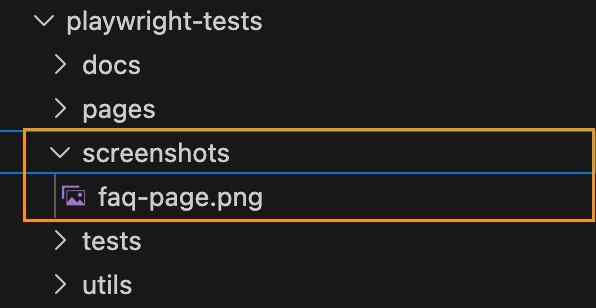
After test execution, screenshots are saved in the screenshot folder located inside the playwright-tests root directory.
CI Integration
To run visual tests inside Docker in CI, we configured environment variables:
API_BASE_URL: https://wcc-backend.fly.dev/apiAPI_KEY: ${{ secrets.API_KEY }}
We updated CI commands.
Run tests without updating screenshots:pnpm test:e2e:dockerRun tests and update screenshots for intentional UI changes:pnpm test:e2e:docker:update
These commands are defined in package.json:
"test:e2e:docker": "docker compose run --rm playwright pnpm playwright test","test:e2e:docker:update": "docker compose run --rm playwright pnpm playwright test --update-snapshots"
This setup ensures tests run consistently in CI and locally, while keeping secrets secure and allowing controlled screenshot updates when needed.
Exclude visual tests from regular execution
Visual tests can be slower and more prone to false positives compared to regular tests.
To manage this:
- Introduced an @visual tag for all visual tests.
- Excluded these tests from standard runs using –grep-invert.
- Only run them in the controlled Docker environment.
Example test:
test('Verify FAQ Page Outline', { tag: '@visual' }, async ({ page }) => { await page.goto('/mentorship/faqs'); await expect(page).toHaveScreenshot('faq-page.png', { fullPage: true });});
Standard test command in package.json:
"test:e2e": "playwright test --grep-invert @visual"
This prevents false positives during regular development, while maintaining reliable visual tests in Docker.
Why It Matters
With this setup, we can catch real visual regressions while ignoring harmless OS-level differences. Docker guarantees a consistent testing environment, and Playwright makes capturing and comparing screenshots simple.
Our users may see slightly different fonts depending on their OS—but our tests are now reliable, reproducible, and actionable, keeping our UI looking great everywhere.
PR: https://github.com/Women-Coding-Community/wcc-frontend/pull/186
 TechNotes
Leave a comment